This guide is for 5.0+ unreal engine version projects, if your using 5.0 you will need to enable the Enhanced Inputs plugin in the plugin menu. You will also need to go to the Project Settings and set the Default Player Input Class to EnhancedPlayerInput and set the Default Input Component Class to the EnhancedInputComponent. This is only required if your using 5.0, in 5.1+ these settings are already set to these values.
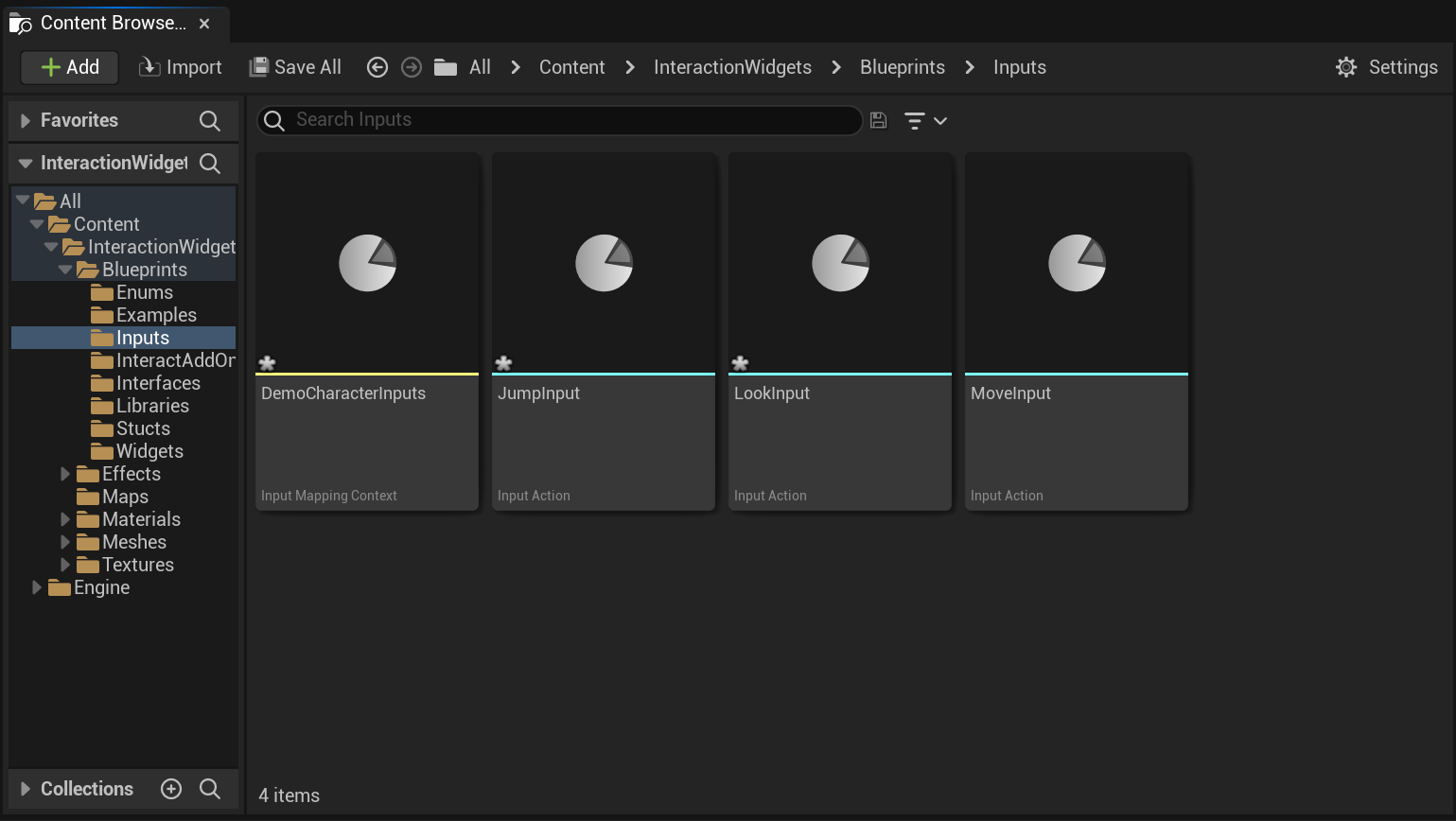
Go to the Blueprints folder and create a new folder called Inputs.
Go to the Inputs folder, right click and create a new InputMappingContext call this DemoCharacterInputs.
Next right click in the Inputs folder and create the following InputAction blueprints with the names shown below.
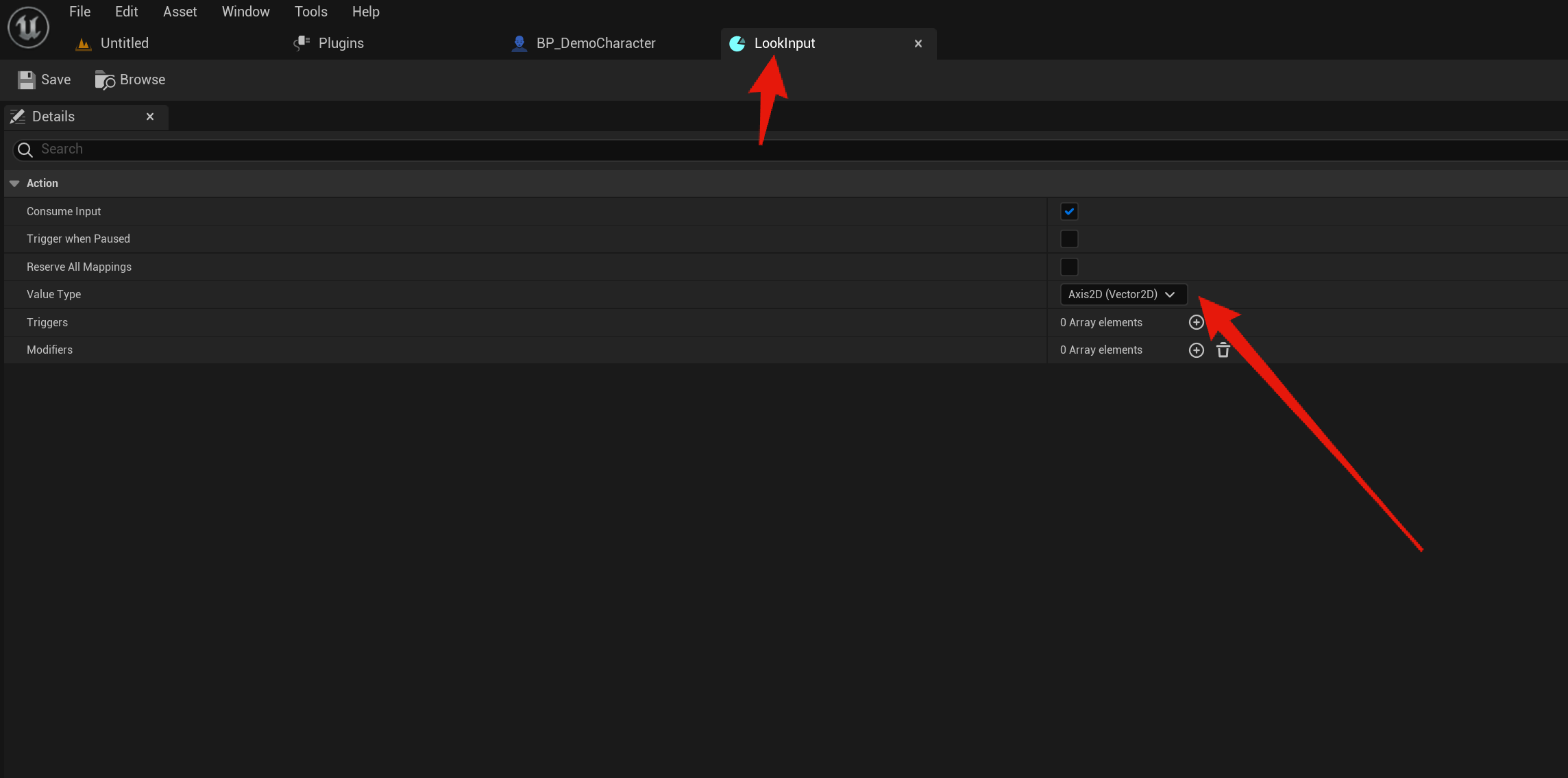
Next go to the LookInput and copy the image below.
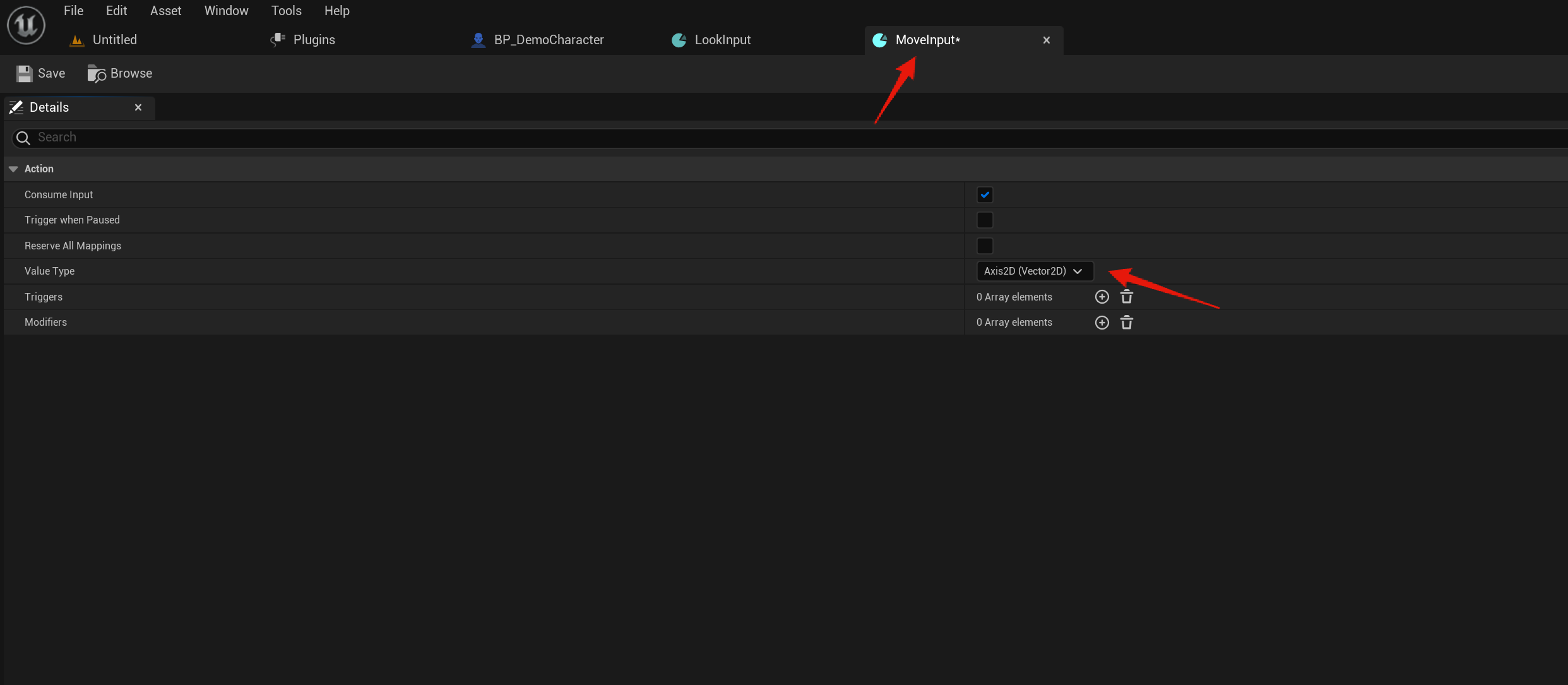
Next go to the MoveInput and copy the image below.
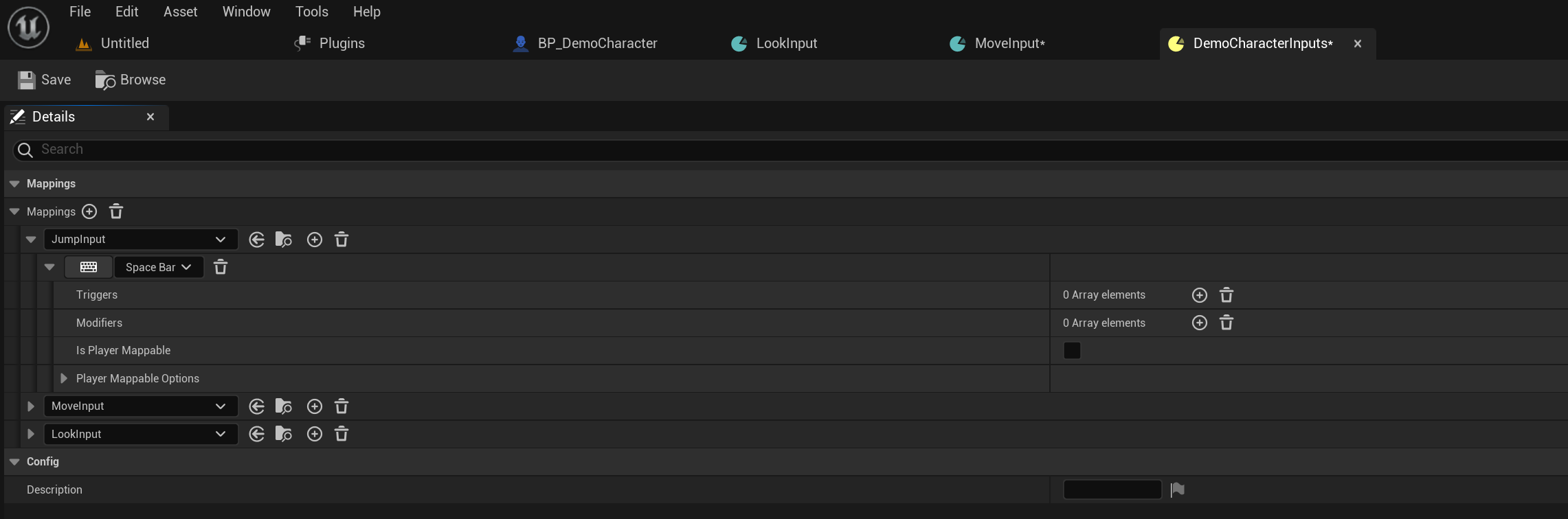
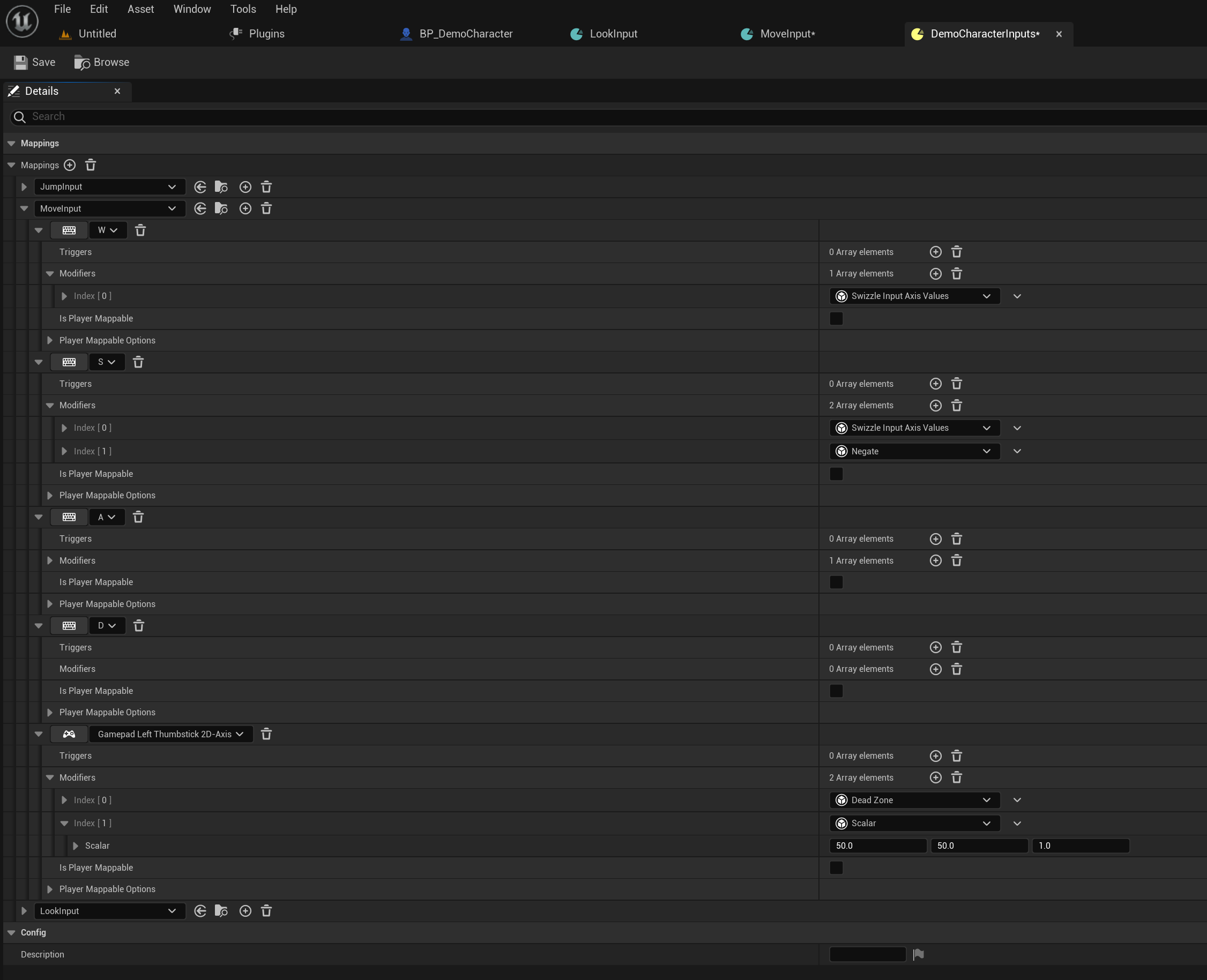
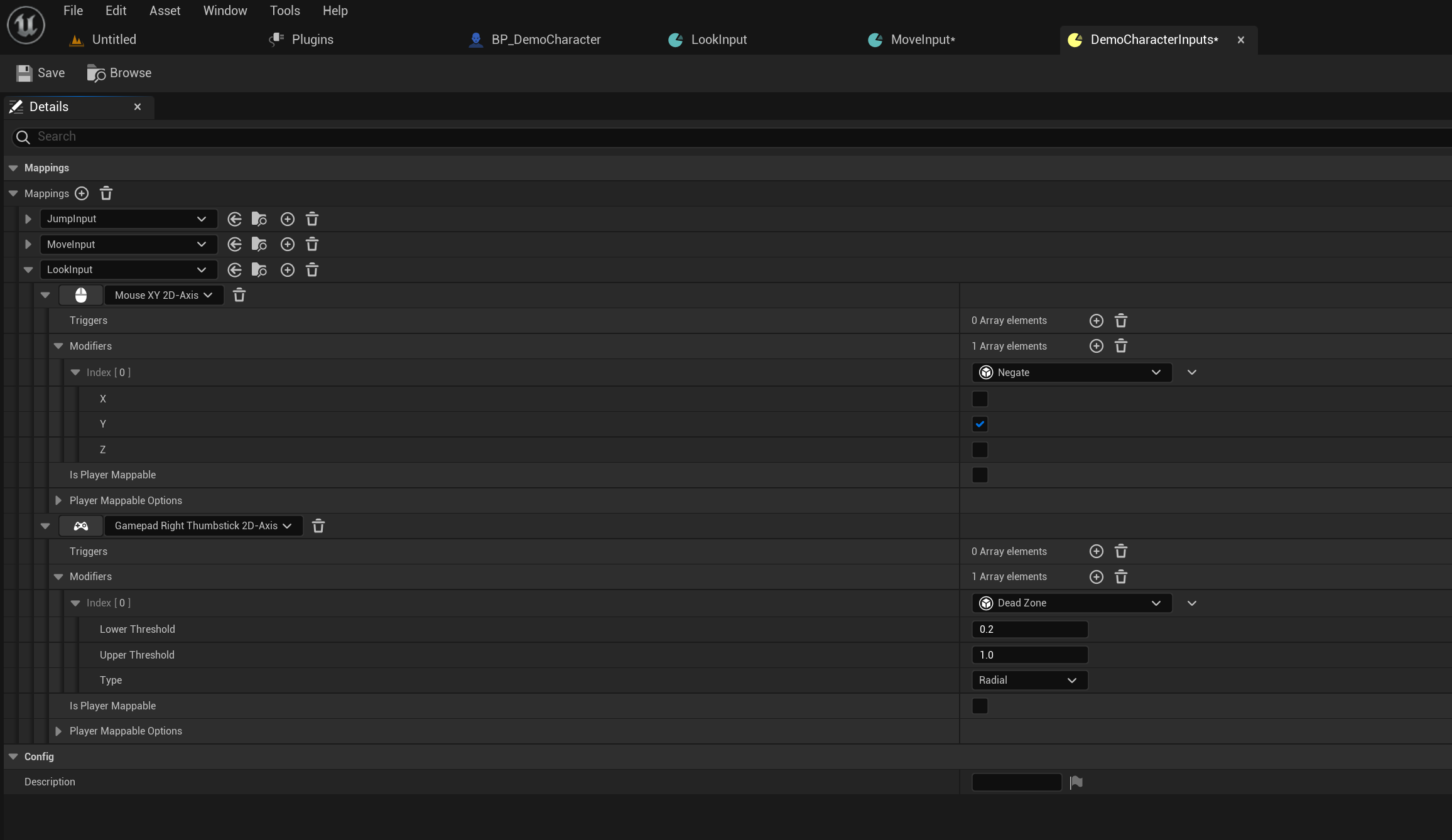
Next go to the DemoCharacterInputs and copy the images below, click the + button next to the Mappings text to add new input actions. Then go though each action input and add the key inputs and their modifiers, make sure you copy the modifier settings as well.
Click the + button next to the input action name box to add new keys to that input action.
Jump Inputs below.
Move Inputs below.
Look Inputs below.
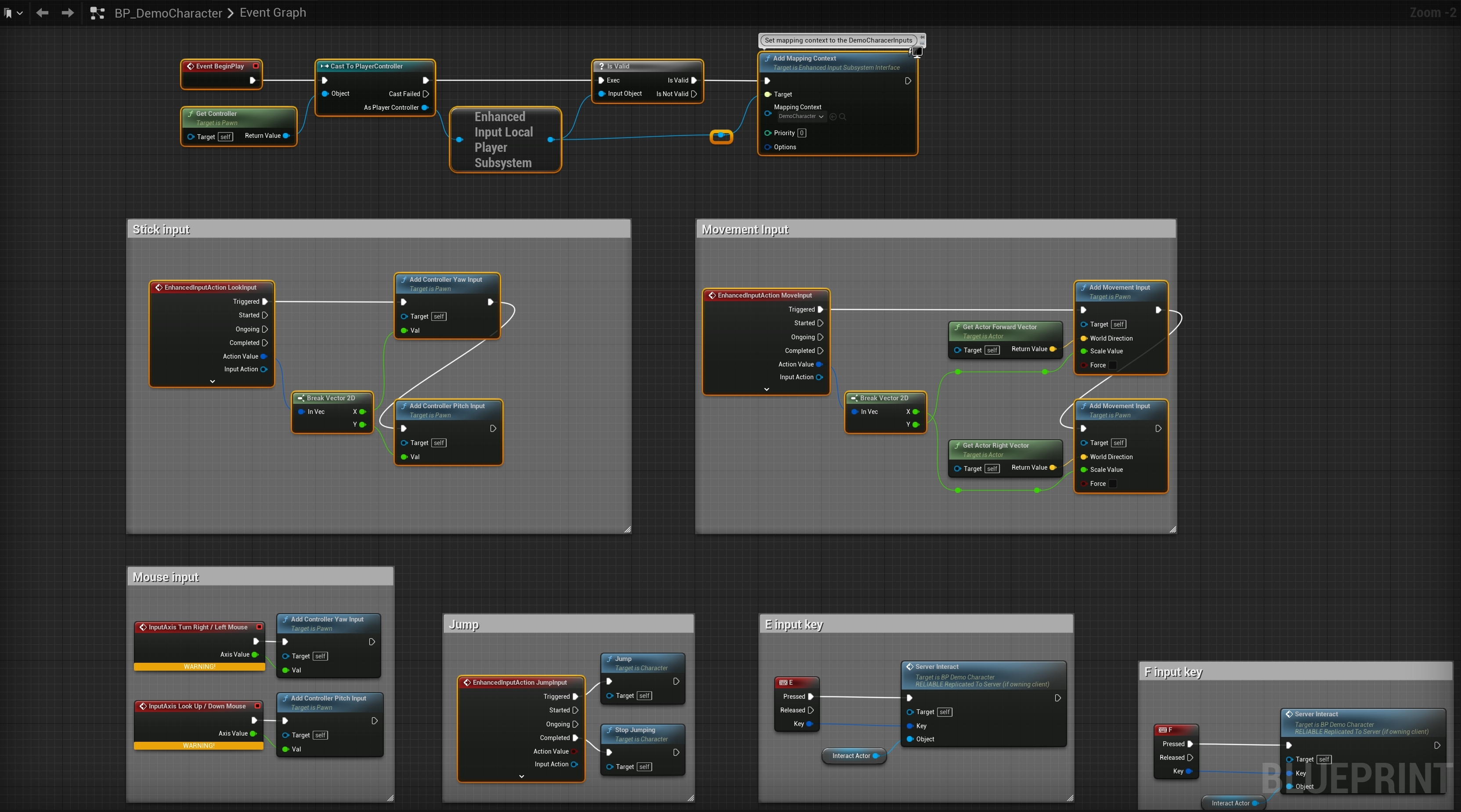
Next go to the BP_DemoCharacter and copy the image below make sure you have the same highlighted nodes.
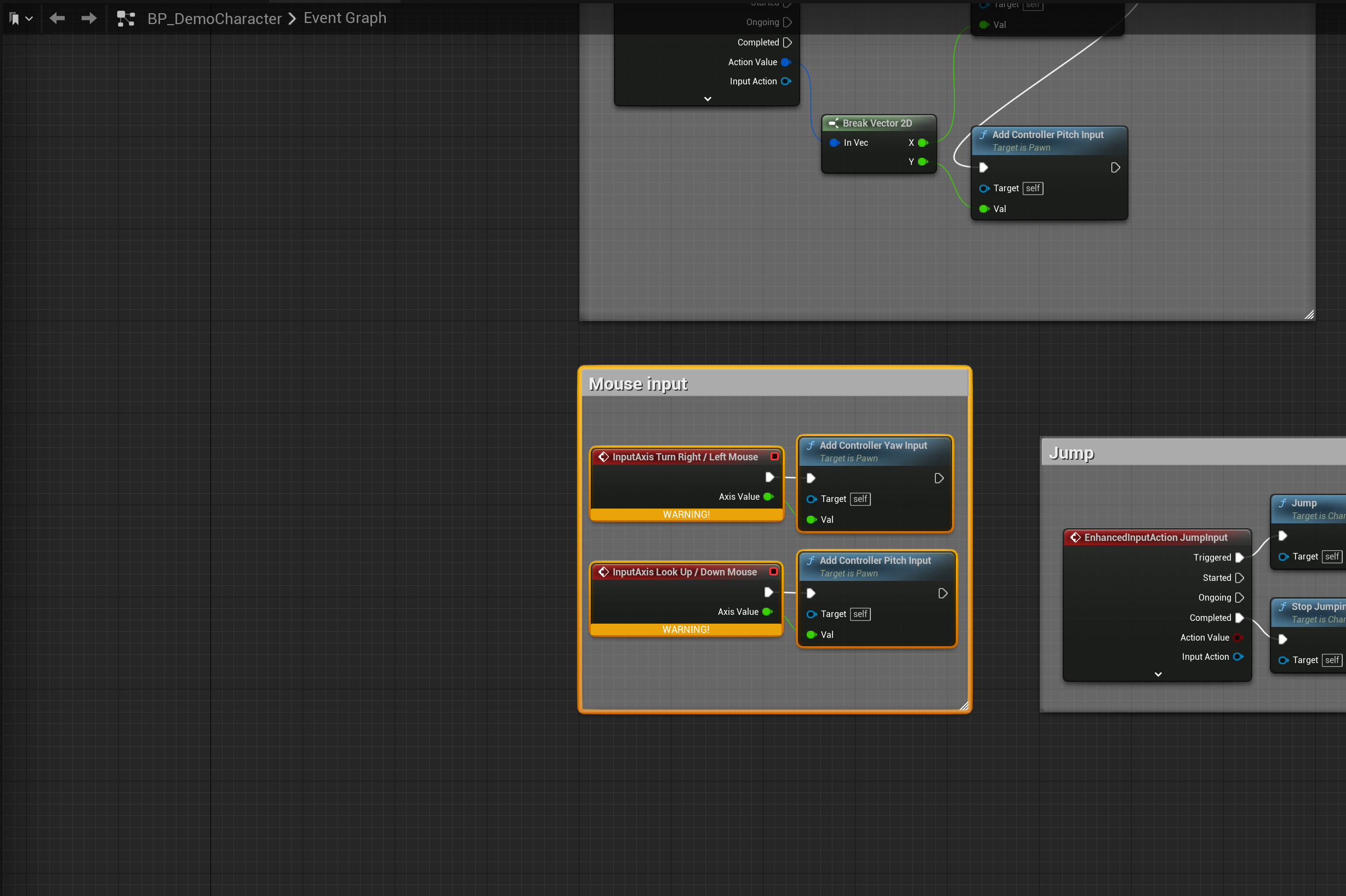
Next highlighted and delete the nodes shown below.
 Defuse Studios