You can find the cable placement settings in the BP_PlayerPowerComponent in the Class Defaults find the Placement Settings category then find the Cable Placement category.
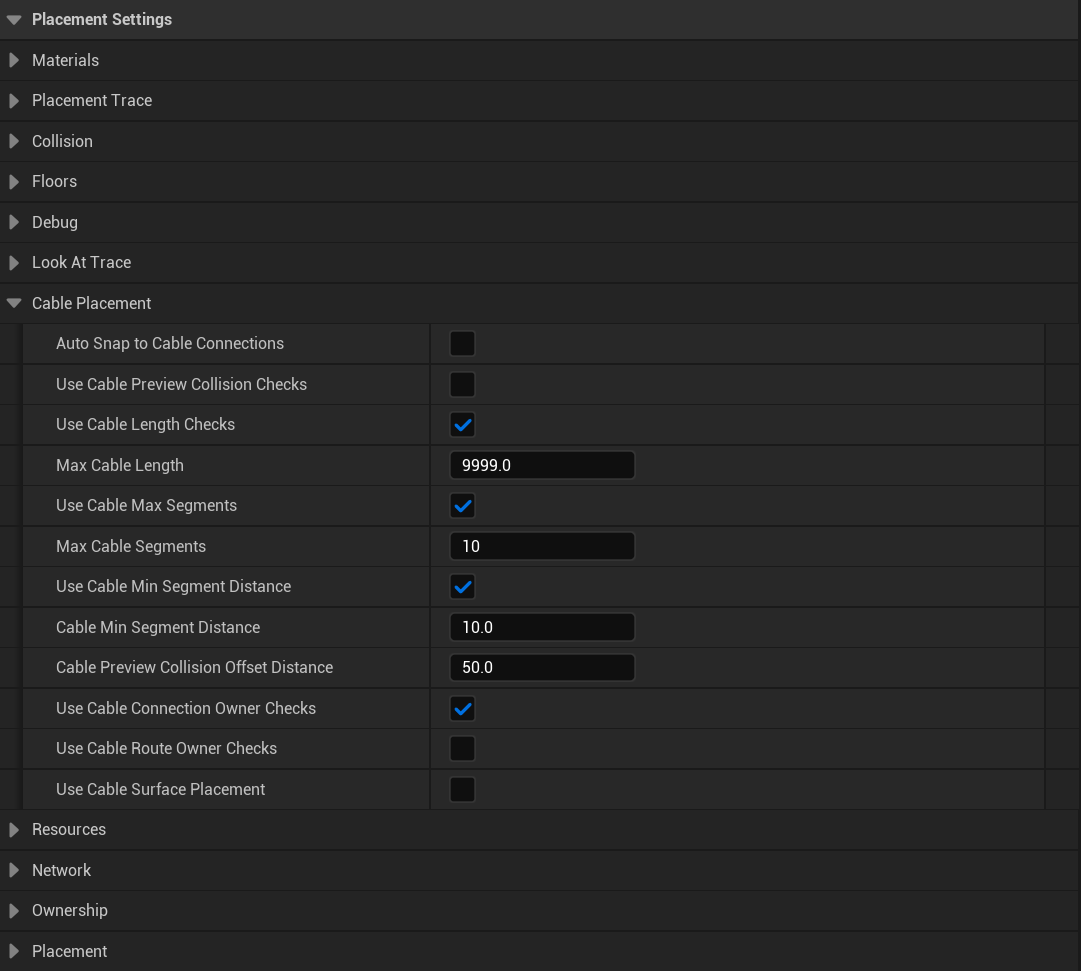
Here you can change the cable placement settings, you can hover your mouse over each settings name to get a tooltip with more info about each setting.
Snapping
Auto Snap to Cable Connections – If enabled this cause the cable to snap to the nearest cable connection point on the device a player is looking at if their is an available connection point.
Length
Use Cable Length Checks – If enabled the cable will be capped to a the Max Cable Length value, this value is in CM, if the cable exceeds that max value placement wont be allowed.
Use Cable Max Segments – If enabled the cable will only be allow the Max Cable Segments number of bends, it will not allow additional bends once at this value. (Its recommended to keep this on for multiplayer player games as each bend a cable has is additional data that must be sent to the server and from the server to other clients)
Use Cable Min Segment Distance – If enabled this will stop the player from placing multiple cable bends to close to each other. (Its recommend to keep this on to stop players spam creating cable bends in the same location)
Use Cable Surface Placement – If enabled the cable must be placed along a surface, this will stop the player being able to place cable bends mid air.
Collision
Use Cable Preview Collision Checks – If enabled while placing a cable collision checks will be done to see if the cable overlaps actors and will block placement if that cable collision traces are blocked.
Cable Preview Collision Offset Distance – If Use Cable Preview Collision Checks is enabled this provides an offset for the collision detection trace from the start cable location, this can be used if the cables collision check trace is hitting the device the cable starts from.
Ownership
Use Cable Owner Checks – If enabled players will only be able to connect cables to devices they own or devices that have no owners.
Use Cable Route Owner Checks – If enabled the cable will only be allow to be placed in areas that the player is an owner of or areas that have no owners.
 Defuse Studios