The ground check component is used to detect if a device is being placed on a surface, this is used to stop placement of devices in the air.
You can find the BP_GroundDetectComponent in any of the included device blueprints such as the BP_CarBattery, to access its settings select the BP_GroundDetectComponent in the Components panel and in the Details panel find the Detection Settings category.
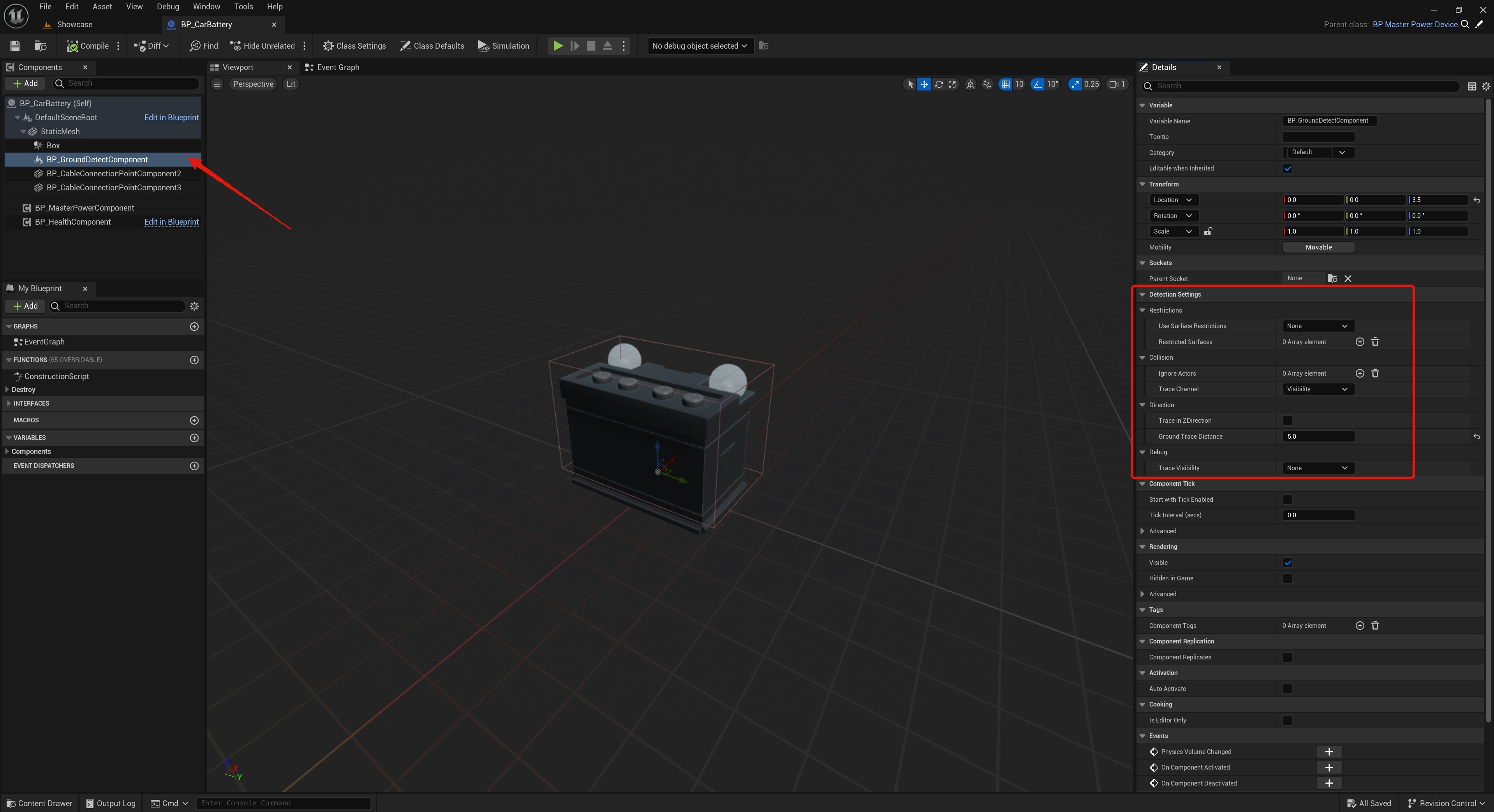
This component does a trace in its Z direction, if that traces hits an actor then it will allow placement, but the component has some additional settings.
Use Surface Restrictions – This allows you to set Physics materials the ground detect component either allows or disallows. If set to Allow then the component will only allow placement on surfaces that use a Physics Material type thats added to the Restricted Surfaces setting array. If set to Disallow the component will not allow placement on Physics Material types added to the Restricted Surfaces setting array.
Ignore Actors – Here you can set actor classes the component wont consider a surface that the device can be placed on
Trace Channel – This is the trace channel the trace that detects actors uses, the default value is Visibility.
Trace in Z Direction – If enabled no matter the rotation of the detect component the trace will always trace down in the world Z axis.
Ground Trace Distance – This is how long the trace will be from the detect components location
Trace Visibility – This changes the traces visibility in game, this can be helpful if you are having issue with trace not hitting something.
You can add the BP_GroundDetectComponent like any other component, click the Add button in the Components panel and search for the GroundDetectComponent component.
Devices can have multiple GroundDetectComponents this can be helpful for large devices, when placing all the GroundDetectComponent must hit a surface to allow placement.
You can move and rotate the GroundDetectComponent components in the device blueprints viewport.
 Defuse Studios