To change a device’s settings go to the device blueprint so for example the BP_Switch and select the BP_MasterPowerComponent in the Components panel, then in the Details panel find the Power Settings category and in that category you will find the Switch settings.

Here you can change this device’s Switch settings, you can hover your mouse over each settings name to get a tooltip with more info about each setting.
Can be Switch Off – If this setting is enabled the device can be turned off, if disabled the device is always switched On, If the device requires power it will still be disable when it doesn’t receive enough power.
Block Output Power when Off – If true the device when turned off will not provide power to any devices connected to its Output connection components.
Switched On – This is the starting state for the device, if ticked on the device will started switched on.
Functions
There are built in functions to enable and disable the Switched On state of a device. These functions must be used server side if you are make a multiplayer game.

The Set Switched On function can be called from the device’s BP_MasterPowerComponent, you can then set the devices new switched on value.
When a device’s switch on value changes the PES Switched On event will be called, in the device’s blueprint, you can see an example of the BP_Switch below that used this event to rotate the switches handle mesh to the on/off rotation when the device is switched on or off.
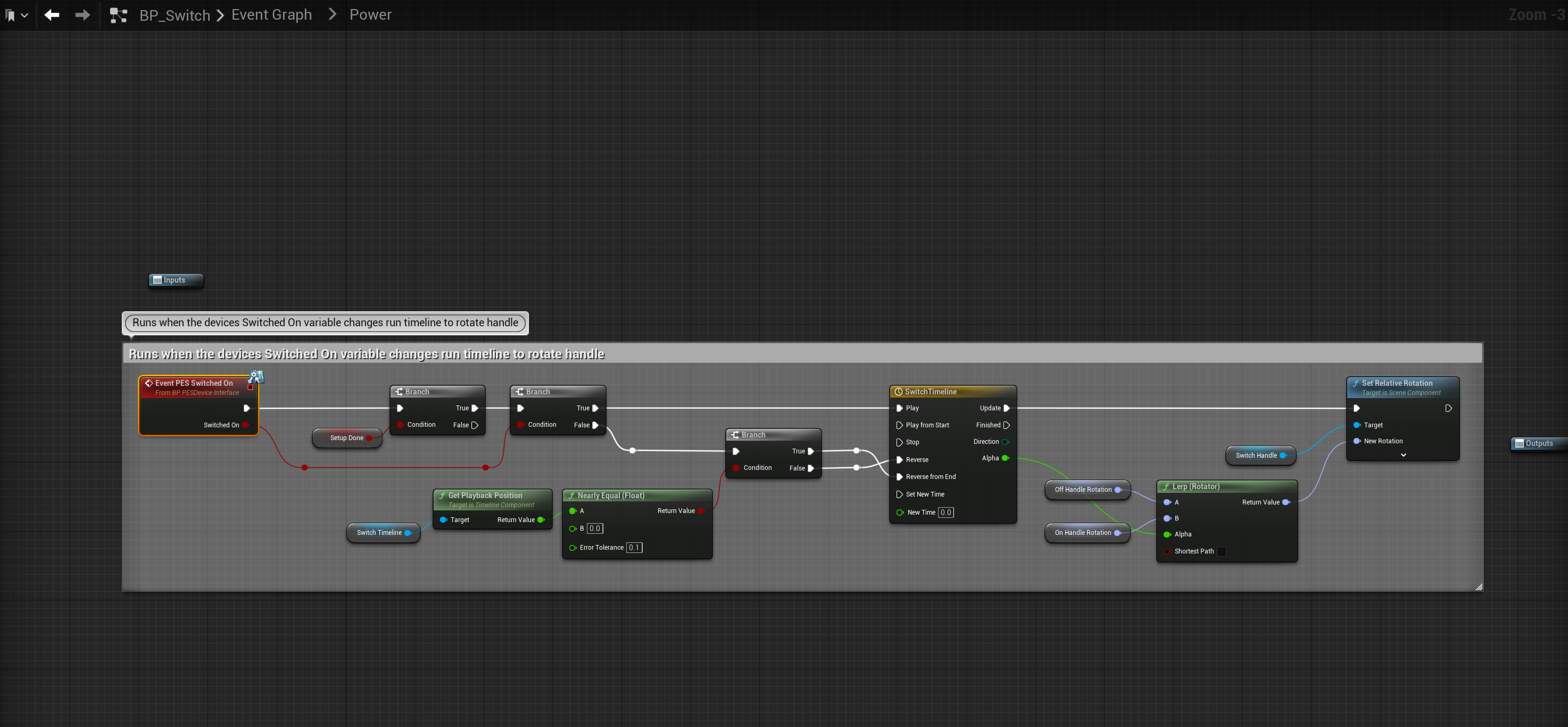
The PES Switched On event can be used in any device blueprint to run code specific to that device when its switched on.
 Defuse Studios