Player farming system allows for object to be snapped to socket locations when placing an object. These sockets are defined in the mesh editor, like show in the image below for the SM_LargePlanter. This may look a little different depending on the engine version, if you do not have the Socket Manager window you can open in by clicking the Window drop down and tick on Socket Manager there.

To add new sockets click the + button in the top right of the Socket Manager window, you will now be able to name the socket and change its location and rotation in the viewport. If you want to know more about adding sockets to static meshes there is a forum post below.
https://forums.unrealengine.com/t/how-do-you-add-a-socket-to-a-static-mesh/584236
Socket Names
A sockets type is determined by its name, all sockets that are being used by Player Farming System must begin with PFS_ like the sockets shown in the image above. The next part of the name should be the socket type, so for example PFS_LargePlanter this means that socket is a LargePlanter type and only objects set to snap to those sockets will use that socket. Last should just be a number as you may have multiple of the same socket type, so for example;
PFS_LargePlanter_01
PFS_LargePlanter_02
PFS_LargePlanter_03
Socket Types
To change the sockets an object can snap to while placing go to its blueprint like for example the BP_MedPlanter then select the Class Defaults and search for the Sockets category, like in the image below.
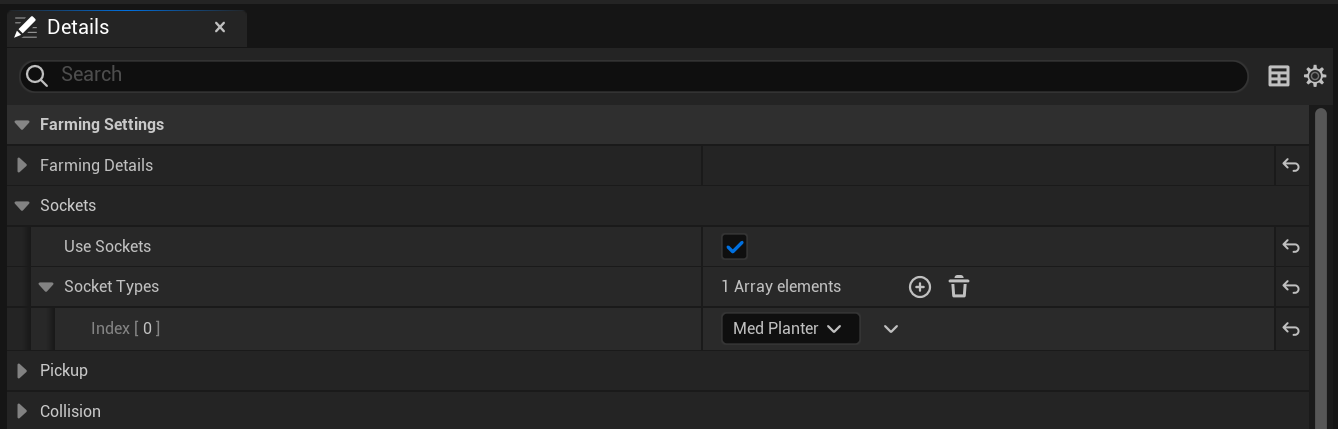
Here you can enable if the object should use sockets, if false the object will not snap to any sockets. You can also set the Socket types, so for this object it will be able to snap to MedPlanter socket type, so for example the socket name would need to be PFS_MedPlanter_01 in a static mesh for this object to snap to it.
You can also add multiple socket type, this will allow the object to snap to multiple different sockets, like for example the the BP_CarrotPlant shown in the image below. This object can be snapped to 4 different socket type.
Plants also have an additional setting called Require Socket, If enabled the plant will only be able to be placed when snapped to a socket, this means the plant wont be able to be placed anyway on the terrain.
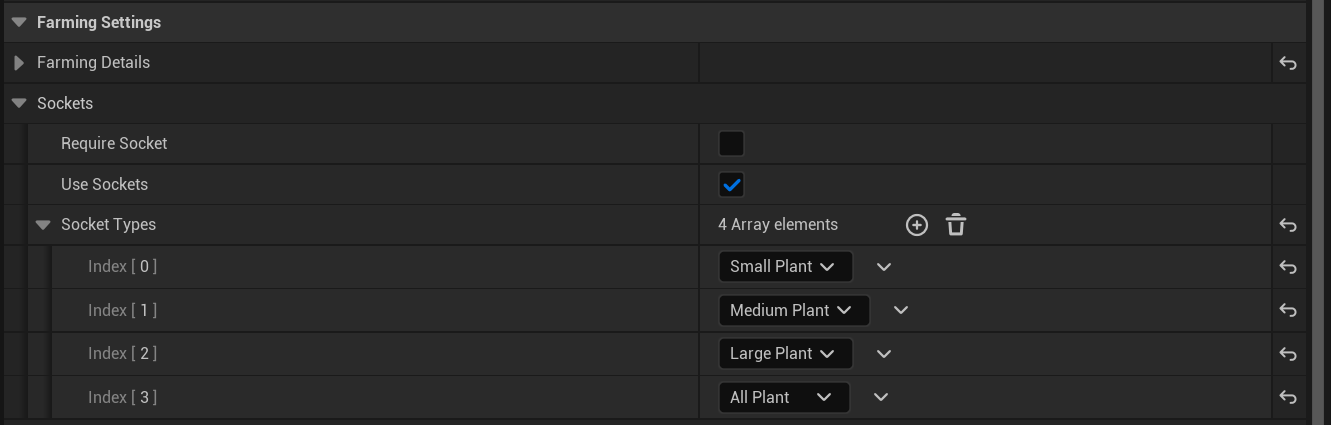
Adding Socket Types
To add new socket types that can be selected in the Socket Types setting you need to go to the E_PlantSocketType, there you can add a new Enumerator, name it, and then save. You can now select the new socket type in the object’s Socket Types setting.
As an example of how you would name your new sockets if your new socket type was called Huge Plant your socket names in your meshes would be called;
PFS_HugePlant_01
PFS_HugePlant_02
PFS_HugePlant_03
 Defuse Studios