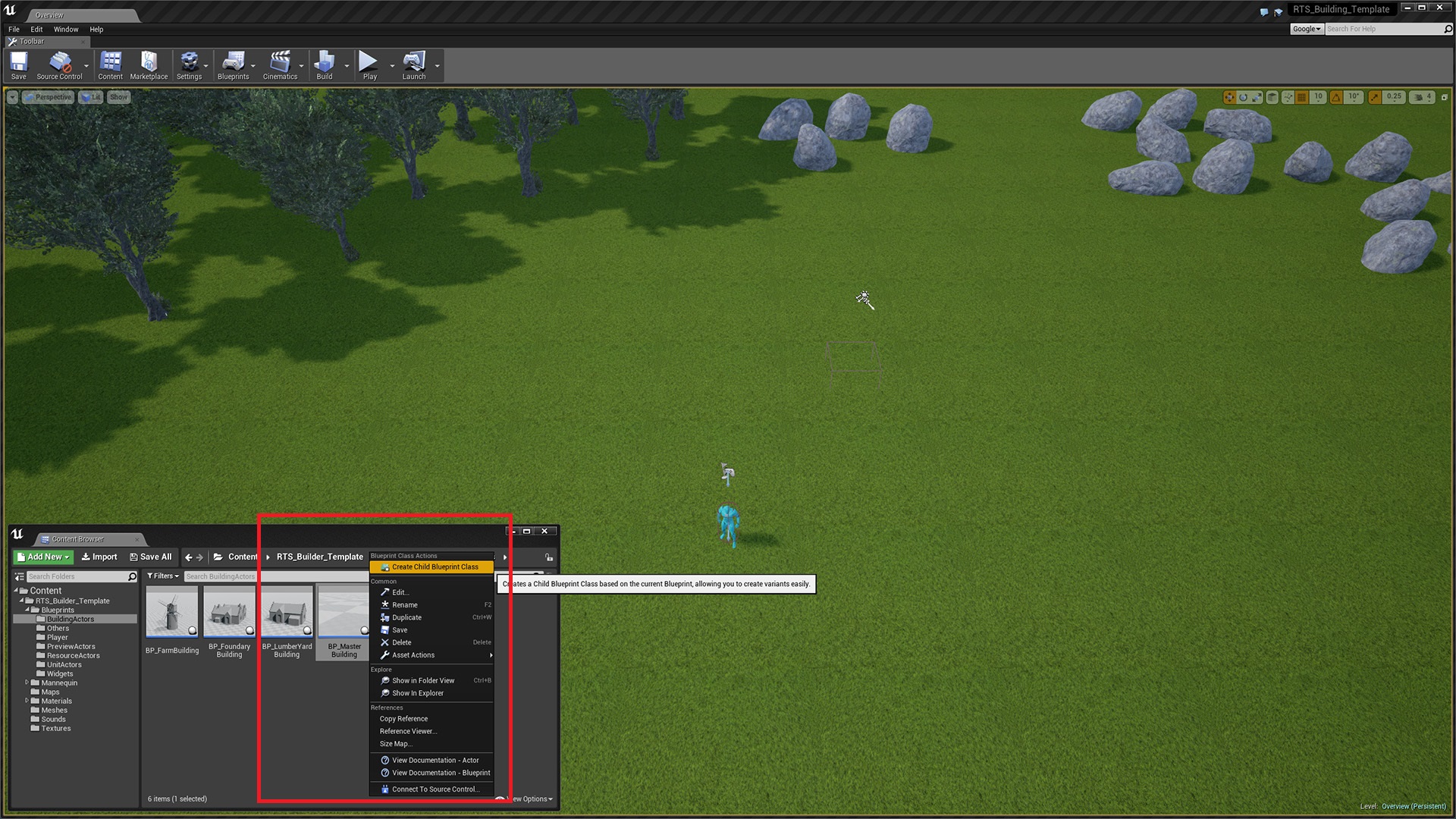
1. To create your own building, start by creating a child blueprint of the BP_Masterblueprint.

2. Then open the new blueprint select the building mesh, and set the static mesh this is the mesh that your building will use, you can also set materials here.
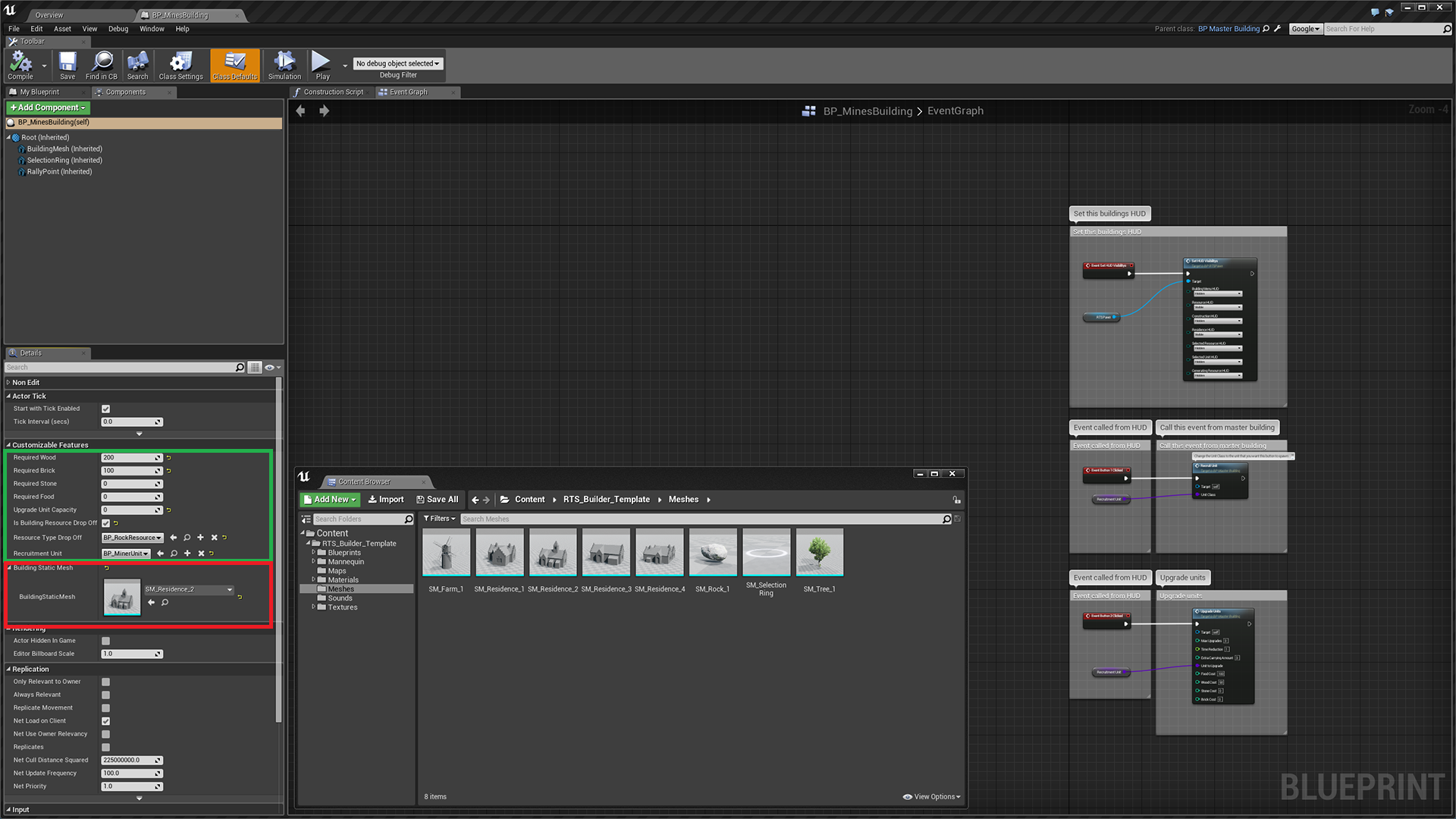
3. Highlighted in the green is the buildings default values you will need to set, the required wood, stone, food and brick is the resources that the building will cost to build the resource drop off check box is whether or not units with the same resource type can drop off their resources at this building. (These values may vary depending on updates.)
4. You will also need to set the mesh highlighted in red, this is the mesh the will be used for the buildings preview.
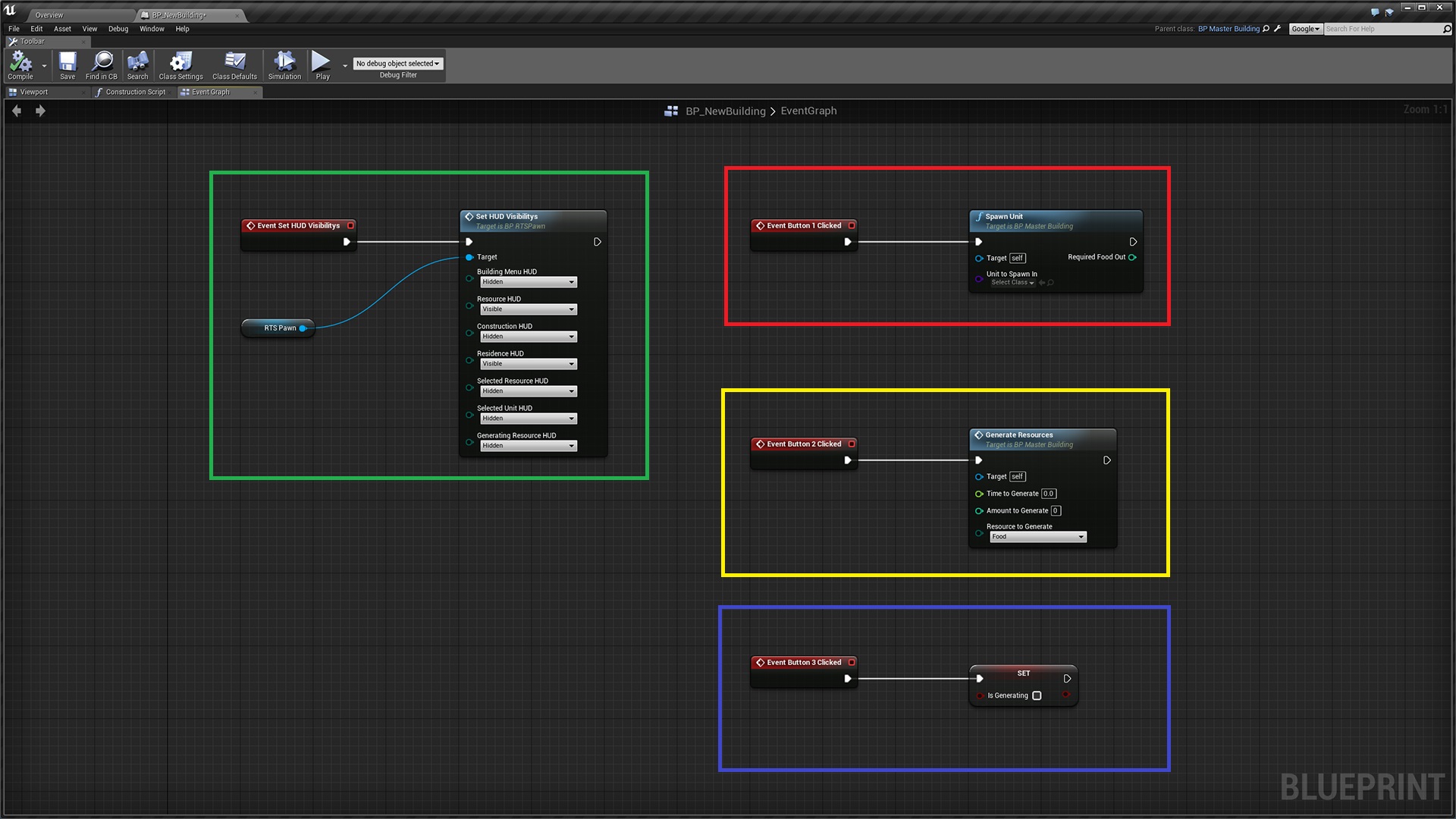
5. Here is the blueprint code that you can add to your new building, highlighted in the green is the default HUD to show when the building is selected, so if you want to use the recruitment HUD for this building then set the functions settings to the same in the screenshot.
6. Highlighted in the red is the recruit unit event and this is bond to button 1 of the HUD that we have chosen. On the spawn unit event set the class to the unit that you want to spawn when you press button 1.
7. Highlighted in the yellow is the generate event, here you can choose the resource you want the building to generate, the speed it generates at and the amount to generate.
8. In the blue box is cancel generation variable this will cancel the generation and also act as the cancel button for recruiting units.
 Defuse Studios