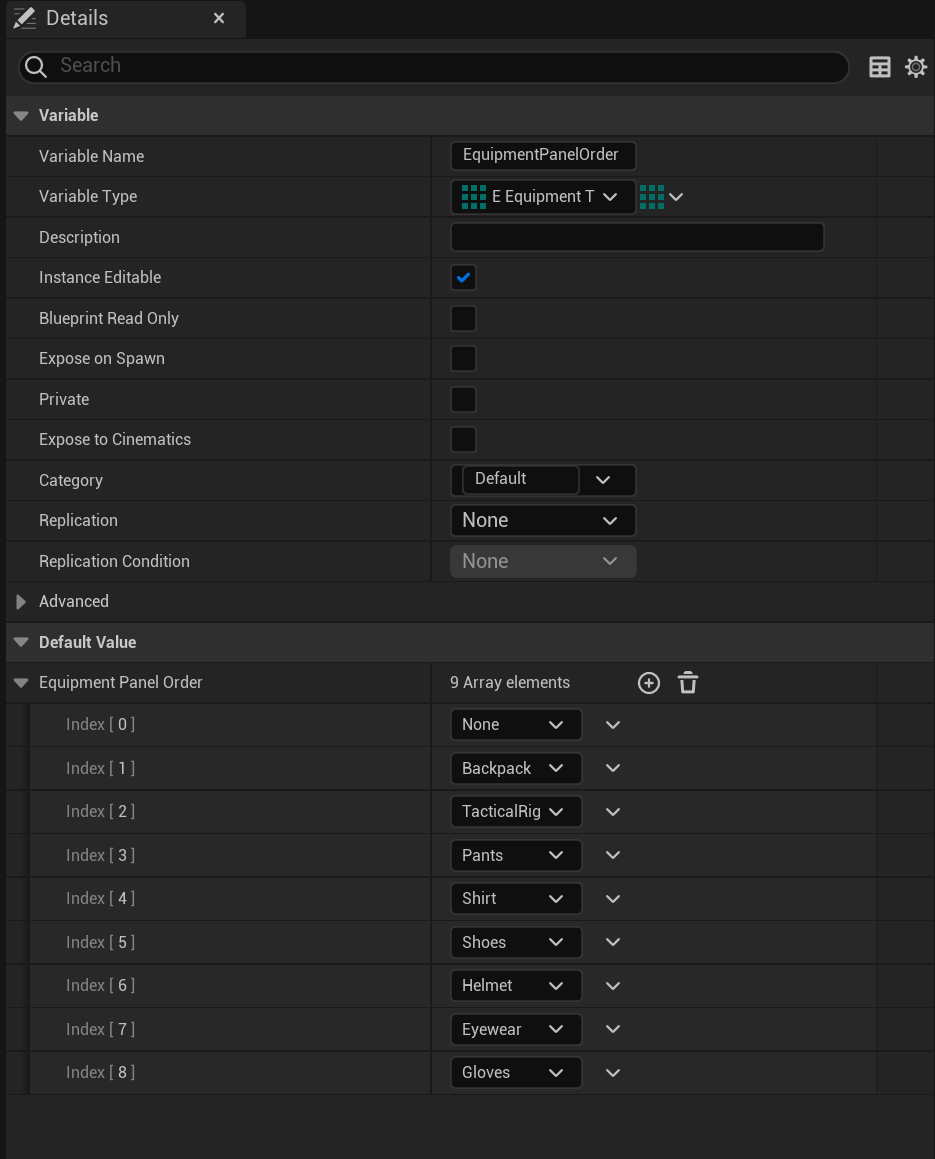
Go to the BP_EquipmentInventory and create a new variable called EquipmentPanelOrder set its type to E_EquipmentType and set it to an Array and tick on Instance Editable.
Then compile and in its Default Value set the order you want the equip panels to be in like the image below.
The None entry controls the Pockets in the order, if you have added custom equipment slots make sure you add them here as well.
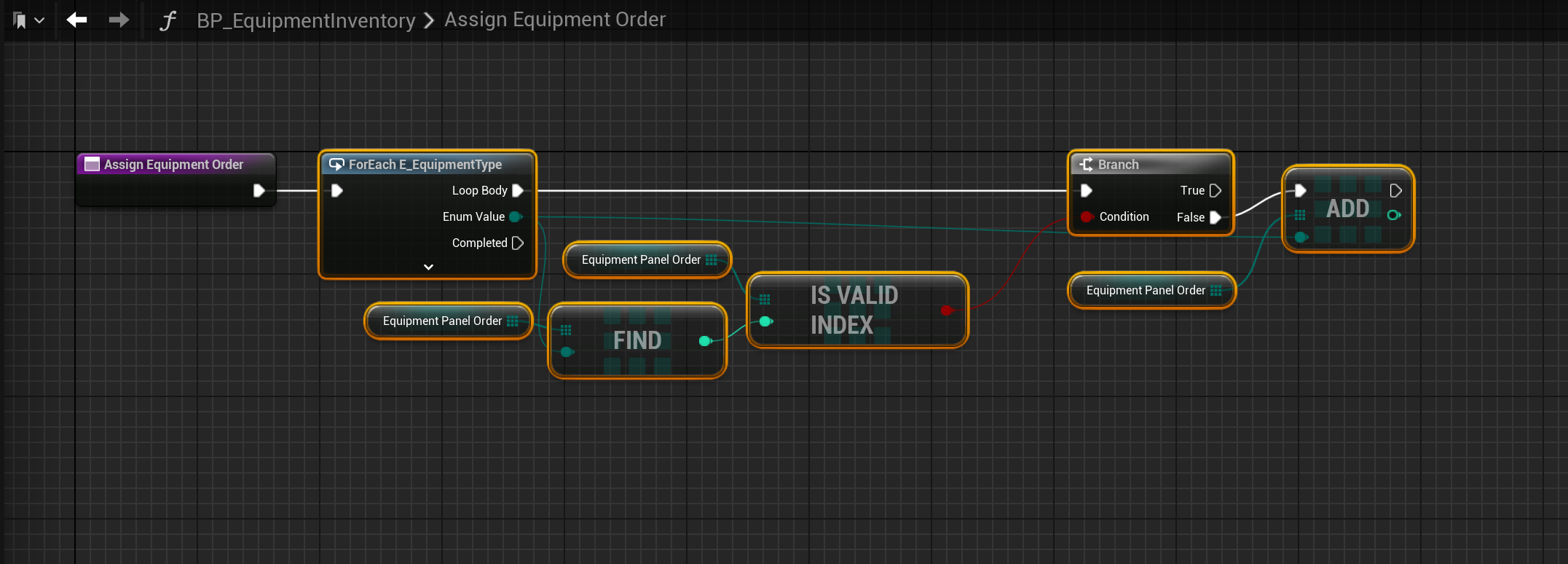
Then create a new function called AssignEquipmentOrder and copy the image below.
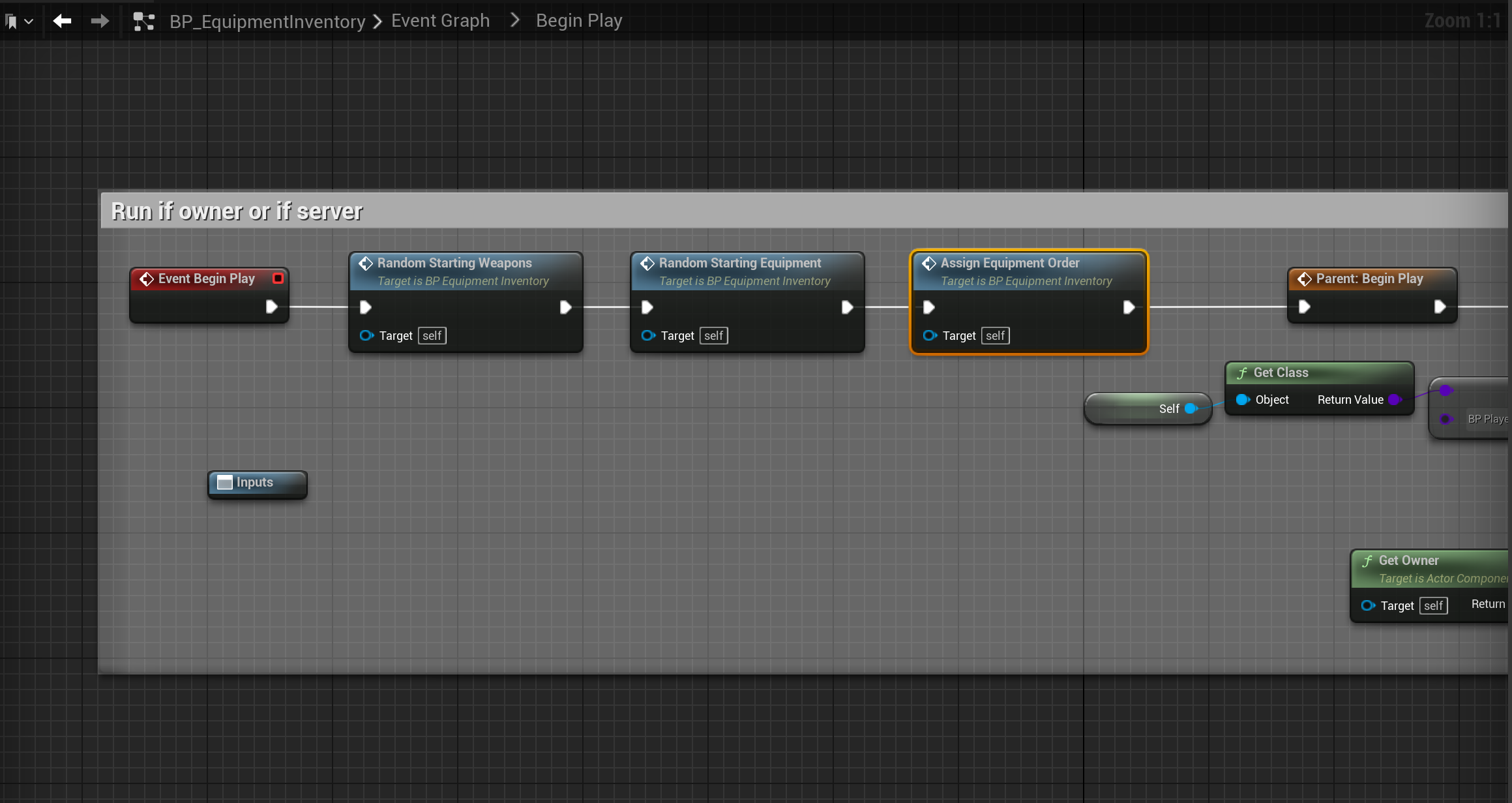
Then go to the BeginPlay collapsed node and copy the image below.
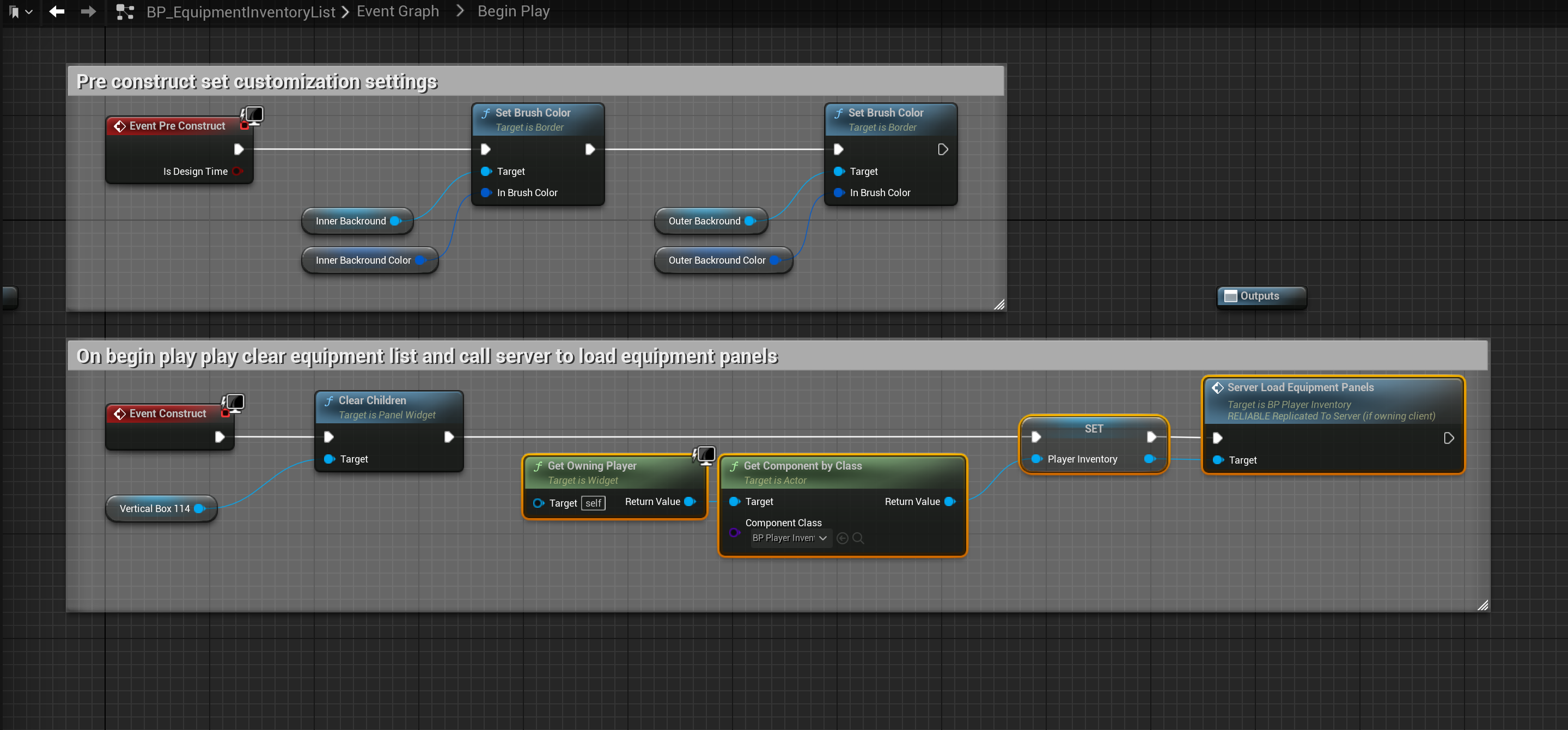
Go to the BP_EquipmentInventoryList and create a new variable called PanelsOrdered and set its type to BP_InventoryPanel and set it to an array.
Then create another variable called PlayerInventory and set its type to BP_PlayerInventory. Then go to the BeginPlay collapsed node and copy the image below.
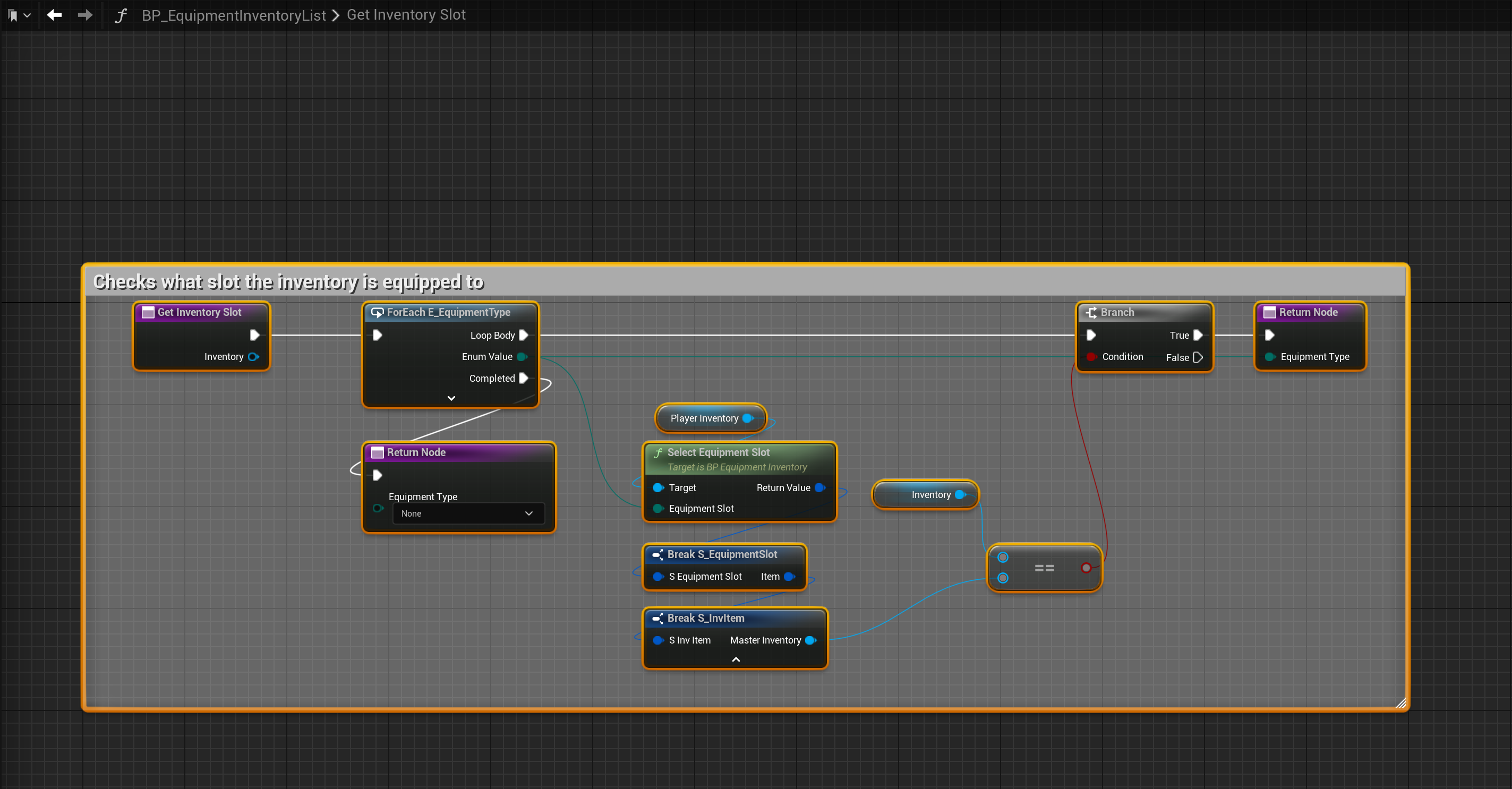
Then create a new function called GetInventorySlot and add a new input called Inventory and set its type to BP_MasterInventory, then add a new output called EquipmentType and set its type to E_EquipmentType and copy the image below.
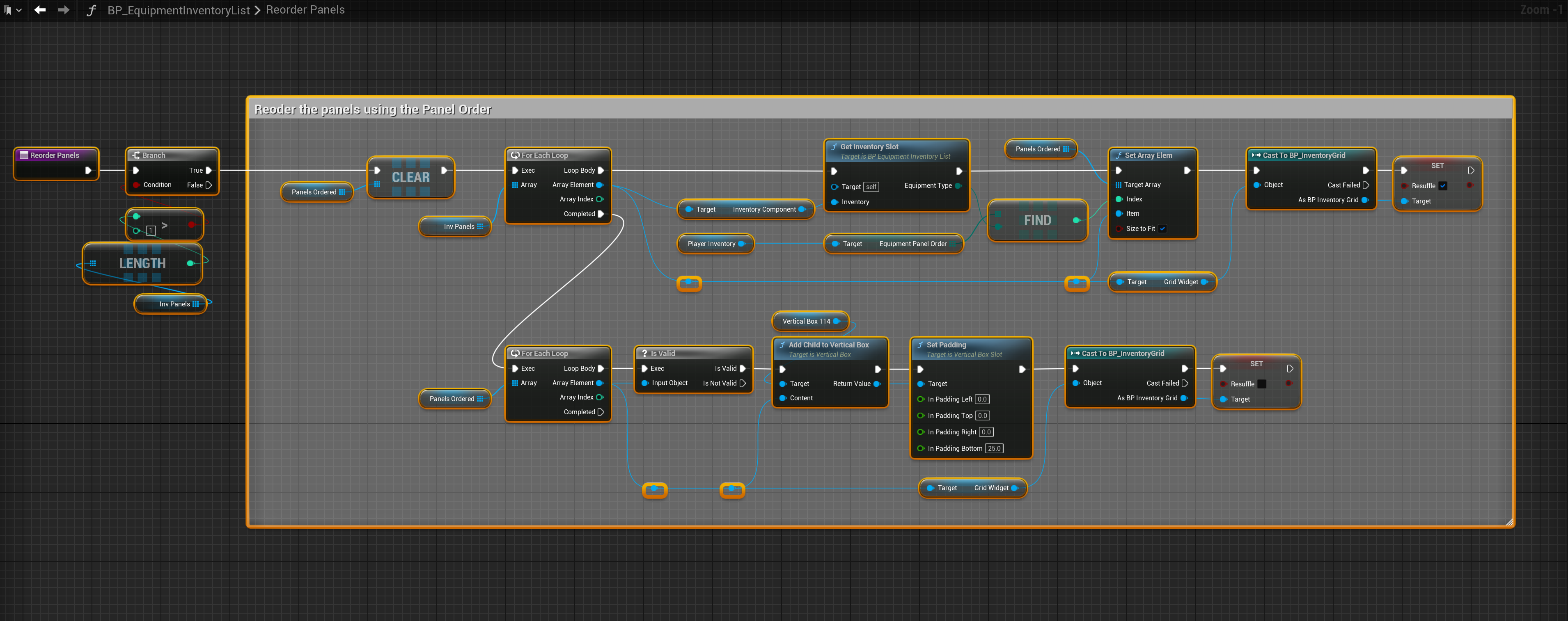
Then create a new function called ReorderPanels then copy the image below.
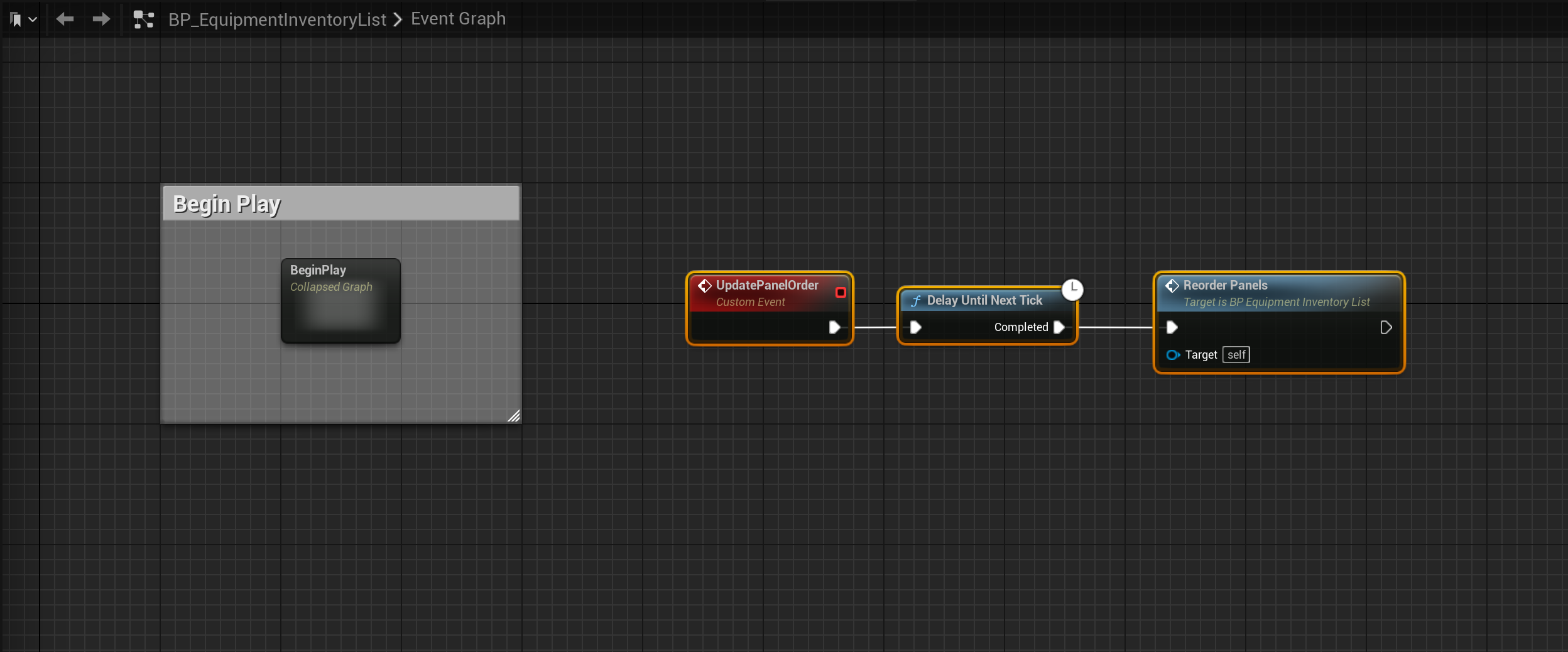
Next go to the Event Graph and create a new custom event, call it UpdatePanelOrder then copy the image below.
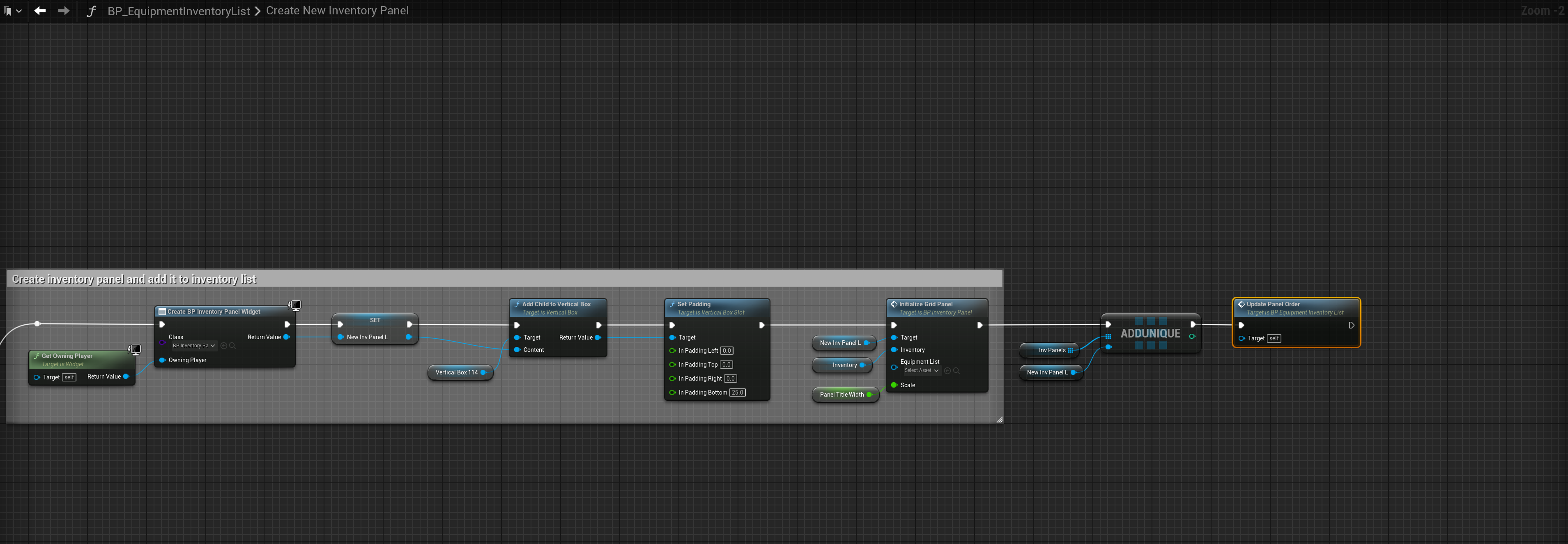
Next go to the CreateNewInventoryPanel function and delete all the code after the Add Unique node and copy the image below.
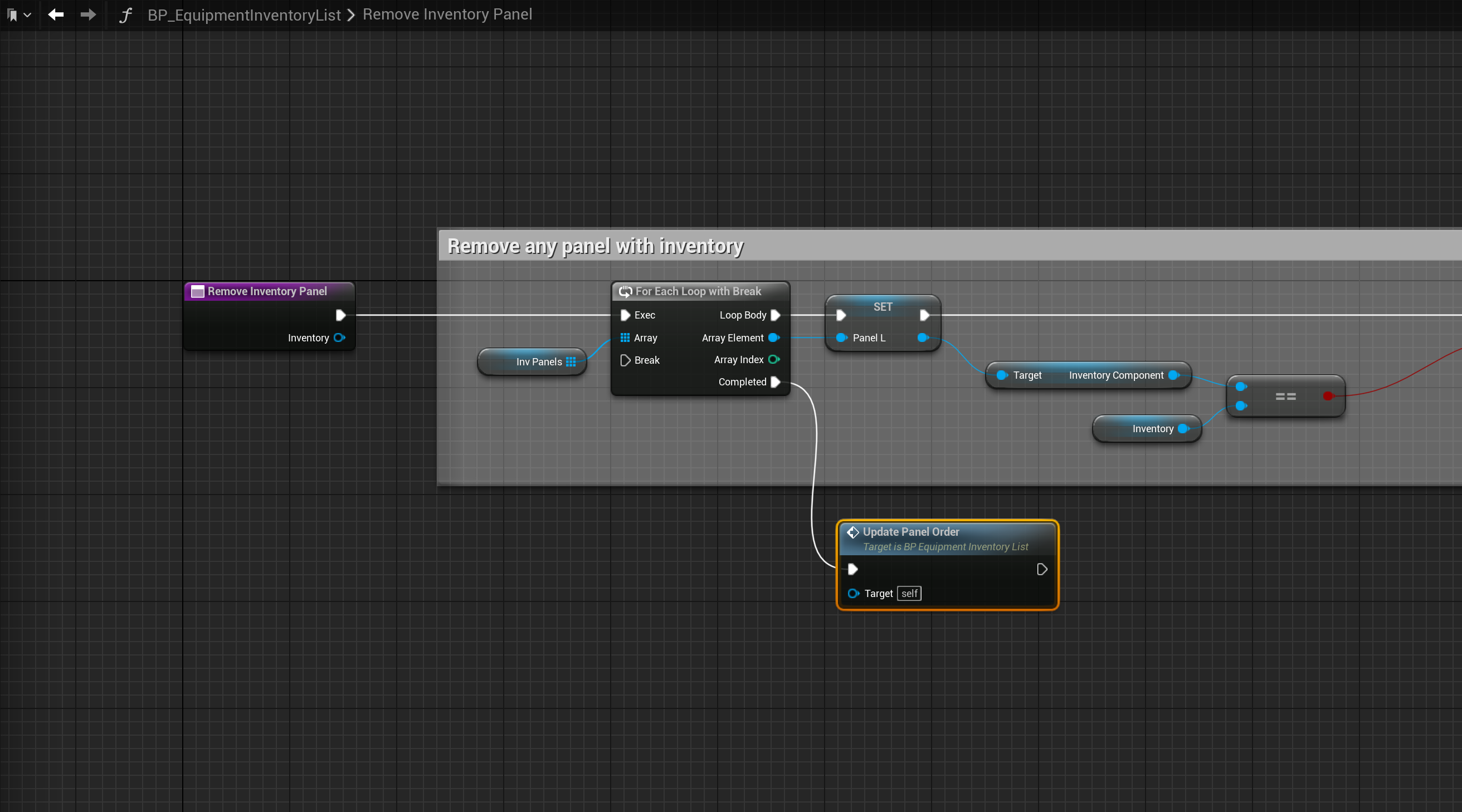
Then go to the RemoveInventory Panel and add the node shown in the image below.
Next go to the BP_InventoryItemIcon widget, then copy the video below.
External Character Equipment
Open the BP_ExtCharacterEquipment widget from the Content Browser, then create a new variable called PanelsOrdered and set its type to BP_InventoryPanel and set it to an array.
Then create another new variable called EquipmentInventory and set its type to BP_EquipmentInventory and copy the image below.
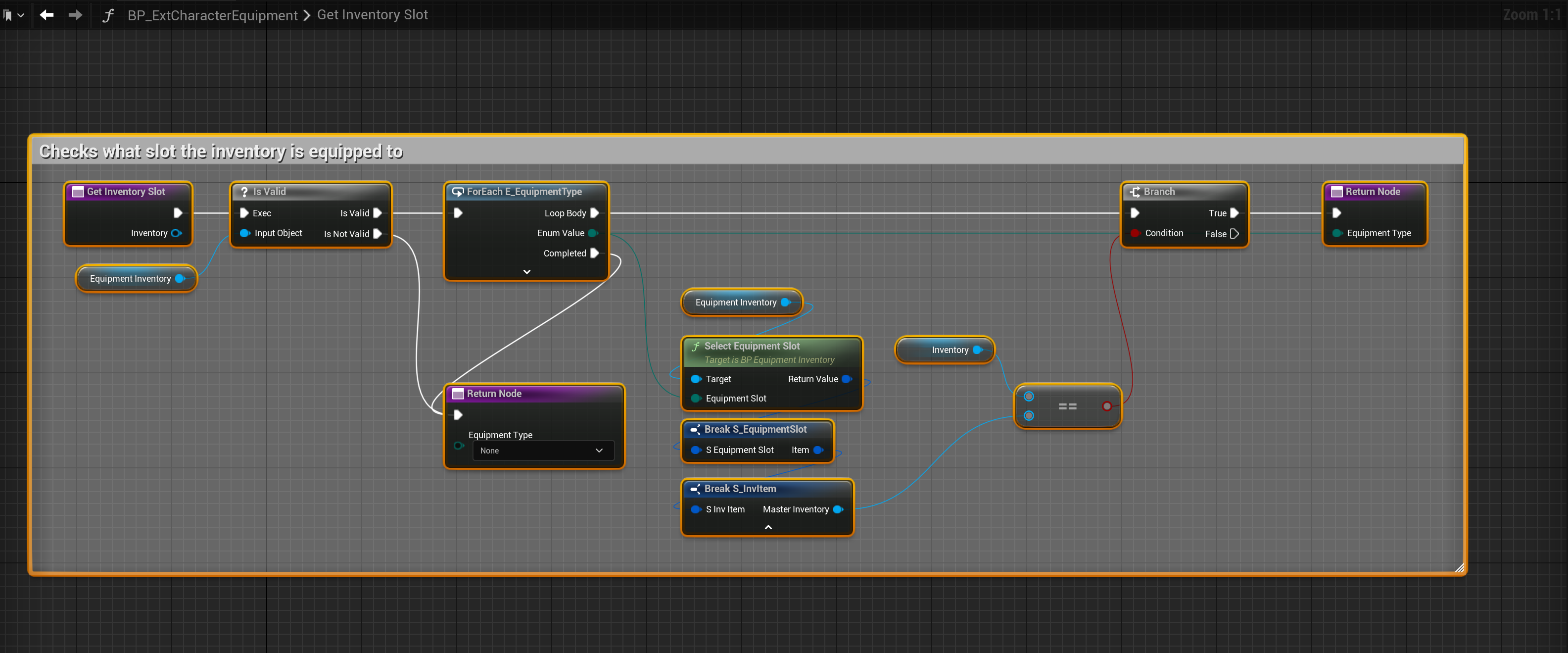
Then create a new function called GetInventorySlot and add a new input called Inventory and set its type to BP_MasterInventory, then add a new output called EquipmentType and set its type to E_EquipmentType and copy the image below.
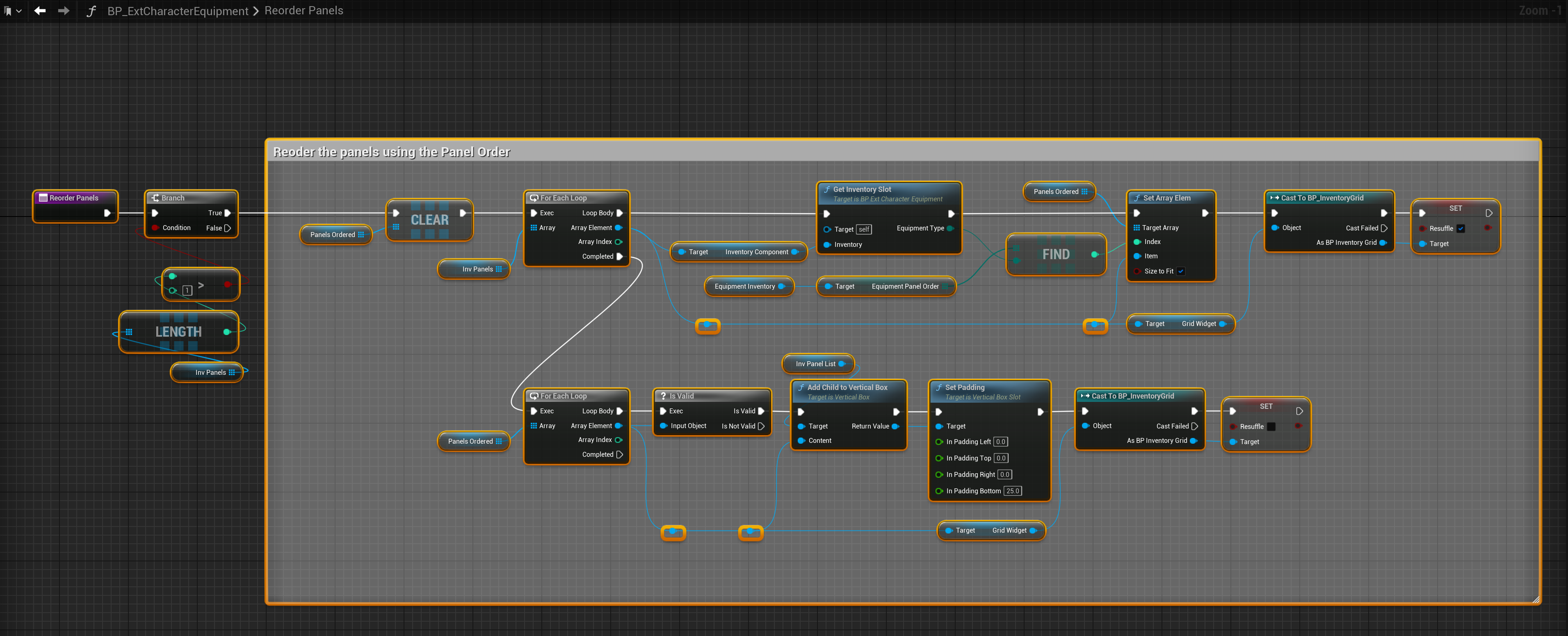
Then create a new function called ReorderPanels then copy the image below.
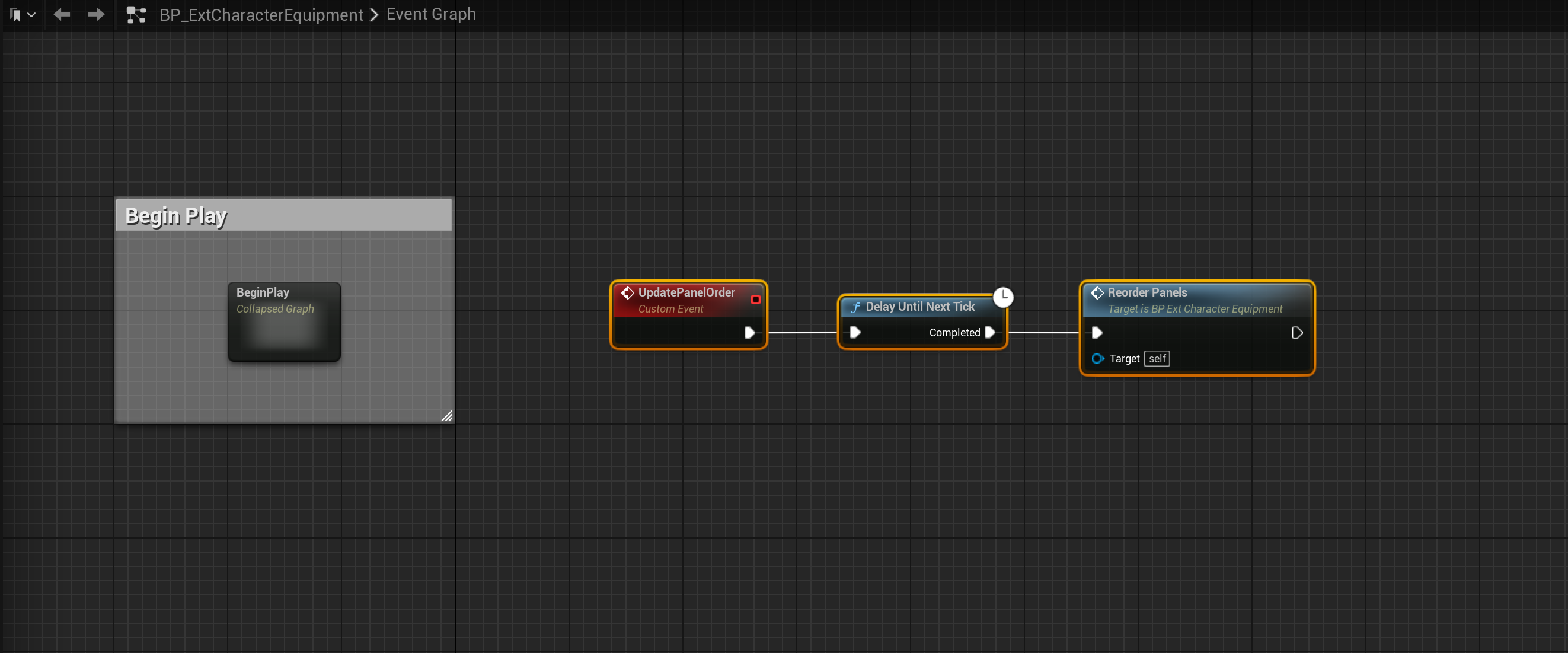
Next go to the Event Graph and create a new custom event, call it UpdatePanelOrder then copy the image below.
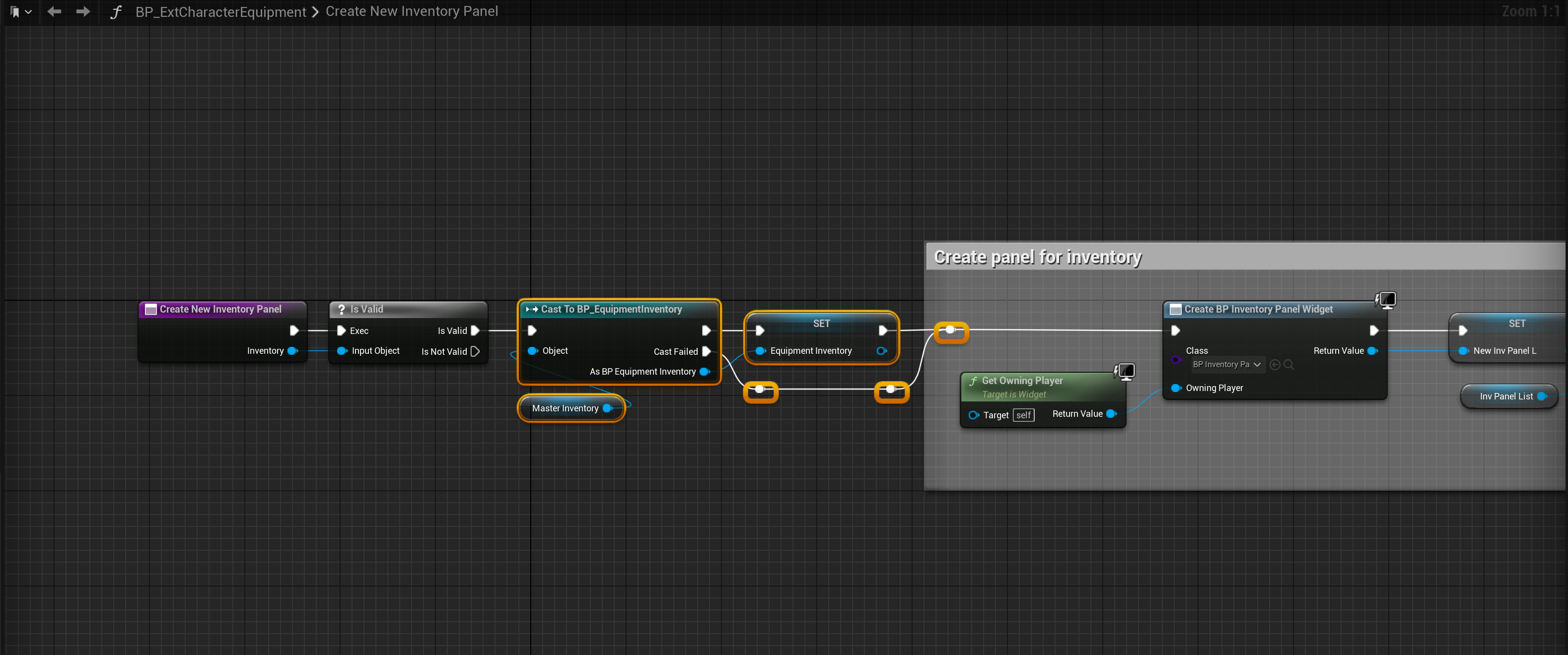
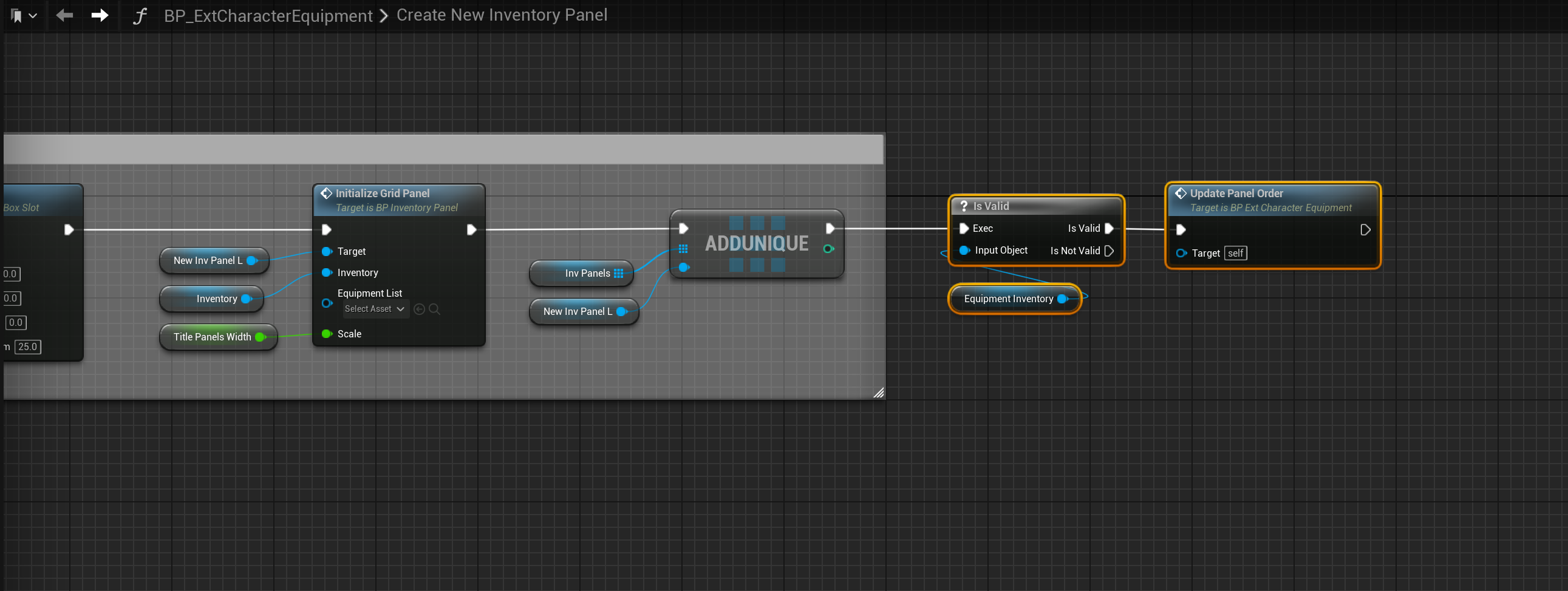
Then go to the CreateNewInventoryPanel function and copy the image below.
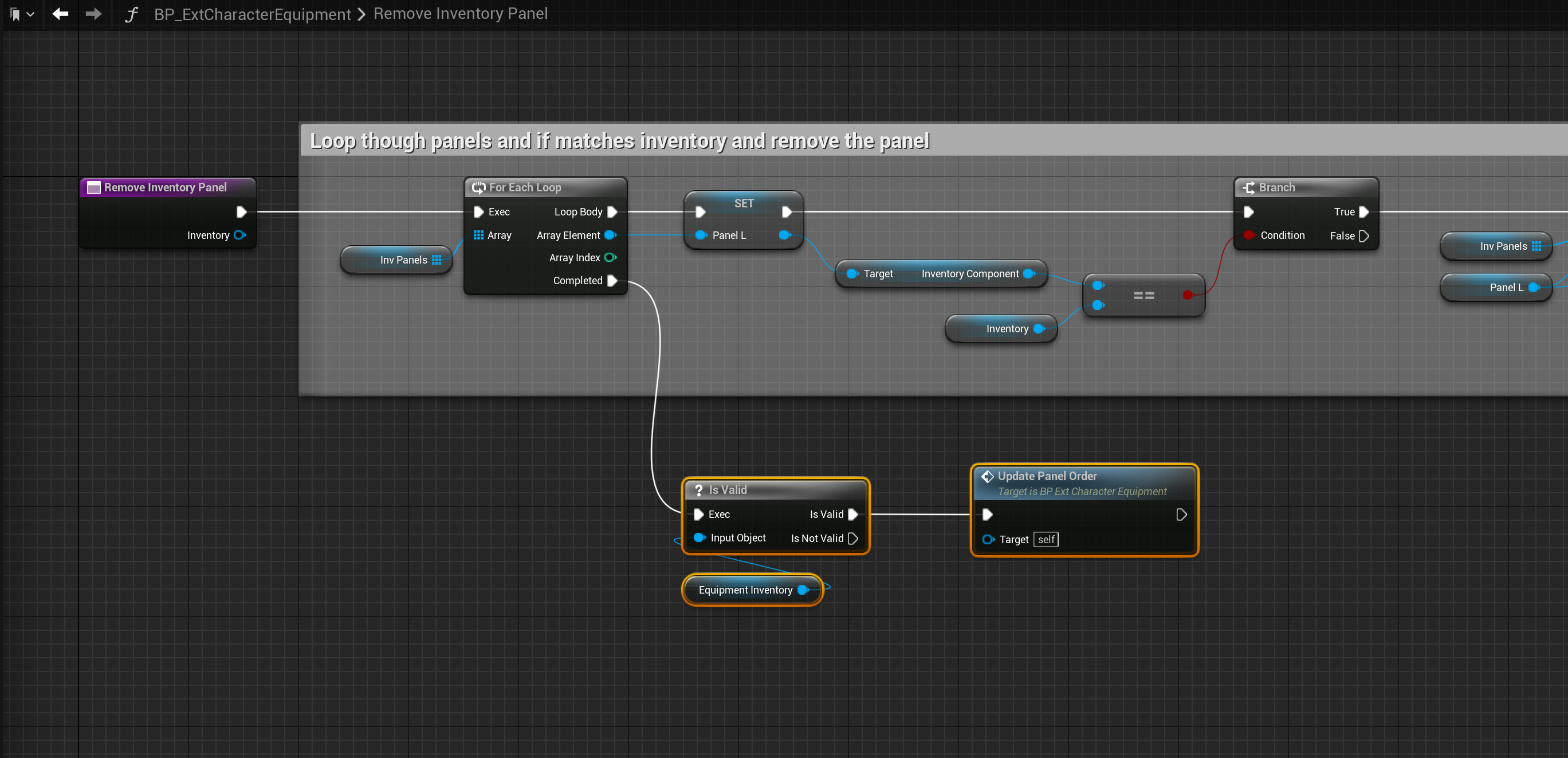
Then go to the RemoveInventoryPanel function and copy the image below.
Add Item Order
To edit the order that items get added to inventories when picking up and quick moving items copy the video below in the BP_PlayerInventory in the QuickMove function,
You will need to have followed the guide below to be able to apply this change.
https://defusestudios.com/sgk-v2-quick-moving-items-adding-to-existing-stacks/
Then go to the Attempt to Add Item function and copy the video below.
Then open the BP_EquipmentInventory and open the SearchEquipmentforEmptySlots function and copy the video below.
Settings
To change the player inventory equipment order you can now go to the BP_SGKController, select the BP_PlayerInventory component in the Components panel then in the Details panel search for the EquipmentPanelOrder setting and edit the order.
To change external inventory equipment order (like the dead character body) go to the BP_EquipmentInventory and in the Class Defaults find the EquipmentPanelOrder setting and edit the order.
 Defuse Studios