Go to the BP_EquipmentSlot then to the OnMouseButtonDown function and add the highlighted nodes shown in the image below.

Next go to the BP_PlayerInventory and copy the video below.
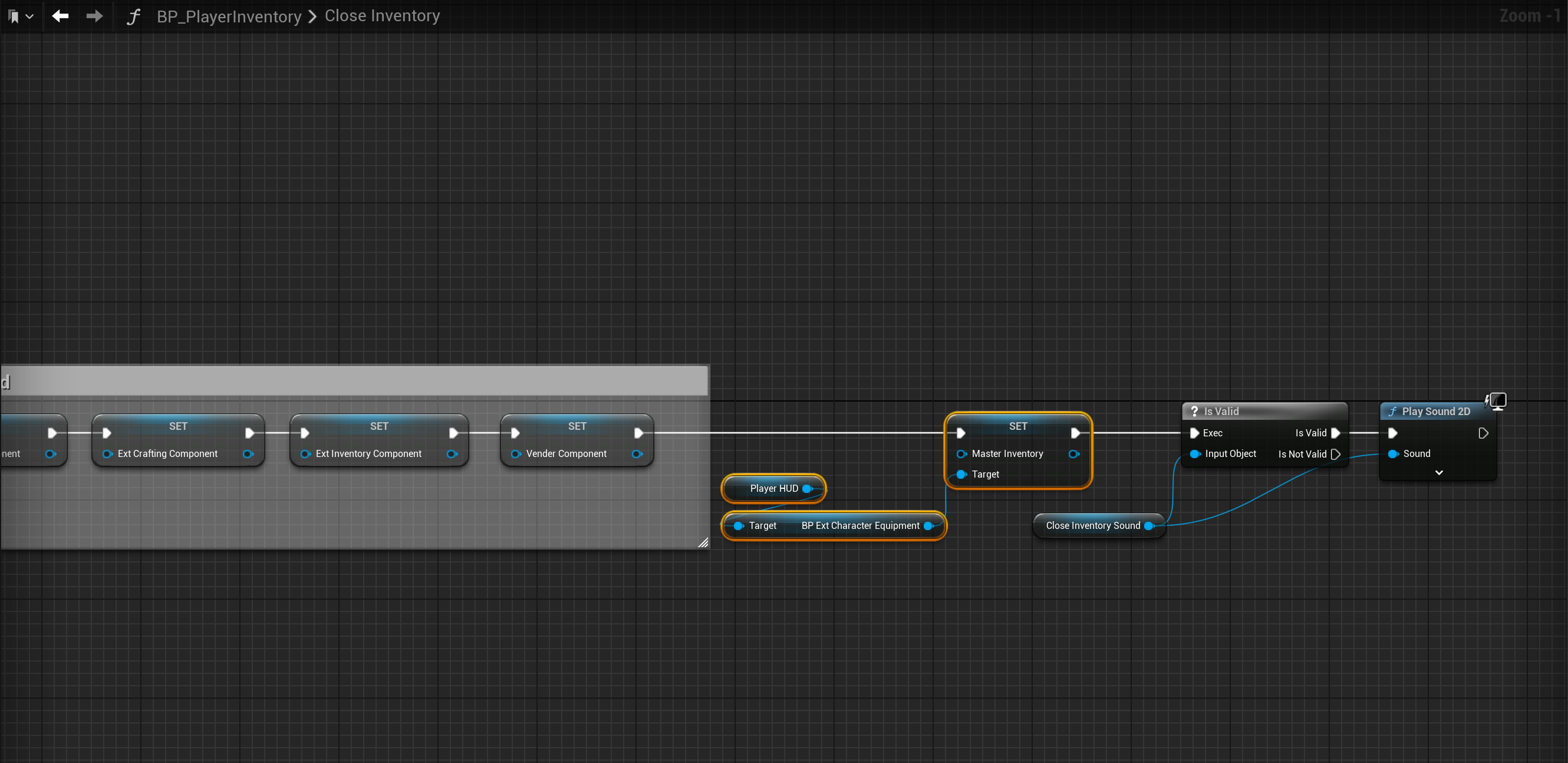
Then go to the Close Inventory function and add the nodes shown in the image below.
Go to the BP_WeaponSlot then to the OnMouseButtonDown function and add the highlighted nodes shown in the image below.

Go to the BP_PlayerInventory and create a new variable called QuickEquipItems then set its Type to Boolean and tick on Instance Editable in its settings. Then compile and set its Default Value to ticked on.
Then go to the QuickMove function and add the highlighted nodes shown in the image below.

Lastly go to the ItemList then copy the video below, if your M4A4’s Equpment Slots is already empty you can skip this.
You’ll now be able to Ctrl + Left Click equipment and weapon items to equip them from inventory slots and Ctrl + Left Click equipment and weapon items in equipment and weapon slots to unequip them if there is space in the player inventory to unequip them.
You can enable and disable this by changing the QuickEquipItem setting in the BP_PlayerInventory Class Defaults.
 Defuse Studios