This guide is for UE5 projects version 2.4 or newer
IK Settings
Anim layers have the opinal settings to use IKs to adjust the hand locations these allow you to adjust you weapons location when holding a weapon without modifing the animations being used.
There are IK settings for both first and third person in their categories which allows you to use different values for the different camera views
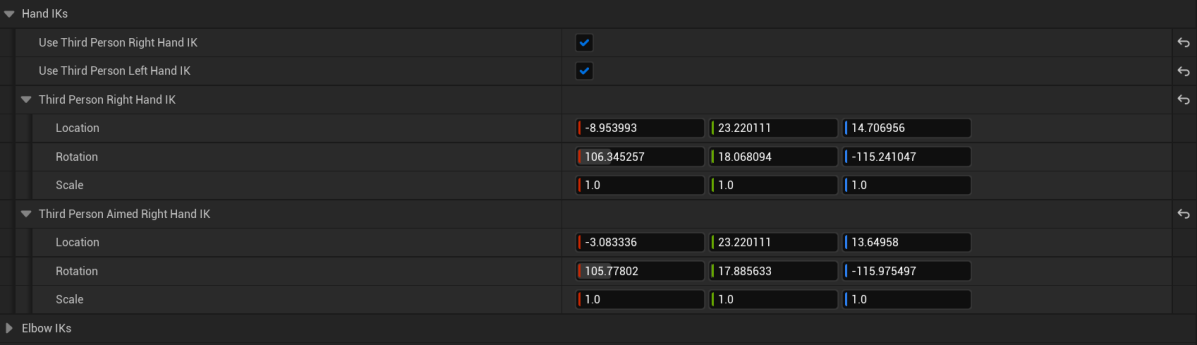
When Third Person Right Hand IK is enabled the right hand will attempt to set its location to either the Third Person Right Hand IK or the Third Person Aimed Right Hand IK if in the Aiming stance.
When Use Third Person Left Hand IK is enabled the left hand will attempt to set its location to the Left Hand Weapon Socket location, this is a socket on your weapons skeletal mesh which can be moved and rotated to change the left hand location when holding a weapon.
Third Person Left Arm Twist and First Person Left Arm Twist allow you control the lower left arm twist bone rotation this can help offset any twisting on the arm you may get when using the left hand IK.
Adjusting Hand IKs
To adjust a weapons right hand IK first go to its anim layer blueprint, for example the ABP_M4A4AnimLayers, then in the Class Defaults find the Debug category and enable the Adjust Right Hand IK and compile, keep the anim layer window open as we will copy some values from it.
Next open the characters skeleton, by default this is the SK_Mannequin found in the SurvivalGameKitV2/Meshes/Skeletal folder. If your using a custom character with its own skeleton you will need to go to that skeleton.
Then copy the video below, here we are copying the weapons IK values and setting them to the RightHandIK socket in the character skeleton. If your adjusting the first person hand IKs then copy and paste the values from the First Person Right Hand IK or First Person Aimed Right Hand IK setting instead.
Then copy the video below to adjust the weapons hand IK in game, like shown in the video once you find the location you want to use for that weapon copy the location and rotation values and paste them into the Right Hand IK values in the anim layer.
If your adjusting the first person hand IKs then I suggest going into the first person camera view, once your finished copy and paste the socket location and rotation values to either the First Person Right Hand IK or First Person Aimed Right Hand IK.
Once you’ve finished setting the new hand locations for your weapon make sure you disable the Adjust Right Hand IK setting in your anim layer blueprint.
Adjusting Elbow IKs
The elbow IK locations are only used if the hand IKs are enabled, they allow you to control the direction the elbow faces while the hand IK is active.
To adjust a weapons right hand elbow IK first go to its anim layer blueprint, for example the ABP_M4A4AnimLayers, then in the Class Defaults find the Debug category and enable the Adjust Elbow IK and compile, keep the anim layer window open as we will copy some value from it.
Next open the characters skeleton, by default this is the SK_Mannequin found in the SurvivalGameKitV2/Meshes/Skeletal folder. If your using a custom character with its own skeleton you will need to go to that skeleton.
Then copy the video below, here we are copying the weapons ik values and setting them to the RightElbowIK socket in the character skeleton.
Then copy the video below to adjust the weapons right elbow IK in game, like shown in the video once you find the location you want to use for that weapon copy the location value and paste it into the Right Elbow IK value in the anim layer.
This same process can be used for the Left Elbow IK as well as the First Person Right Elbow IK and First Left Elbow Hand IK settings to adjust their Elbow locations.
Once you’ve finished setting the new elbow locations for your weapon make sure you disable the Adjust Elbow IK setting in your anim layer blueprint.
 Defuse Studios