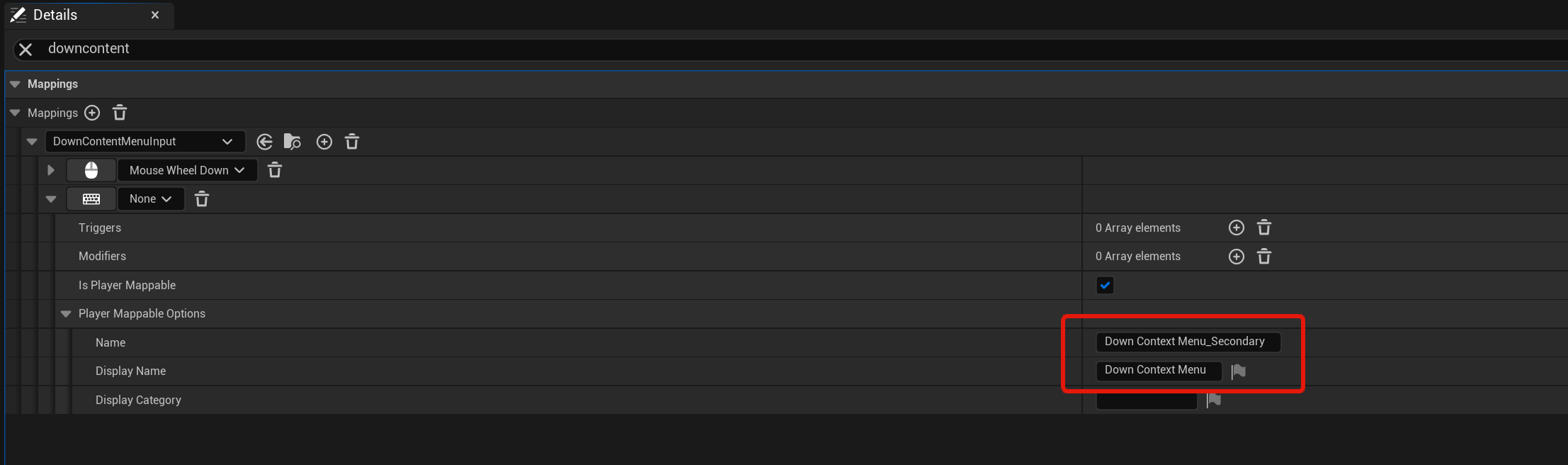
Start by going to the SGKCharacterInputs_Backup then search for downcontentmenu and copy the image shown below, this should be for the second key input like in the image. You should be changing the word Content to Context.
Next go to the BP_ControlsSettings widget and then to the Reset Keybinds function, create a new variable called BackupMappings, then set its type to Input Mapping Context, then compile and set the Default Value to the SGKCharacterInputs_Backup.
Then copy the image below. Note this code is temporary and is just being used to fully reset the SGKCharacterInputs to default, this will remove any new input actions you may have added to the SGKCharacterInputs so those will need to be re added once you’ve finished this guide.

Now compile and play in editor, once the character is loaded in press the M key to open the in game menu and go to the Settings menu, then open the Controls menu and click the Defaults button, this should new fully reset your controls to the SGKv2 Defaults and all controls names should be correct.
You can now exit the play in editor and go back to the BP_ControlsSettings blueprint, then go back to the ResetKeybinds function and create a new local variable called IndexL and set its type to Integer.
Now copy the image below, note that you should remove the code we added above as thats no longer needed. Dont forget the set IndexL node at the beginning of the loop.

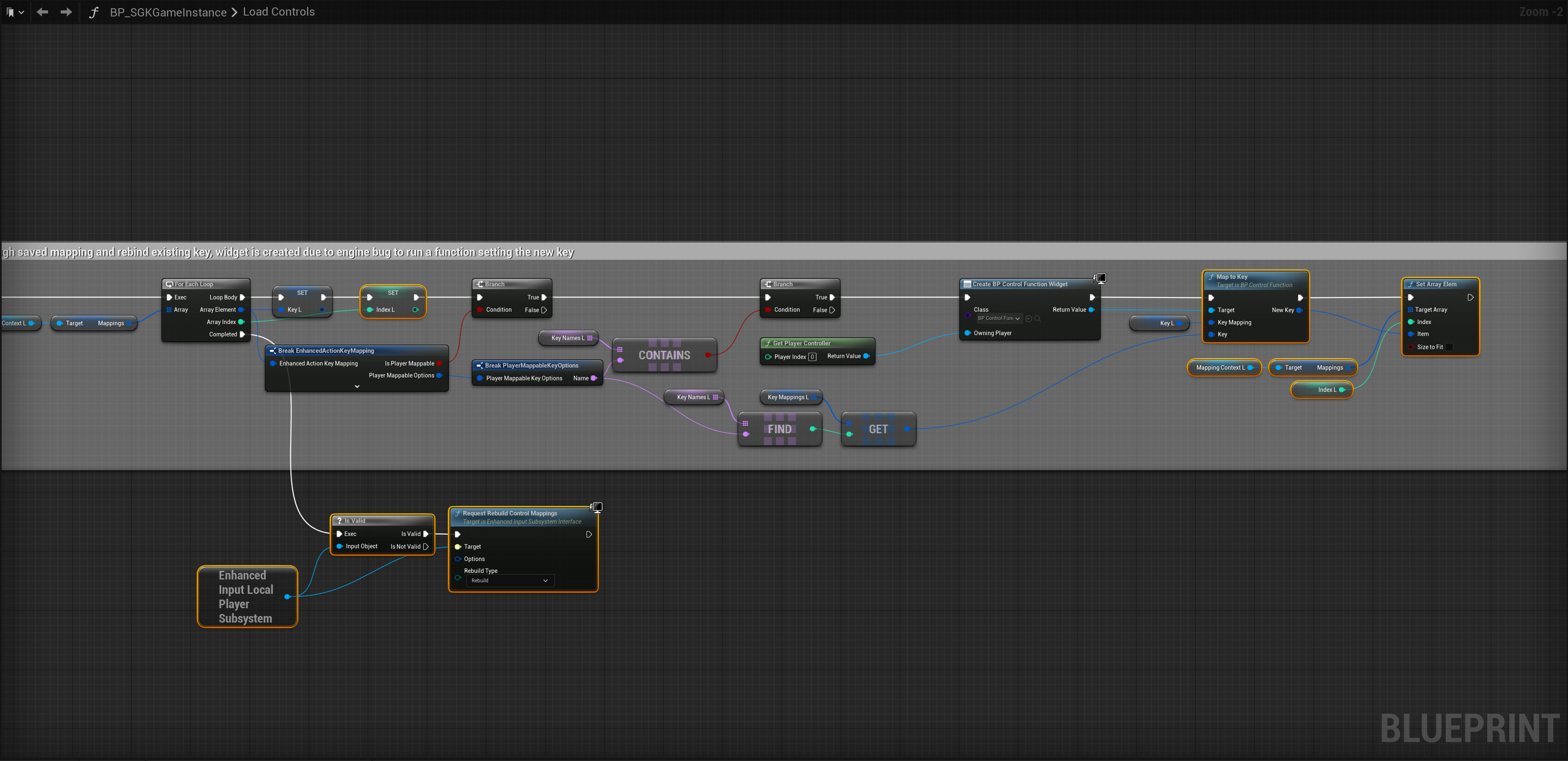
Next go to the BP_SGKGameInstance then to the LoadControls function and create a new local variable called IndexL and set its type to integer. Then copy the image below. Dont forget the set IndexL node at the beginning of the loop.
Next go to the BP_KeyBind blueprint then to the RebindAction function and copy the image below. Remember to use the Key 1 variable for the top code and the Key 2 variable for the bottom code like in the image below.

 Defuse Studios