This is a guide on how to add SGKv2 save system to custom blueprints.
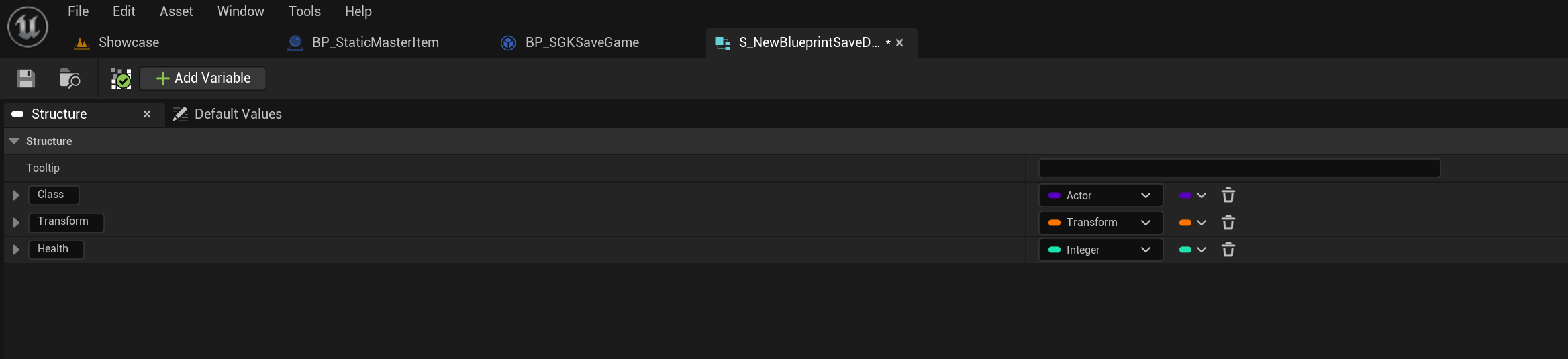
Start by creating a new Struct blueprint in the Blueprints/Other/Structs folder for this guide I have named mine S_NewBlueprintSaveData.
In this struct you will need to add any variables you want to be saved from the blueprint.
Note – You cannot save any object references, this included actors variables, texture variables, component variables etc. This is due to the Unreal Engine save system not allowing this.
You should first have a Actor Class variable as this is used by the save system to spawn the correct blueprint when loading.
Next you should add a Transform variable this stores the location the blueprint is in.
Next you can add what ever variables you want to save except object reference variables as mentioned above.
These are the variables I will be saving in this guide.
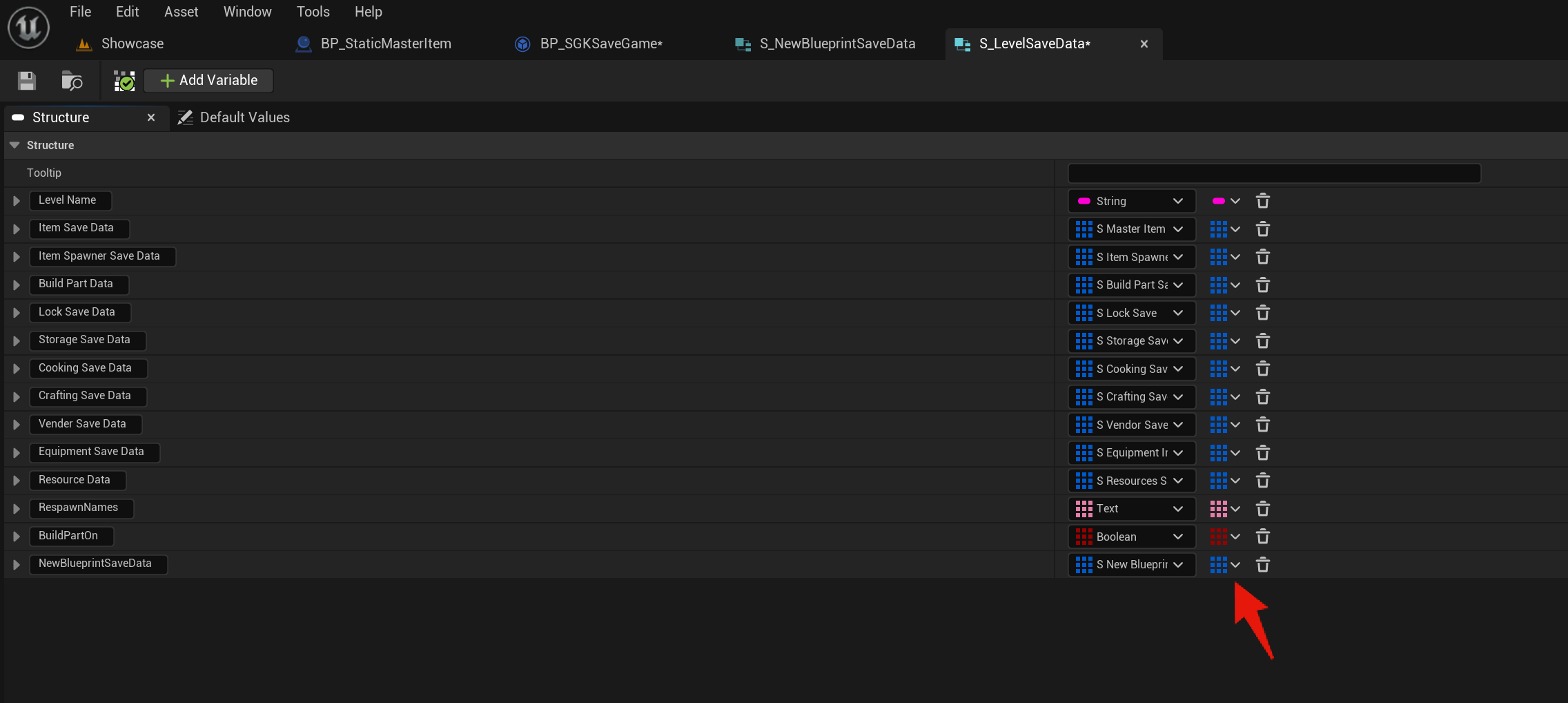
Save the struct and go to the S_LevelSaveData struct and add a new variable, set its type to the new struct you created, in my case thats the S_NewBlueprintSaveData and name the new variable I have named mine NewBlueprintSaveData. Then change its type to an array, this is done using the button next to the variable type drop down menu shown in the image below.
Next play in editor, this will compile the effected blueprints. You may get the following errors from a few blueprints.

If you do then just go to those blueprints and compile them, this should resolve the errors. Then play in editor again and when your character loads in exit play in editor.
Next go back to the S_LevelSaveData and save it.
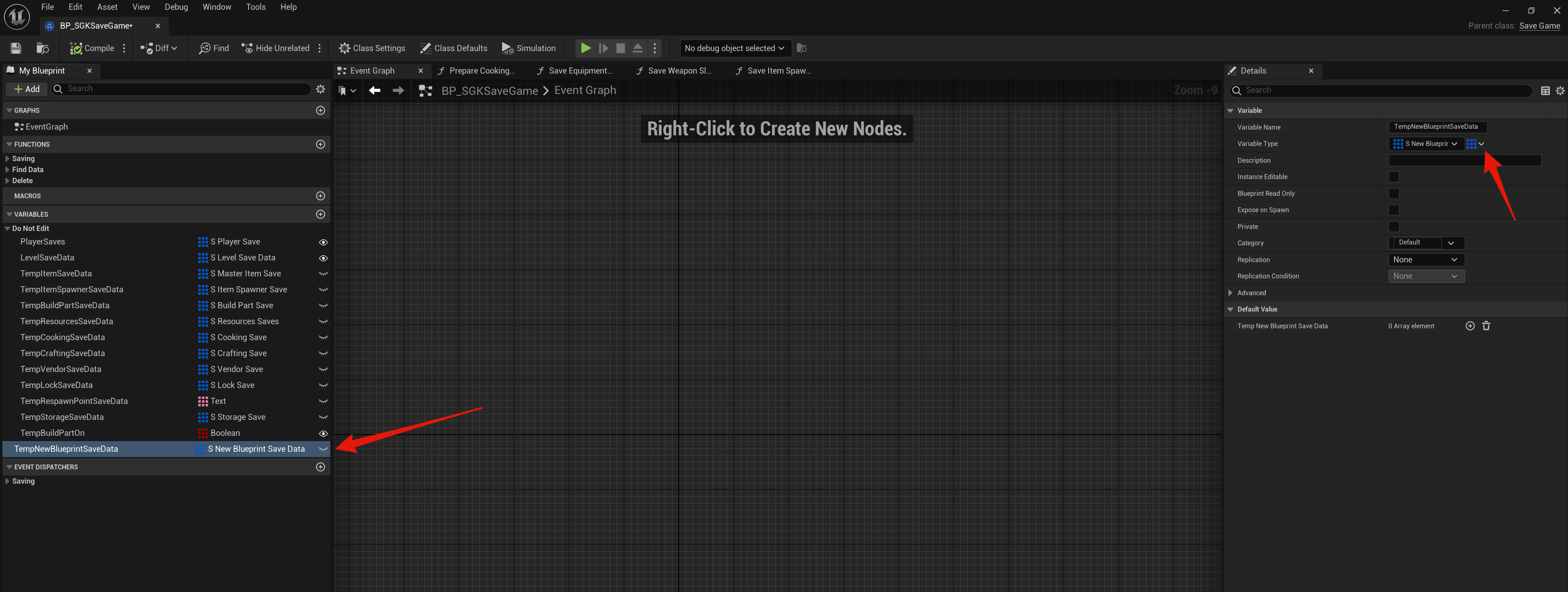
Next go to the BP_SGKSaveGame and create a new variable called TempNewBlueprintSaveData and set its type to S_NewBlueprintSaveData and set it to an Array.
Next go to the BP_SaveSystem and copy the video below.
Next go to the blueprint you want to save and add a new interface, this is in the Class Settings panel under the Interfaces section click the Add button and search for the SGKSaveInterface and add it, then compile your blueprint. You should now have the SGKSave function in the Interfaces panel in the My Blueprint panel of your blueprint.
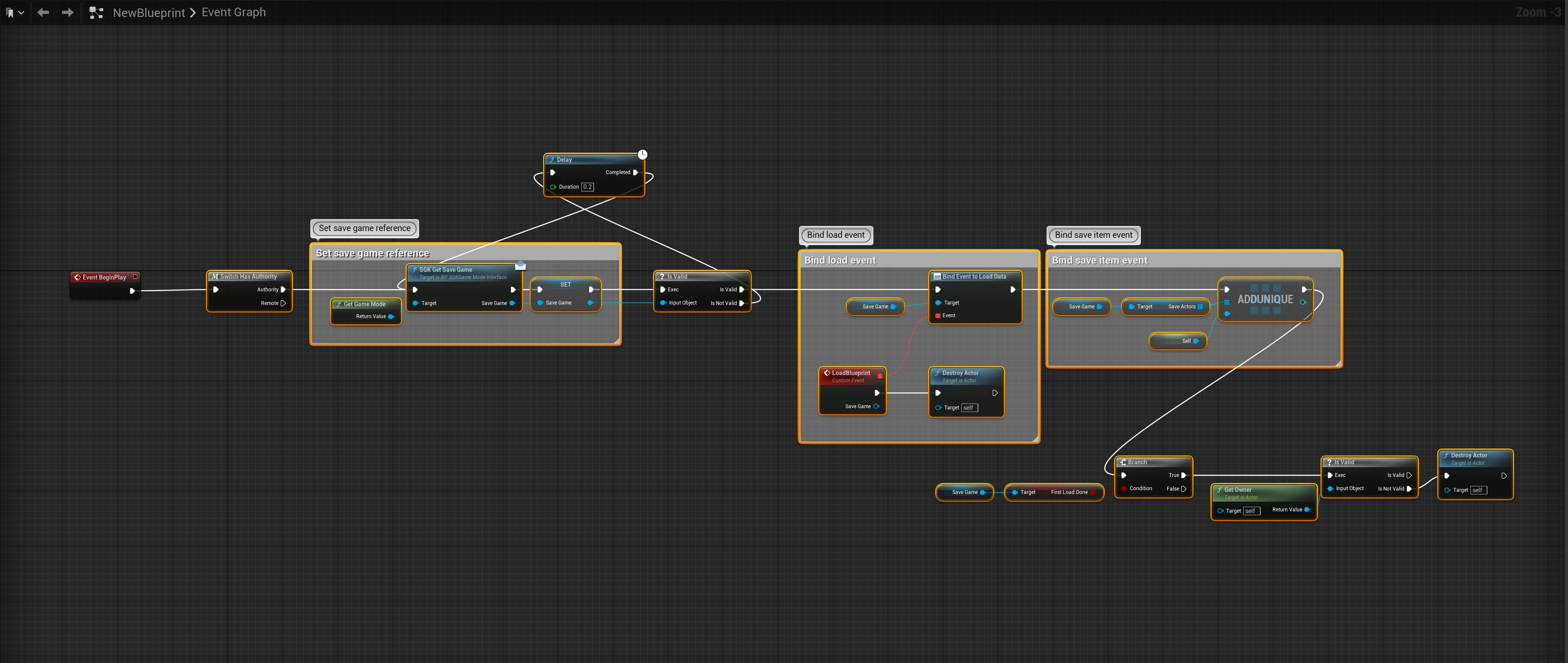
Next you will need to add the code shown below to your blueprints begin play code, if you have existing code run on begin play you will need to add this to it. Where you put this code will depend on your existing so you will have to workout the best place to put it, I recommend having it run as close to the begin play event as possible.
You will need to create a new variable called SaveGame and set its type to the BP_SaveSystem. To create the event connect to the Bind Event to Load Data node drag out from the red square input pin on that node and search for Add Custom Event to create a new custom event node.
Next create a new function called SaveBlueprintData then add a new Input called InSaveGame and set its type to BP_SGKSaveGame.
Then copy the image below in the SaveBlueprintData function
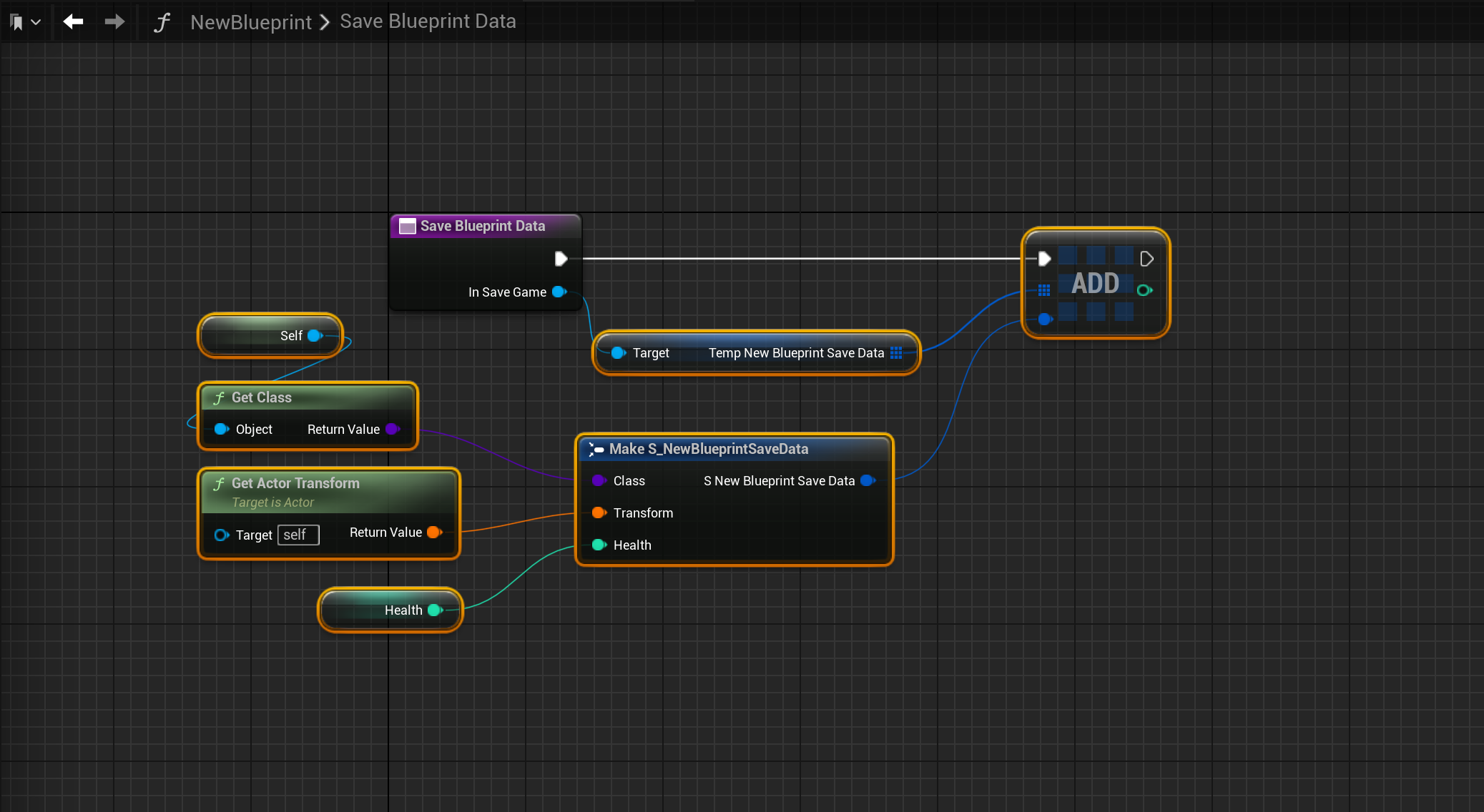
For multiplayer this save code only runs on the server, so any variables you save here must be set on the server, any variables only set on the client will not save. You should also make sure your blueprint has Replicates ticked on in its Class Defaults.
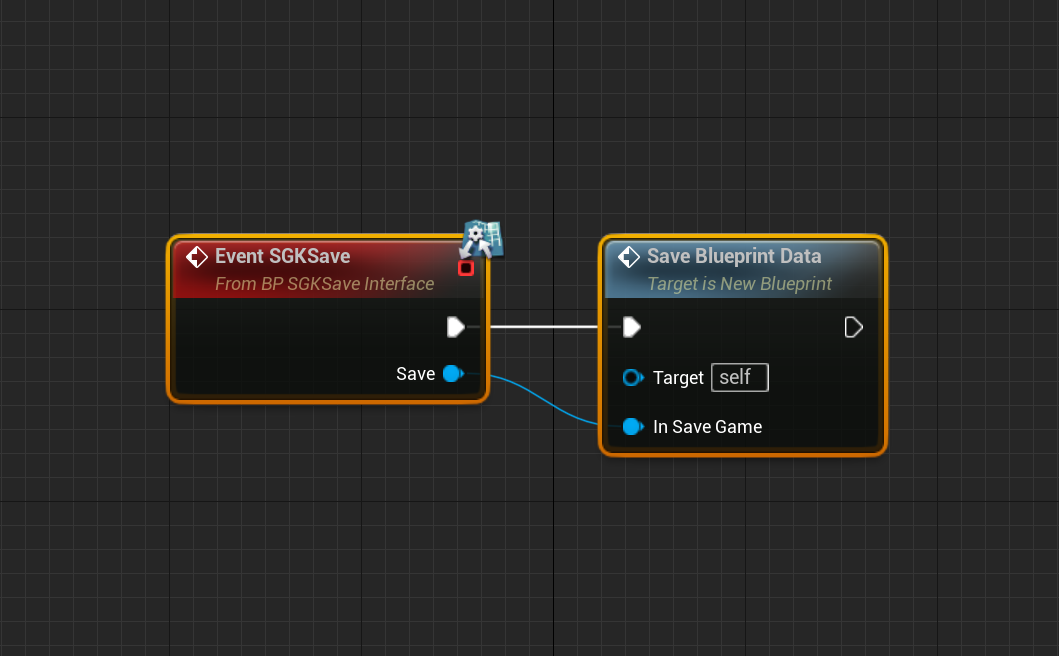
Next go to the Event Graph of your blueprint and create the Event SGKSave event, then connect the SaveBlueprintData function to it and connect the Save to the In Save Game input on that function like the image below.
Next go to the BP_SaveSystem and create a new function called LoadNewBlueprints next copy the image below, there is useful information in the comments of this image. Your specific blueprint may need to have additional events or functions that need to be called when its spawn this is where you should call those functions.
For AI characters you may want to use the Spawn AI from Class node instead, if you do this you will also have to provide its behavior tree.

Next add the LoadNewBlueprint function to the location shown below, location at the top of the screenshot.
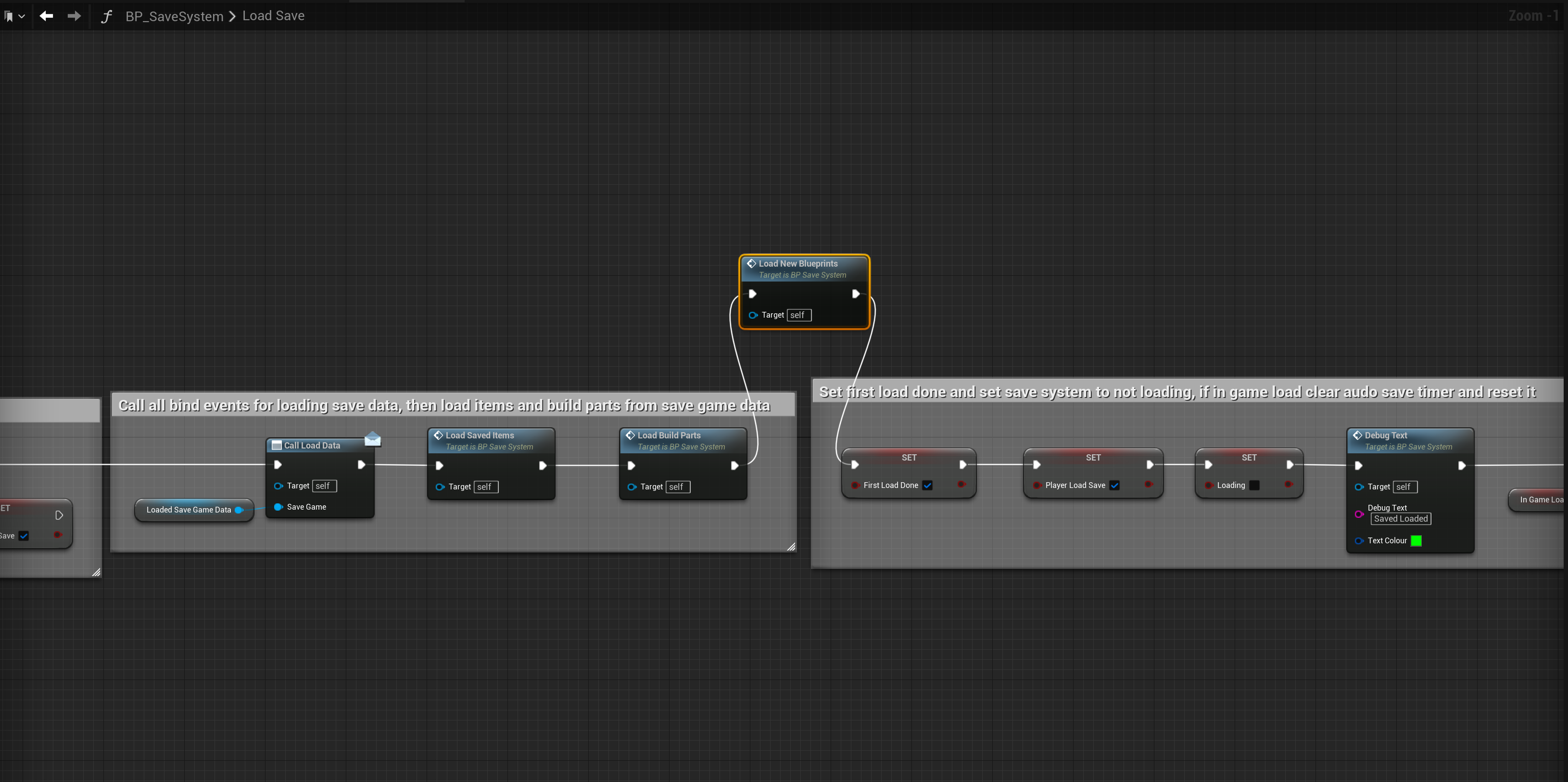
You should now be able to save your new blueprint. Some thing to keep in mind, if you place your blueprint in the level as the level designer and play a game and load a save before that blueprint was placed it will be destroyed when the save loads, this is because it was not part of that save.
When you load a save any of your blueprint in the level will be destroyed, then new ones will be spawned by the save system when loading the save.
lastly if your blueprint is spawned in during game play it must have an Owner set where ever you spawn it in your code, on the Spawn Actor from Class node there is an Owner pin, if you dont already have an Owner being set use the Get GameMode node and connect that to the Owner pin on the Spawn Actor from Class node.
 Defuse Studios