To change a default key bind first go to the SGKCharacterInputs in the Content Browser then select the arrow next to the action you want to change the key bind for, like for example the InteractInput.

You can then set the key bind you want to use. Then go to the BP_ControlsSettings then go to the Event Graph and select the Default Keys variable in the My Blueprint panel, then in the Details panel you can see all the default keys for each action, find the action your changing the default key for and change the key bind there to the same as you set in the SGKCharacterMappings.
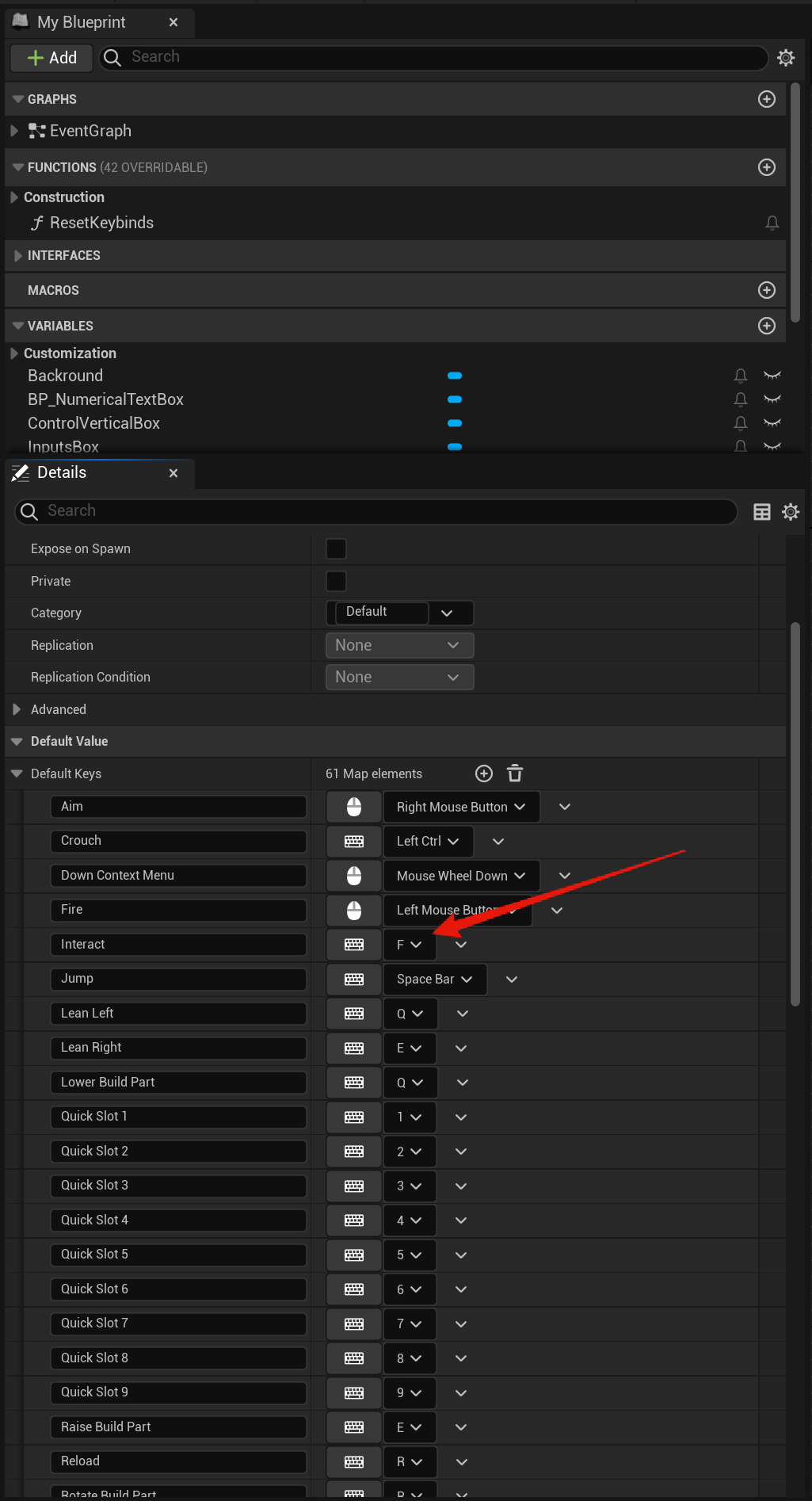
You can now play in game and the key bind should be whatever you set it to, if not while in game press the M key to open the menu and go to the Settings, then to the Controls and select the Defaults button. This should reset the key binds to the default values including the key bind you changed.
 Defuse Studios