Prop animations are animations your AI can play while roaming, these are montages that can be set to play every number of seconds, prop animations can also spawn a prop for the AI to use while playing the animation.
To find the Prop Animations settings go to any of the AI character blueprints like the BP_AICivilian and select their BP_AIComponent in the Components panel, then in the Details panel use the search bar and search for Prop like the image below.
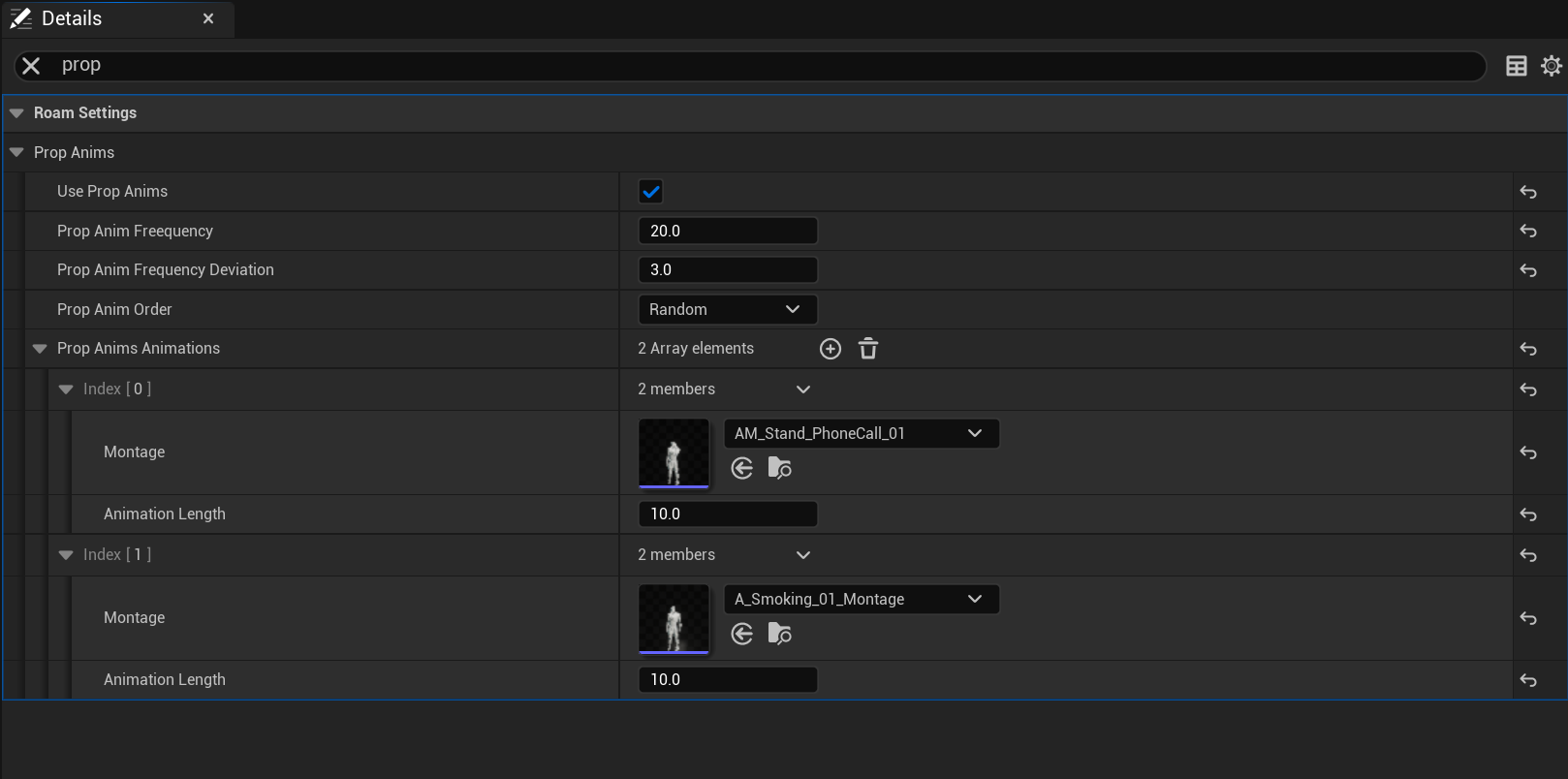
Prop animation will only be used if the Use Prop Anims setting is ticked on.
Prop Anim Frequency is how often in seconds a prop animation will play.
Prop Anim Frequency Deviation add random amounts to the Prop Anim Frequency in seconds to variance to how often an animations is played.
Prop Anim Order controls if prop animations are played in order of the Prop Anims Animations array or if they are randomly selected, note if random the same animation can be played multiple times in a row.
Prop Anims Animations are the montages that will be played, here you can set the montage and set how long it should play for, note the animation length setting will only work for looped montages (More info below on enabling a looped montage). To add new prop animations just click the + button and to remove an index click the down arrow next to the 2 members text and select the delete option.
Prop Notify
To add a prop to spawn when your animation is used you can add a Notify_EmoteProp animation notify in your montage then drag it to the time that you want that prop to spawn.
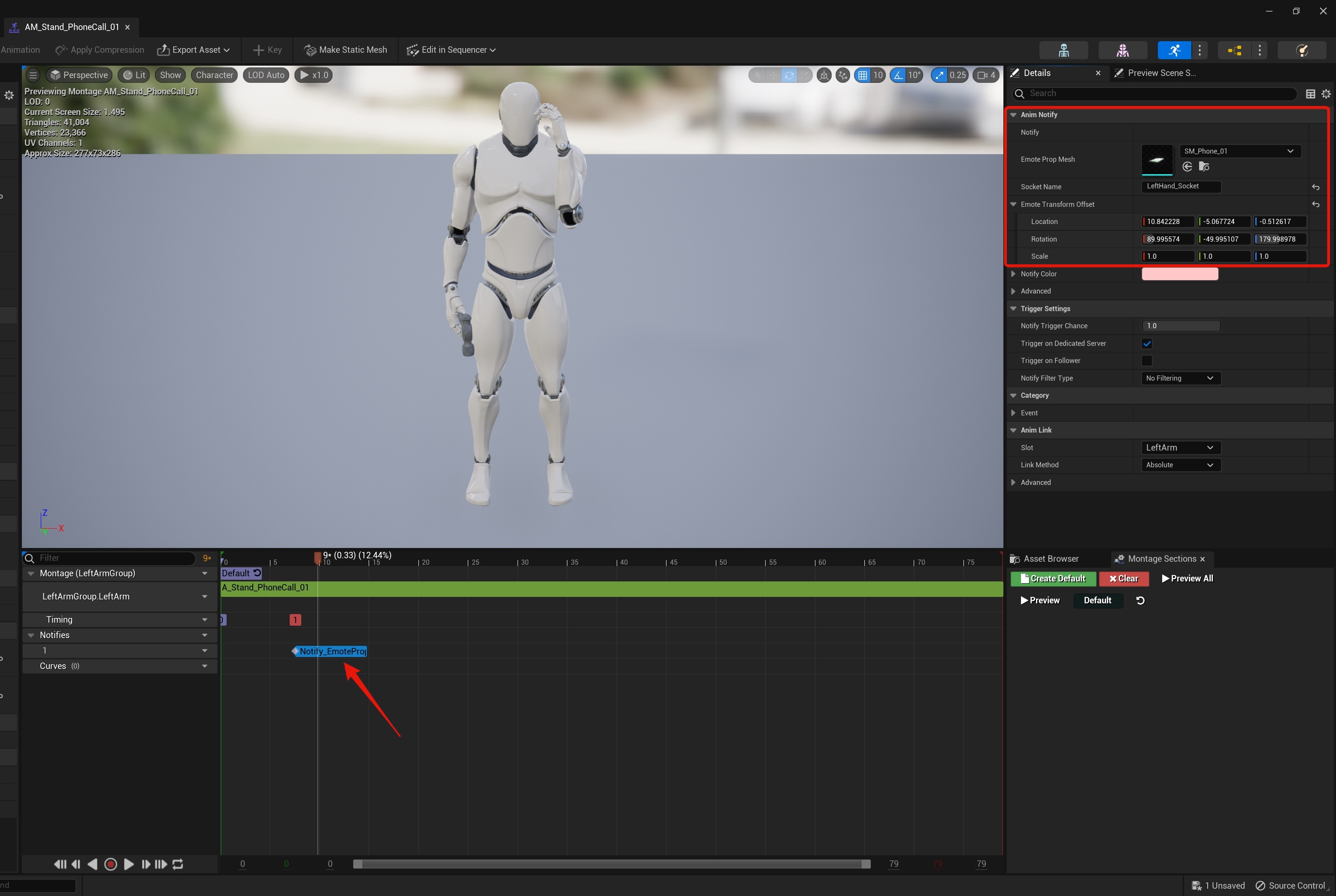
When you select the notify you can set the Emote Prop Mesh, this is the static mesh that will be spawned.
You can also set the Socket Name, this is the socket on the character skeleton that the mesh will attach to.
You can also set the Emote Transform Offset, this is a way of adjusting the static mesh location relative to the socket its attached to.
To set your montage to loop you can copy the video below.
 Defuse Studios