This is a guide on how to integrate Player Farming System into Survival Game Kit V2.
Make a backup of you project before following this guide.
Start by migrating the PlayerFarmingSystem folder from the Player Farming System project to your Survival Game Kit V2 project like the video below. Make sure the engine version of both projects is the same.
Collision
In the Survival Game Kit V2 project go to the Project Settings then go to the Collision category and copy the video below.
Next create the new Presets and copy the settings show in the images below.
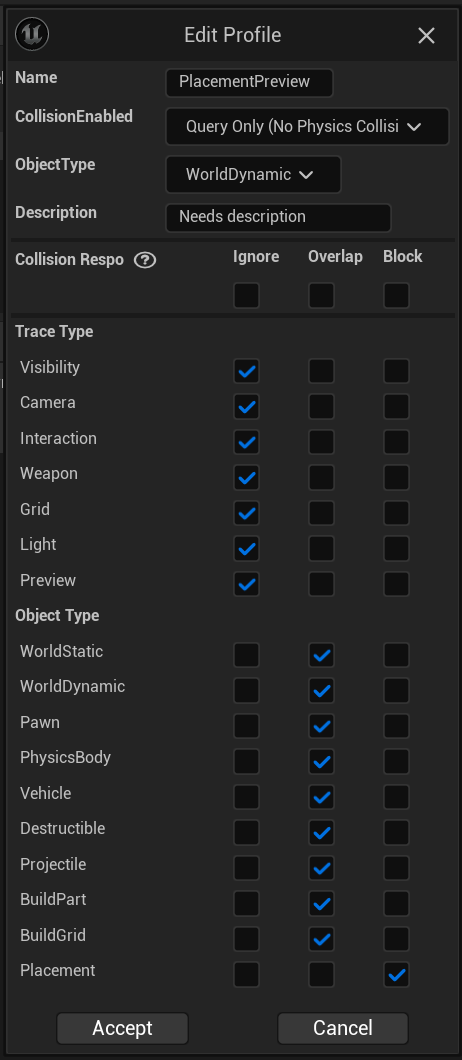
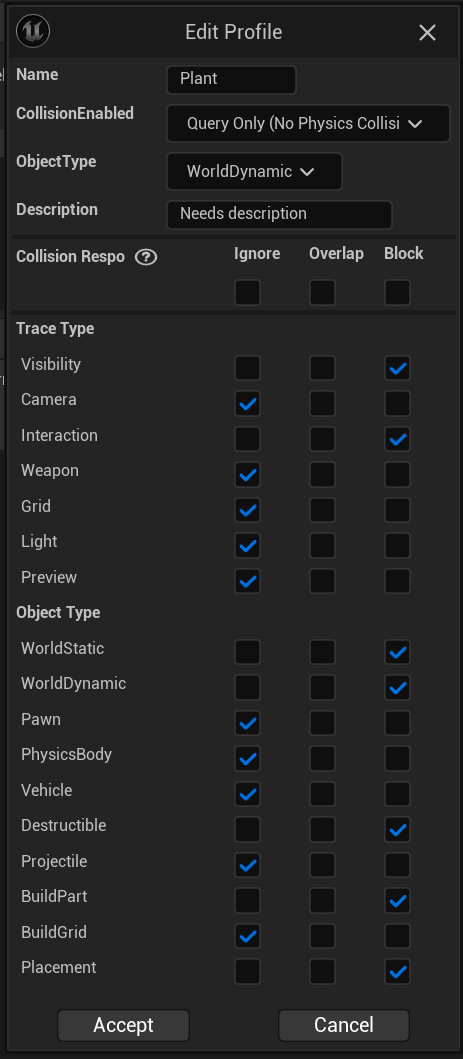
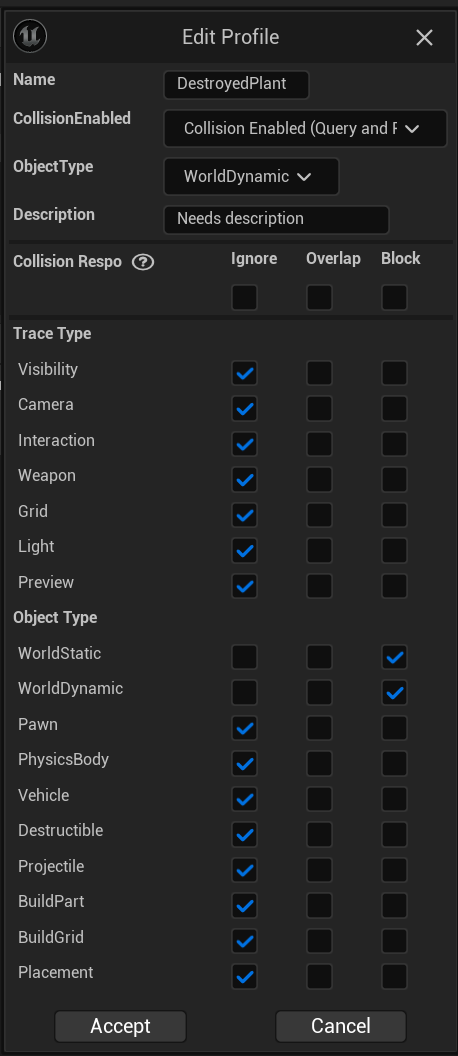
Next edit the existing presets like shown in the video.
Go to the BP_WarmthDetectorComponent and in the Class Default set the Warmth Collision Channel to Light.
Then go to the BP_LightDetectorComponent and in the Class Defaults set the Light Collision Channel to Light.
Controller/Gamemode
Go to BP_SGKController and add the BP_PlayerFarmingComponent using the add button in the Components panel. Then add the highlighted nodes shown in the image below.
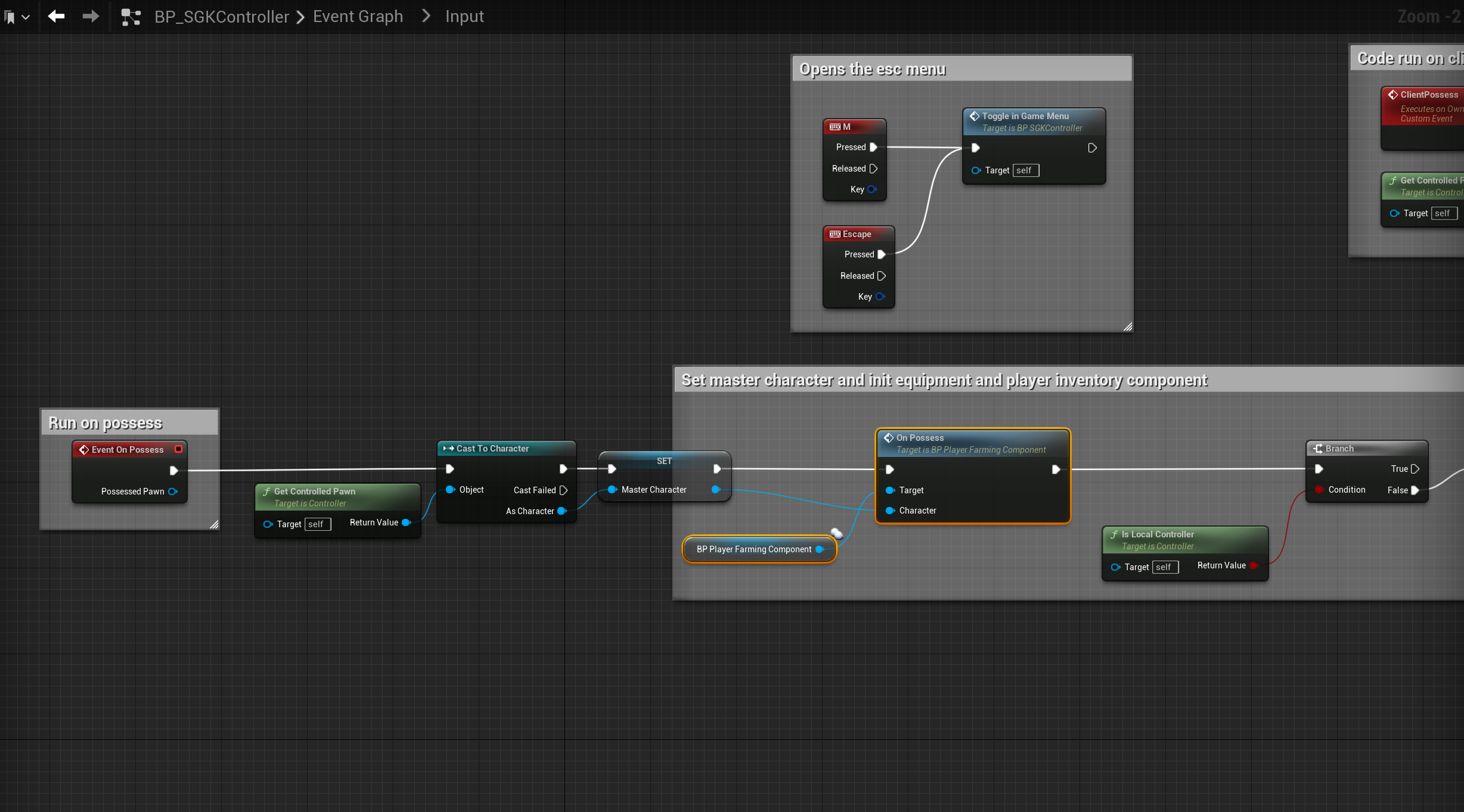
Note – When following the image above if you have already integrated Player Electricity System the code will need to look like the image linked (here).
Go to the BP_SGKGameMode and also open the BP_FarmingGamemode and copy the video below.
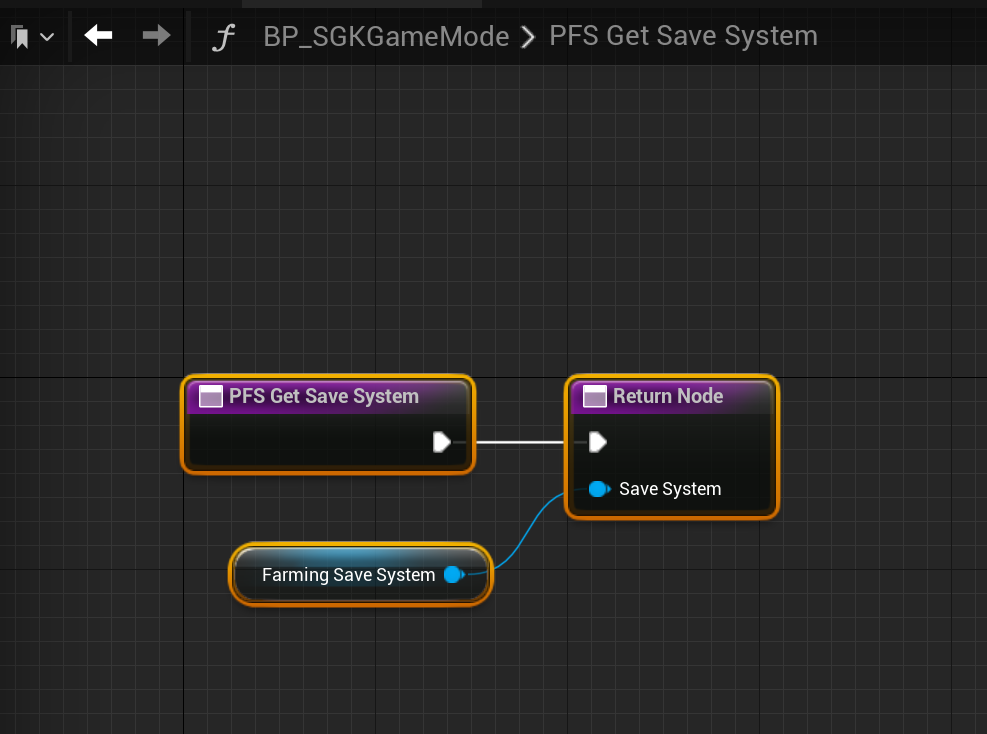
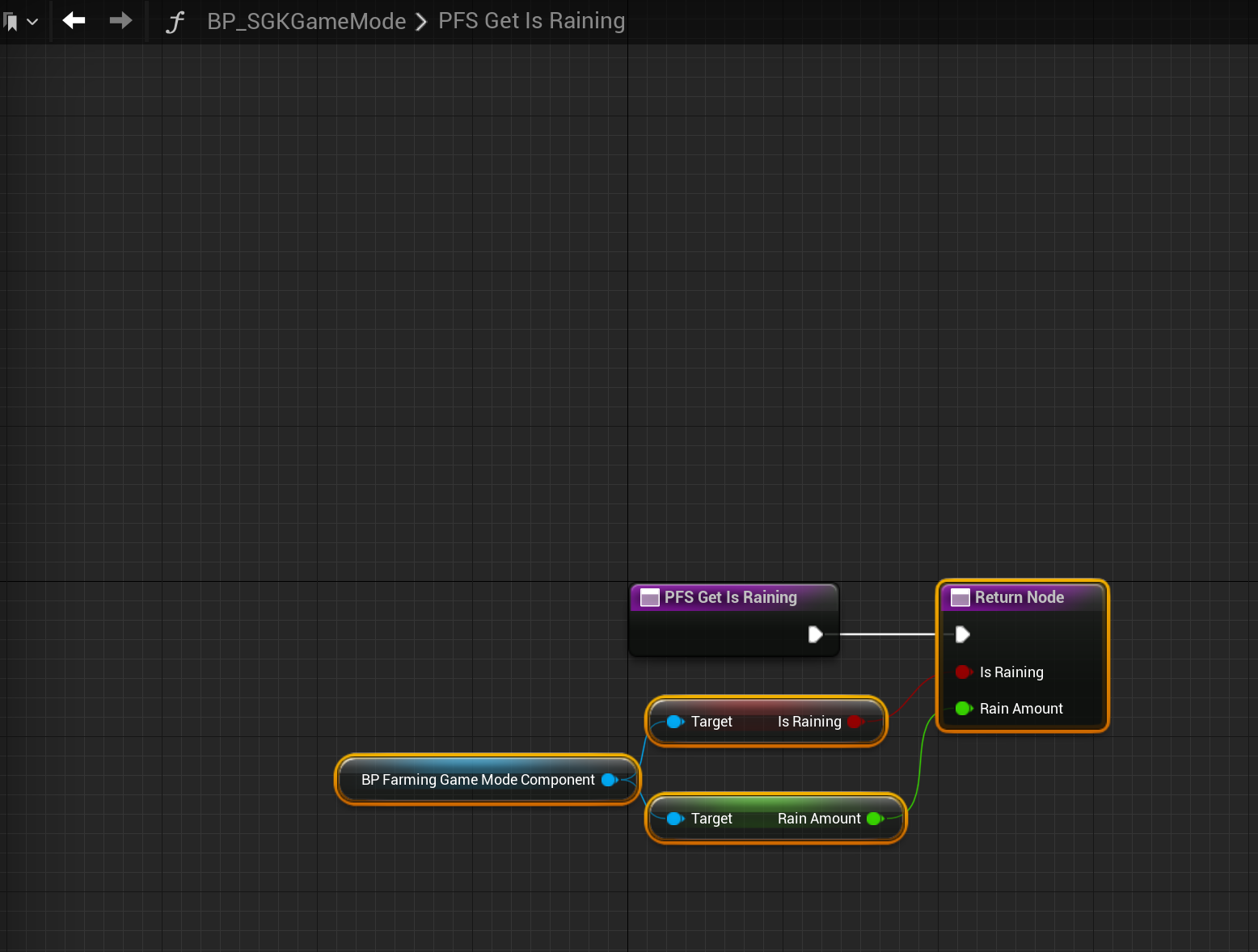
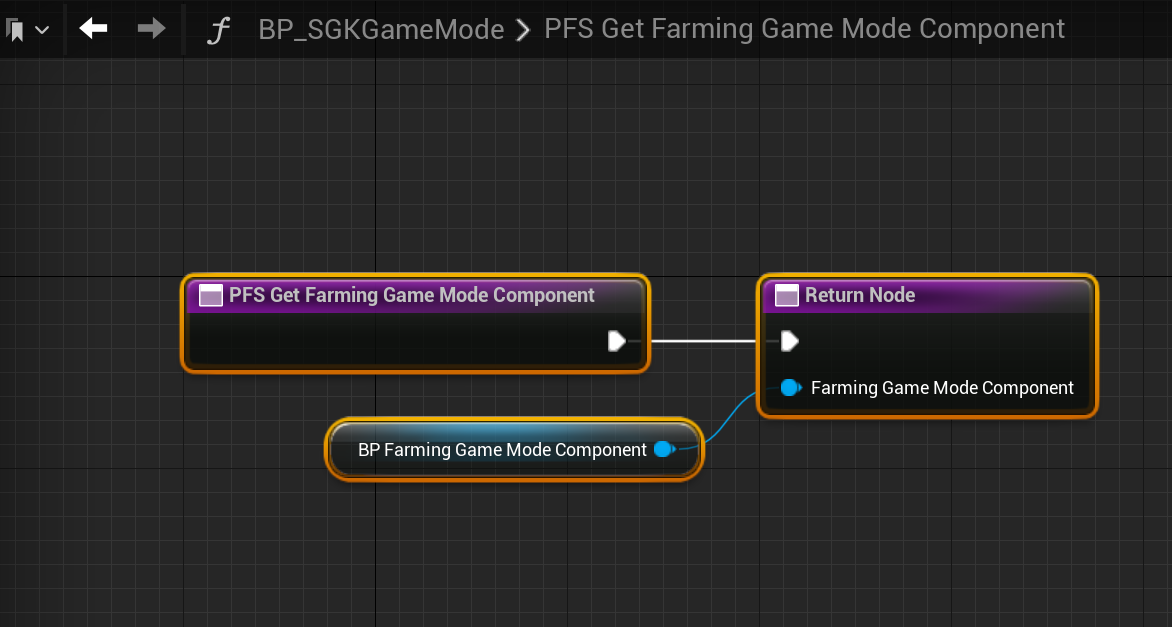
Next copy the images below, locations at the tops of the screenshots, these functions will be in the Interfaces tab in the My Blueprint panel.


Player Building Component
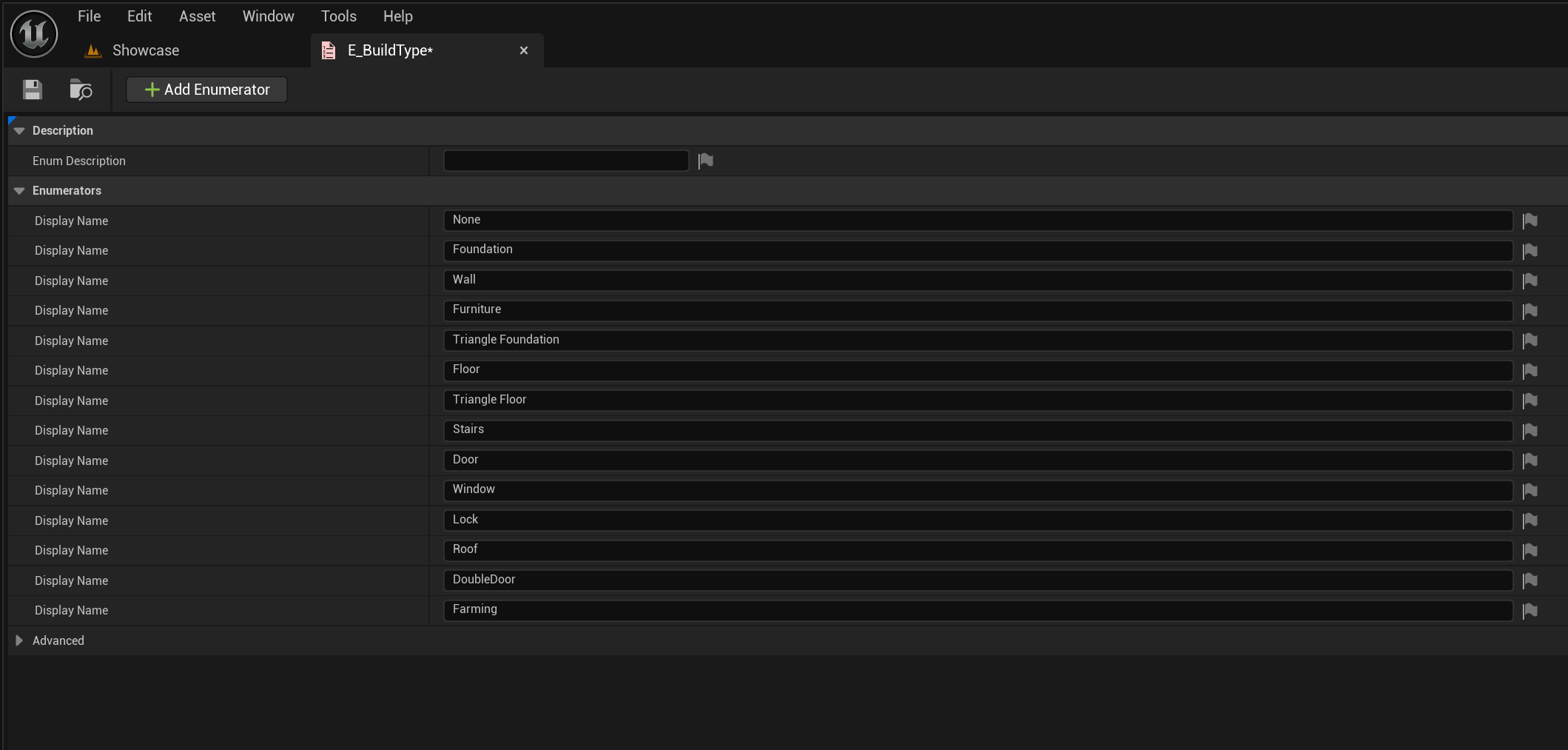
Go to the E_BuildType in the content browser and add a new enumerator called Farming like the image below.
Next I recommend playing in editor, once the character loads in you can exit.
Note – You may have after errors after this step this is fine they will be resolved.
Next go to the BP_PlayerBuildingComponent and create a new variable called FarmingComponent and set its type to the BP_PlayerFarmingComponent. Then copy the images below, locations at the tops of the screenshots.
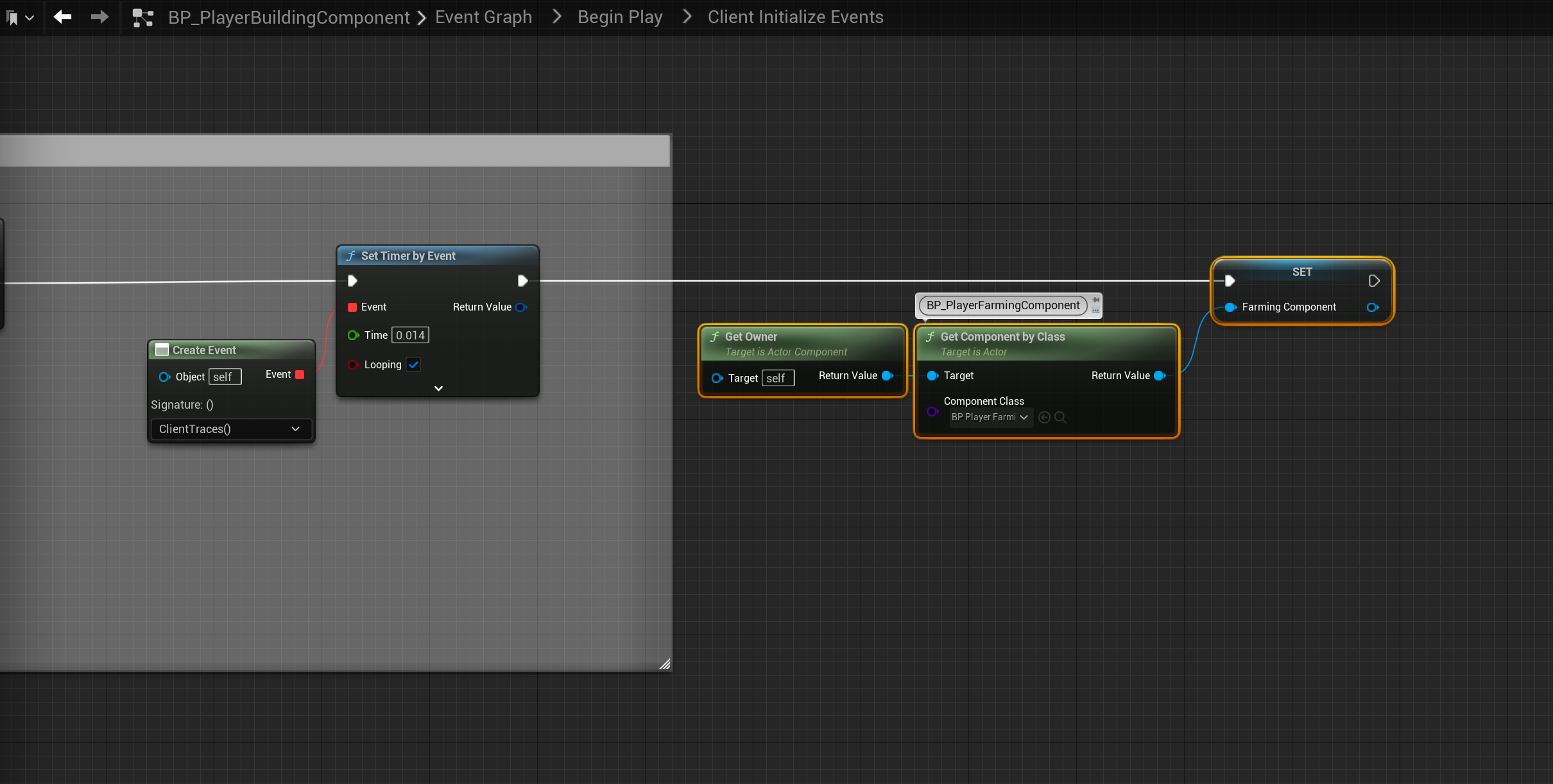


Note – When following the image above if you have already integrated Player Electricity System the code will need to look like the image linked (here).

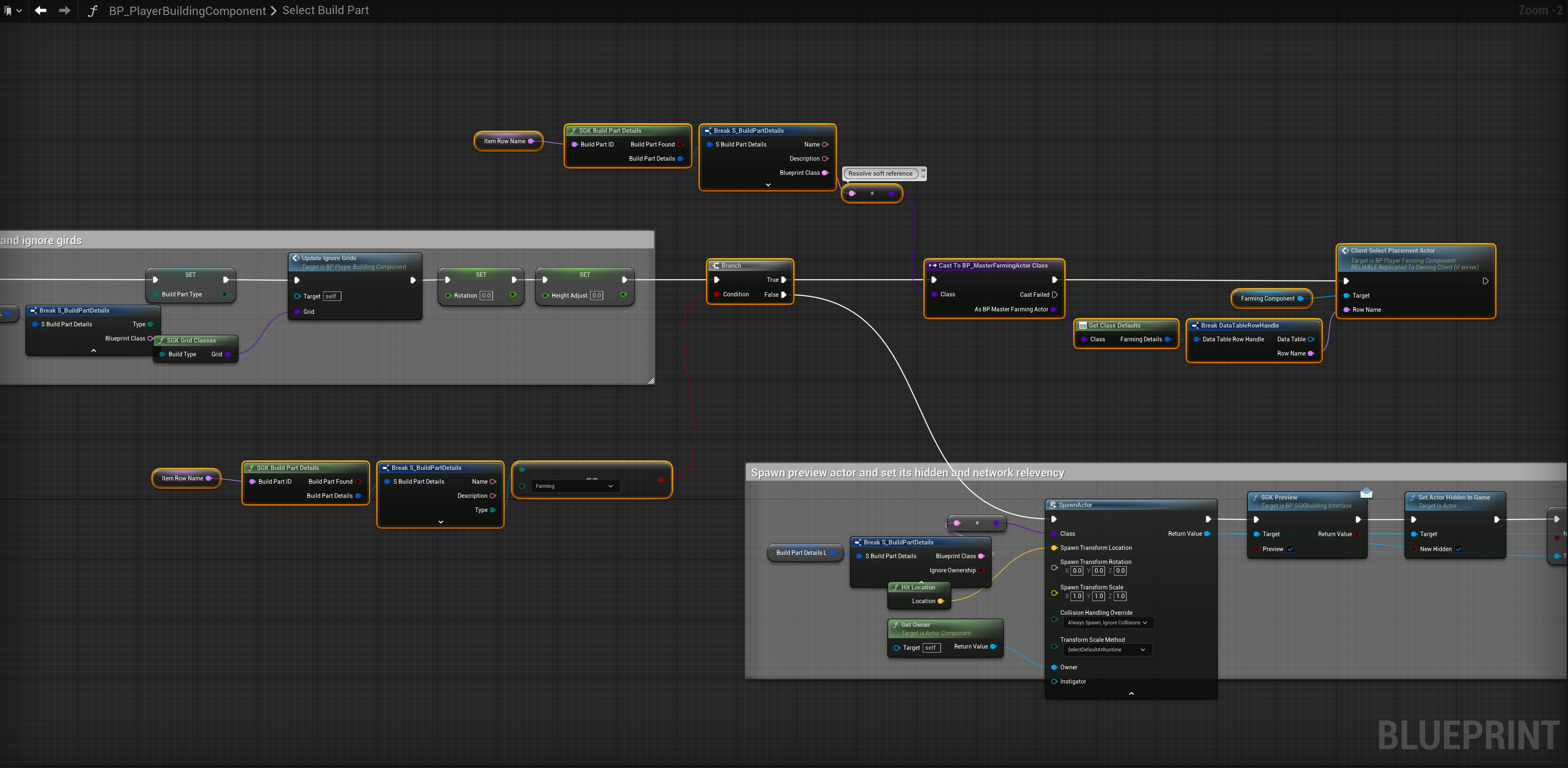
Note – When following the image above if you have already integrated Player Electricity System the code will need to look like the image linked (here).
SGK Master Character
Go to the BP_SGKMasterCharacter then copy the video below,
Next copy the image below, this function will be found in the Interfaces tab in the My Blueprint panel.
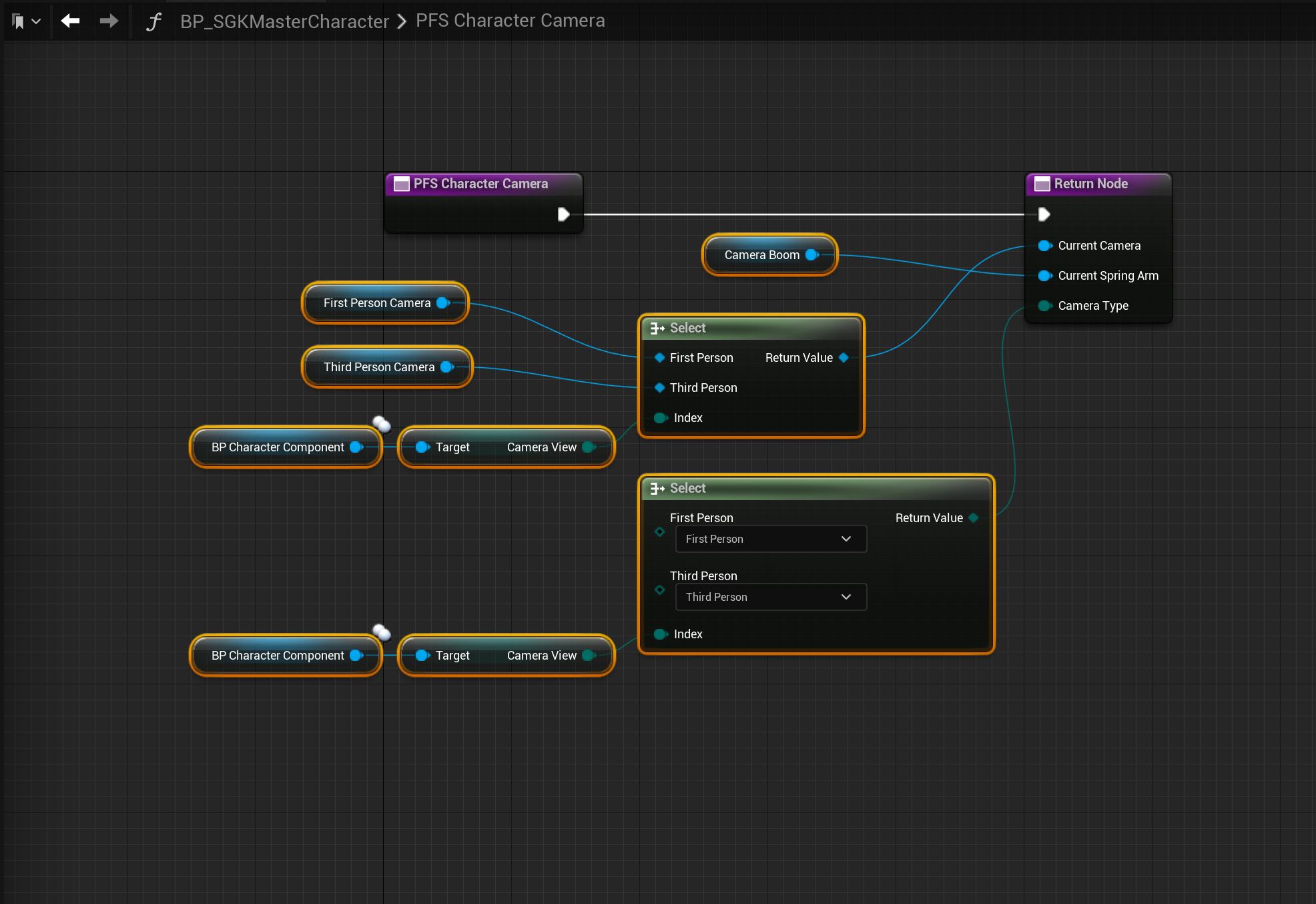
Copy the image below, location at the top of the screenshot.

Master Build Part
Next go to the BP_MasterBuildPart in the Content Browser then create a new variable called Farming and set its type to Boolean and tick on Instance Editable in the variable settings and make sure its Default Value is unticked, then copy the image below.

Note – When following the image above if you have already integrated Player Electricity System the code will need to look like the image linked (here).
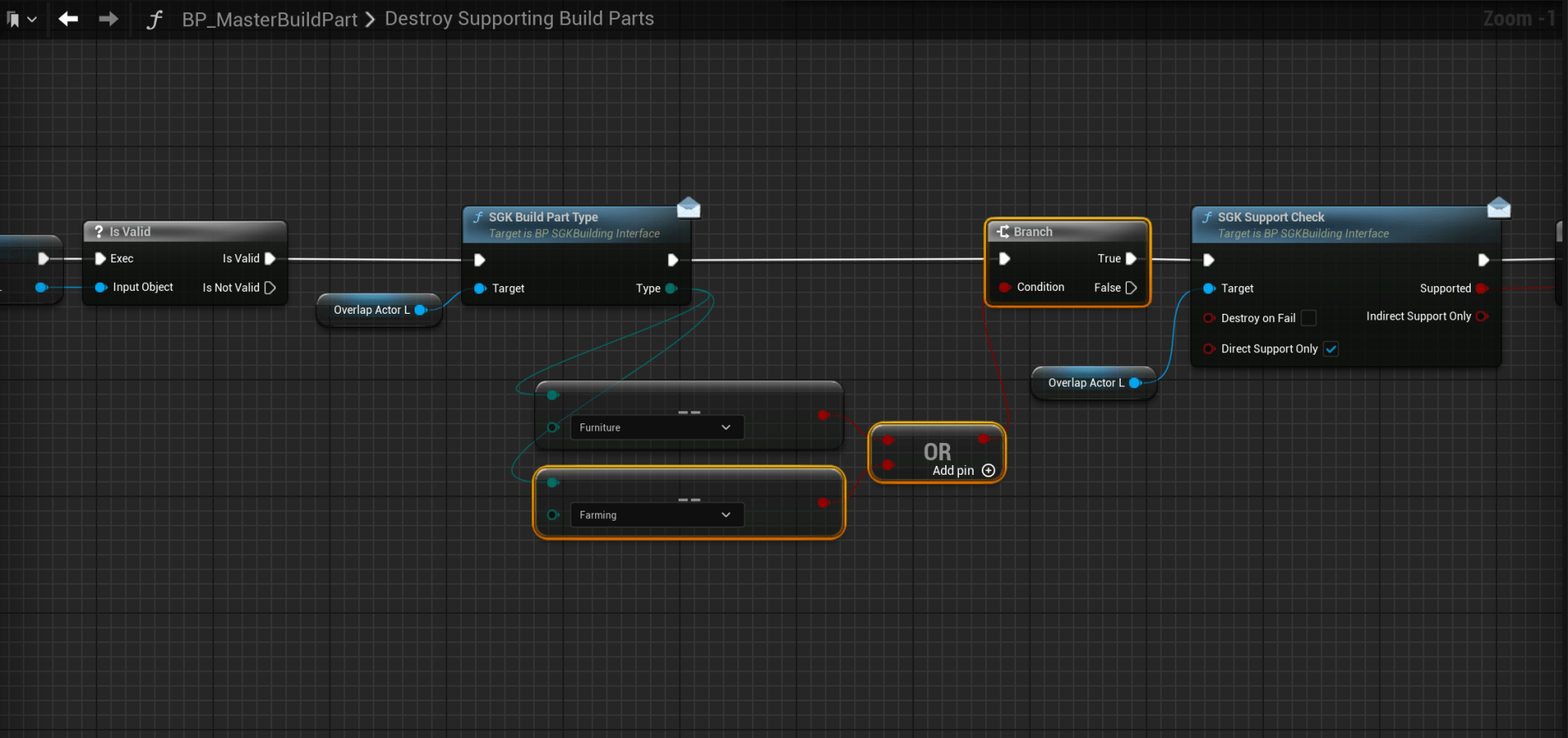
Copy the image below in the Destroy Supporting Build Parts function.

Note – When following the image above if you have already integrated Player Electricity System the code will need to look like the image linked (here).
Next copy the video and image below, make sure the BP_GroundDetectComponent you select on the Get Components By Class node is the one in the Farming Systems folders.
Note – When following the image above if you have already integrated Player Electricity System the code will need to look like the image linked (here).
Next in the Components panel rename the StaticMesh component to BuildPartStaticMesh and compile, I recommend playing in editor after making this change, once the character loads you can exit play in editor.
Master Farming Actor
Go to the BP_MasterFarmingActor in the Content Browser, then copy the video below.
Then copy the images below, location at the top of the screenshot.

Then in the Class Defaults search for Farming and Tick on the Farming setting. Next copy the video below.
Next copy the image below,

Player Farming Component
Next go to the BP_PlayerFarmingComponent and in the Class Defaults make sure the settings shown below in your project and the same as the image below.

Next create a new variable called PlayerInventory and set its type to BP_PlayerInventory, then copy the images below, locations at the tops of the screenshots.


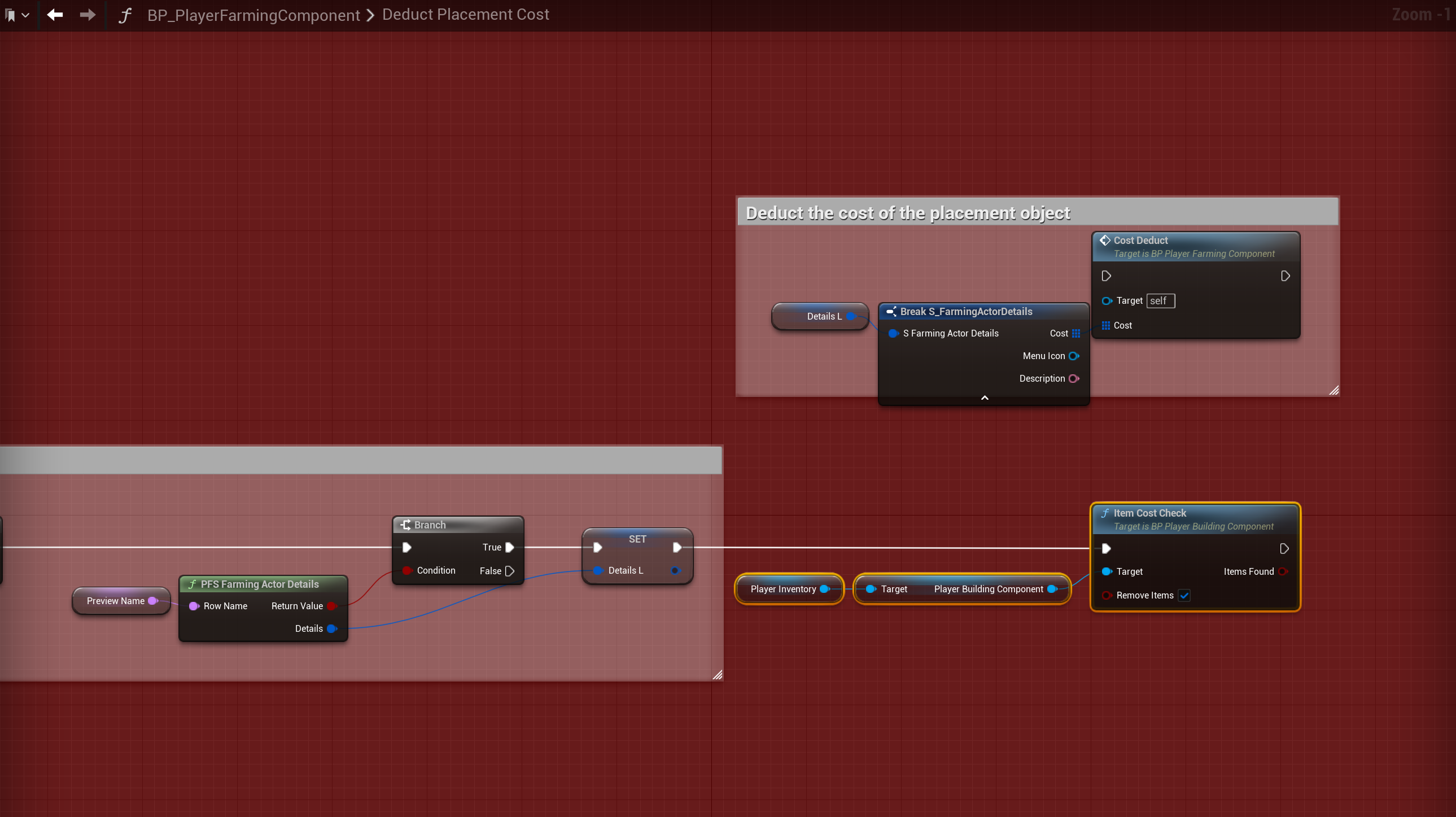
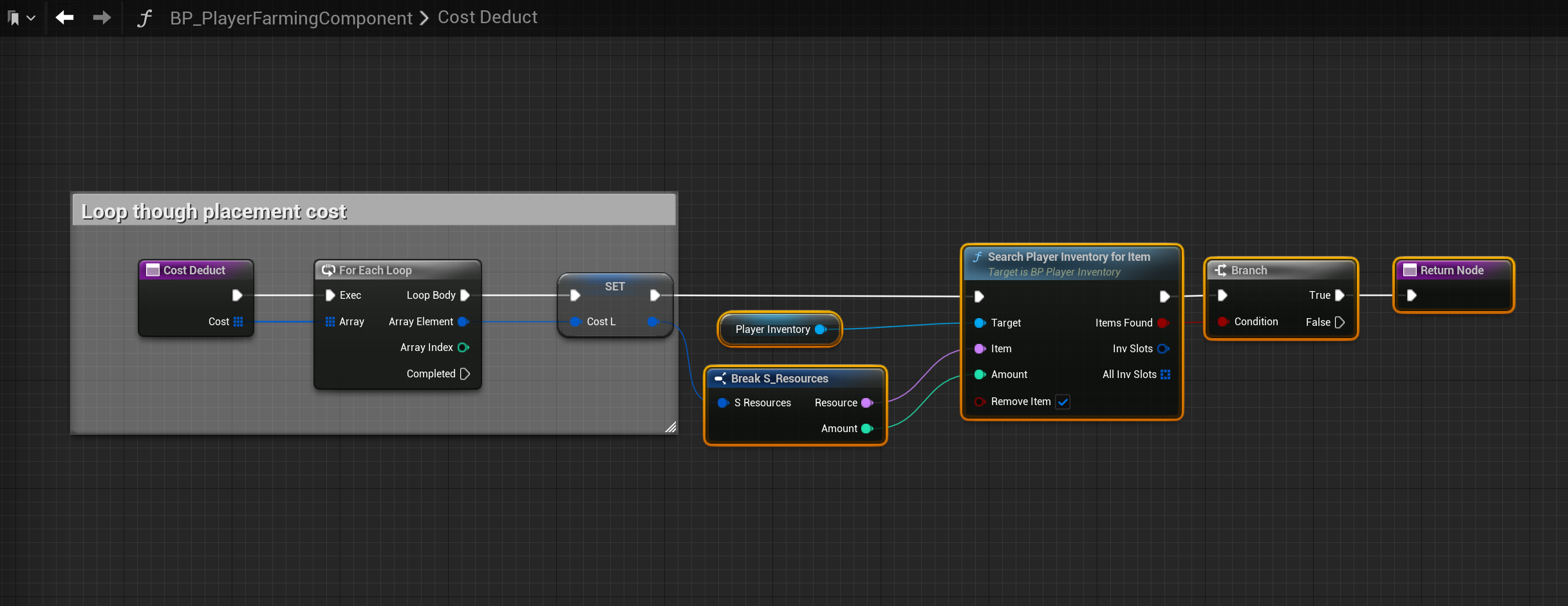
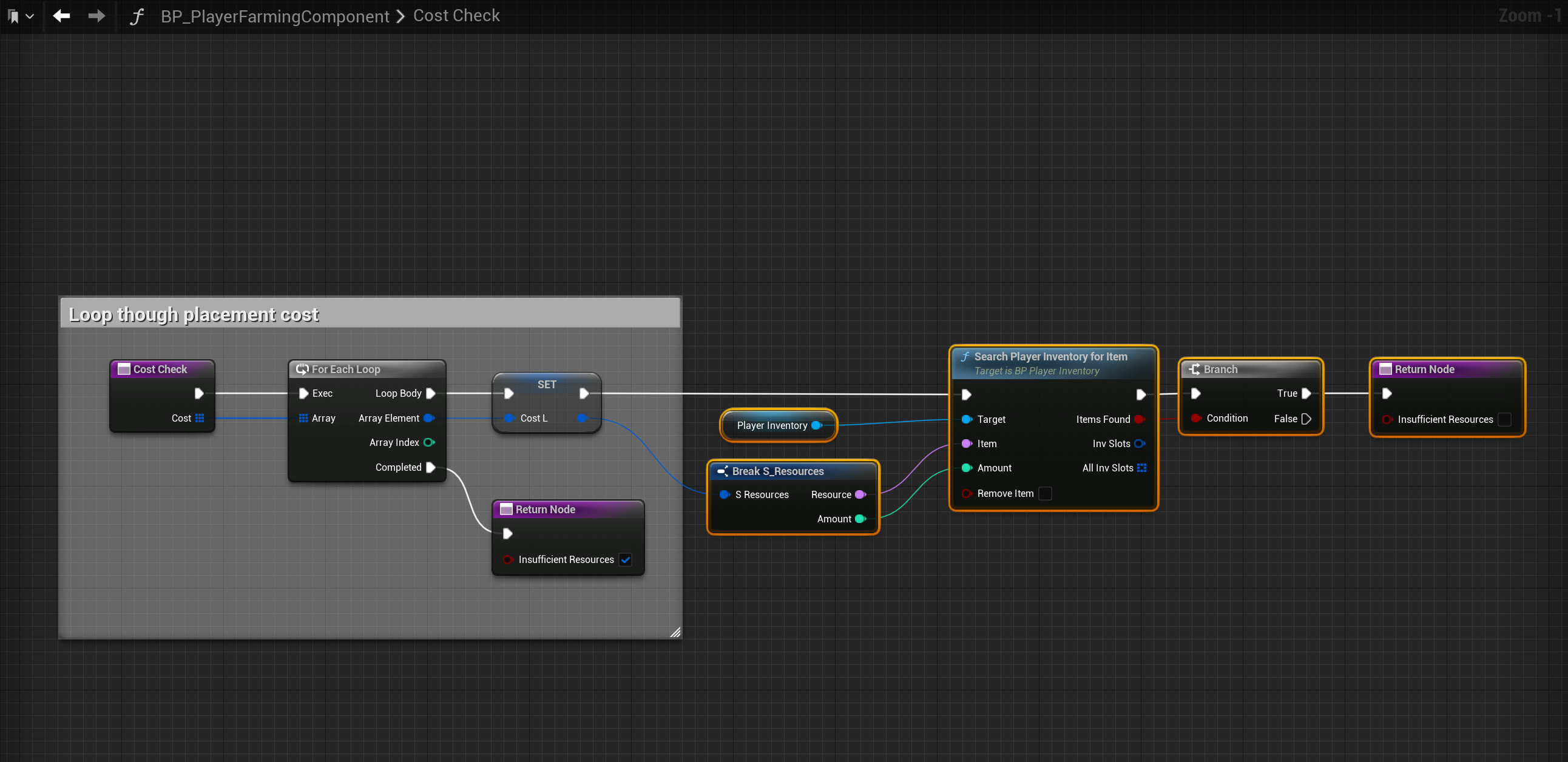
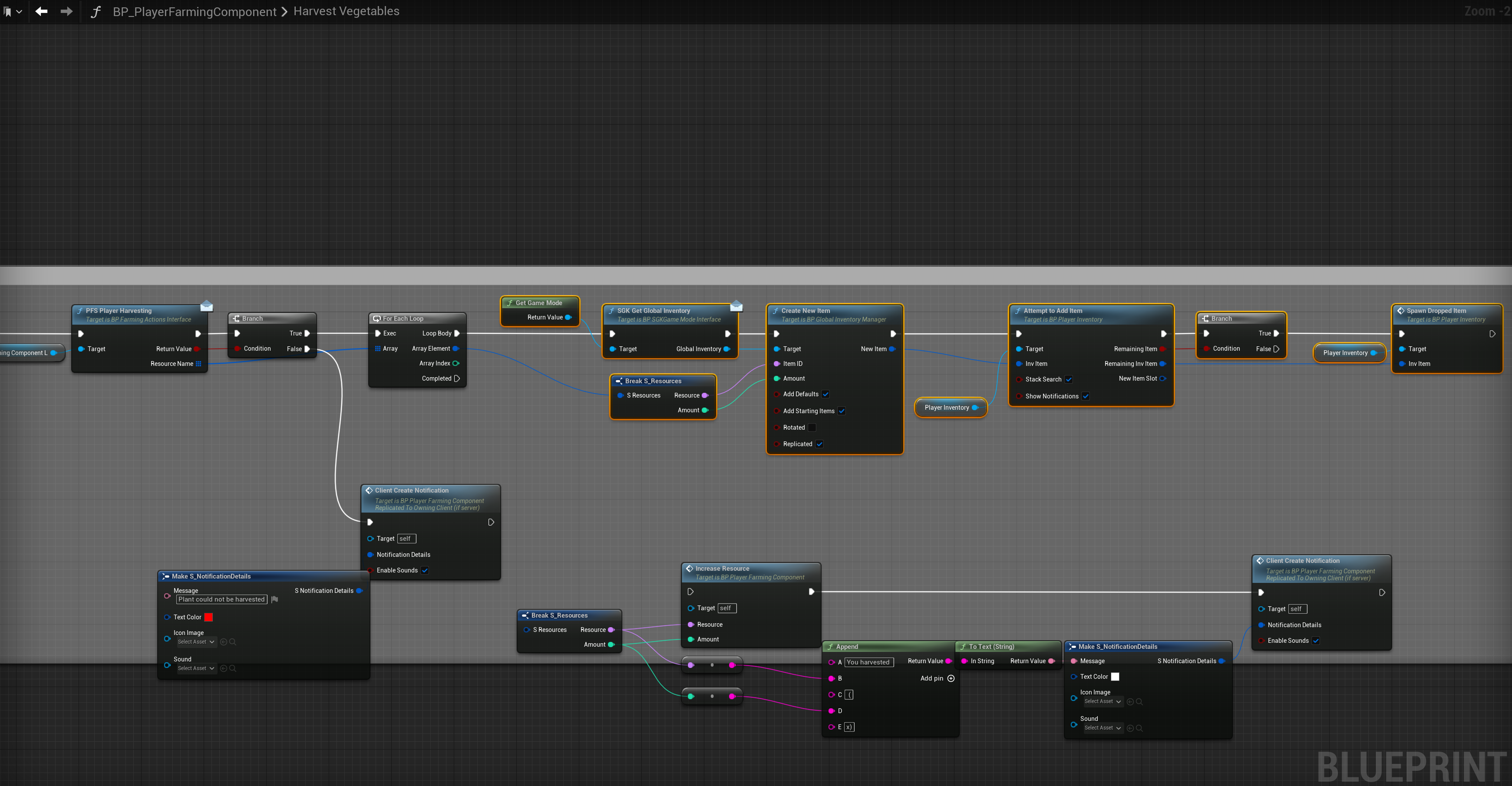
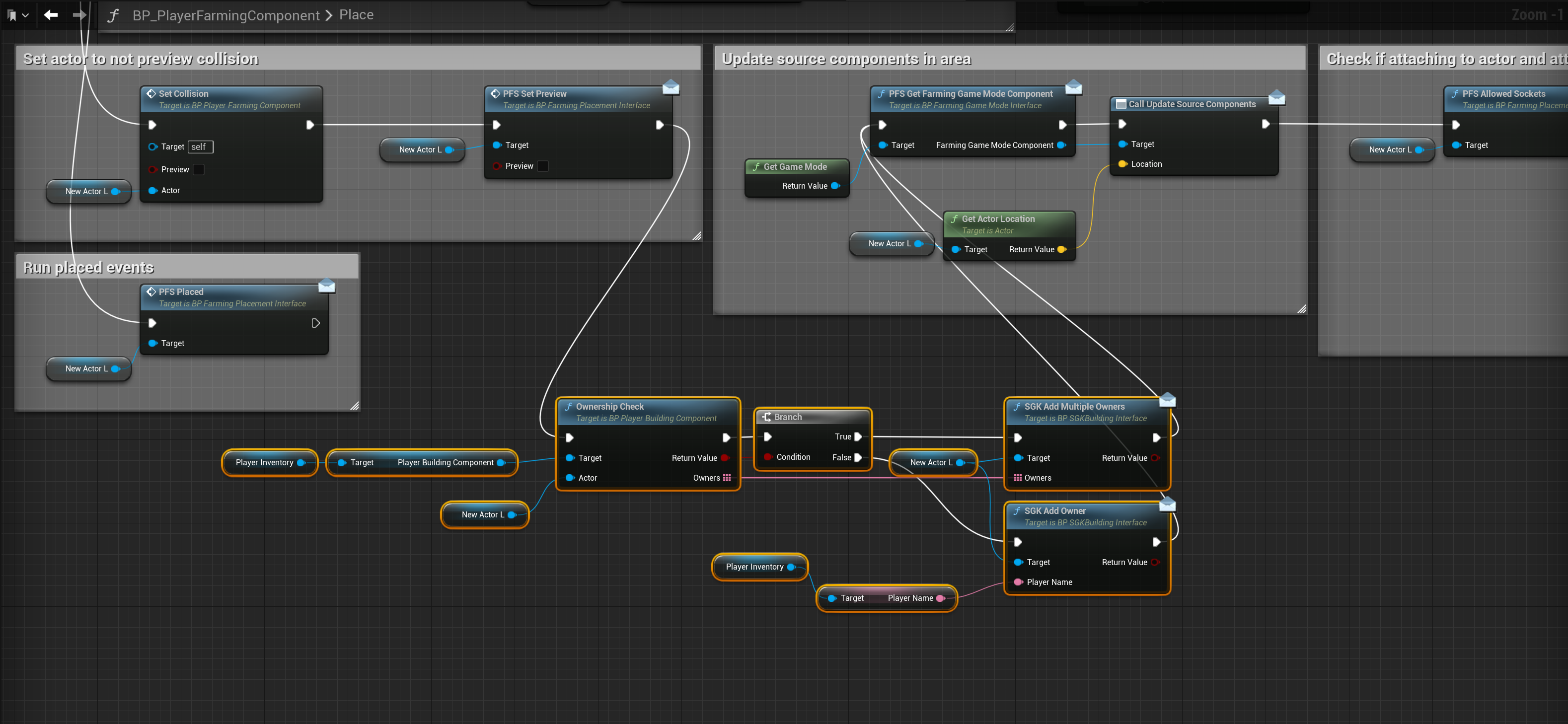
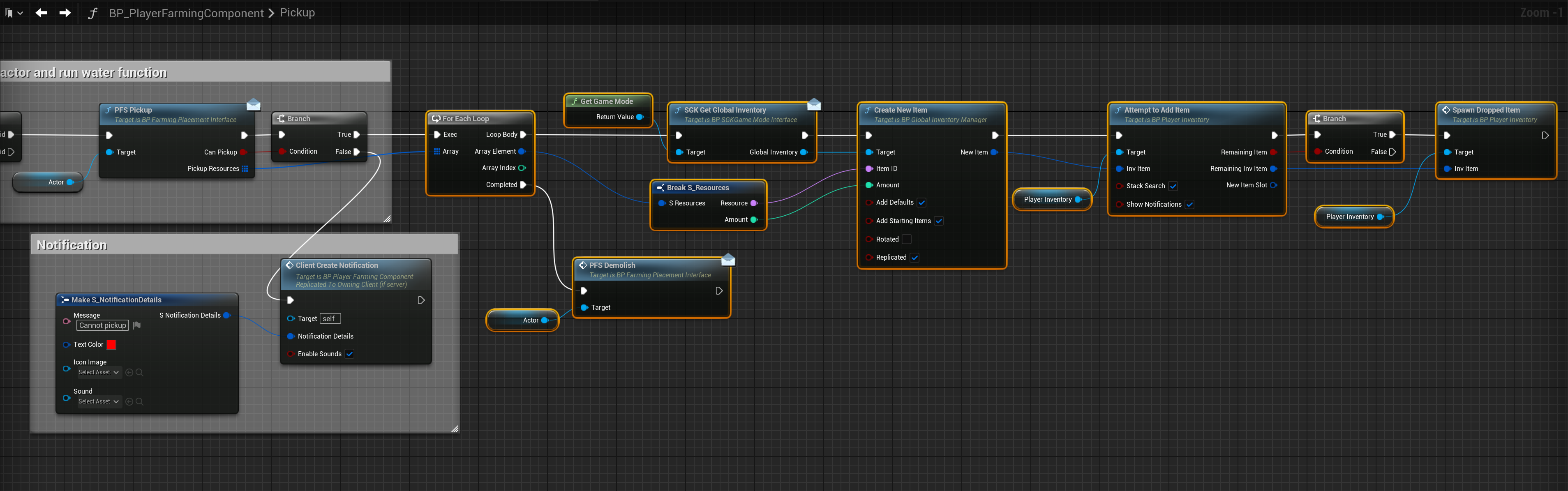
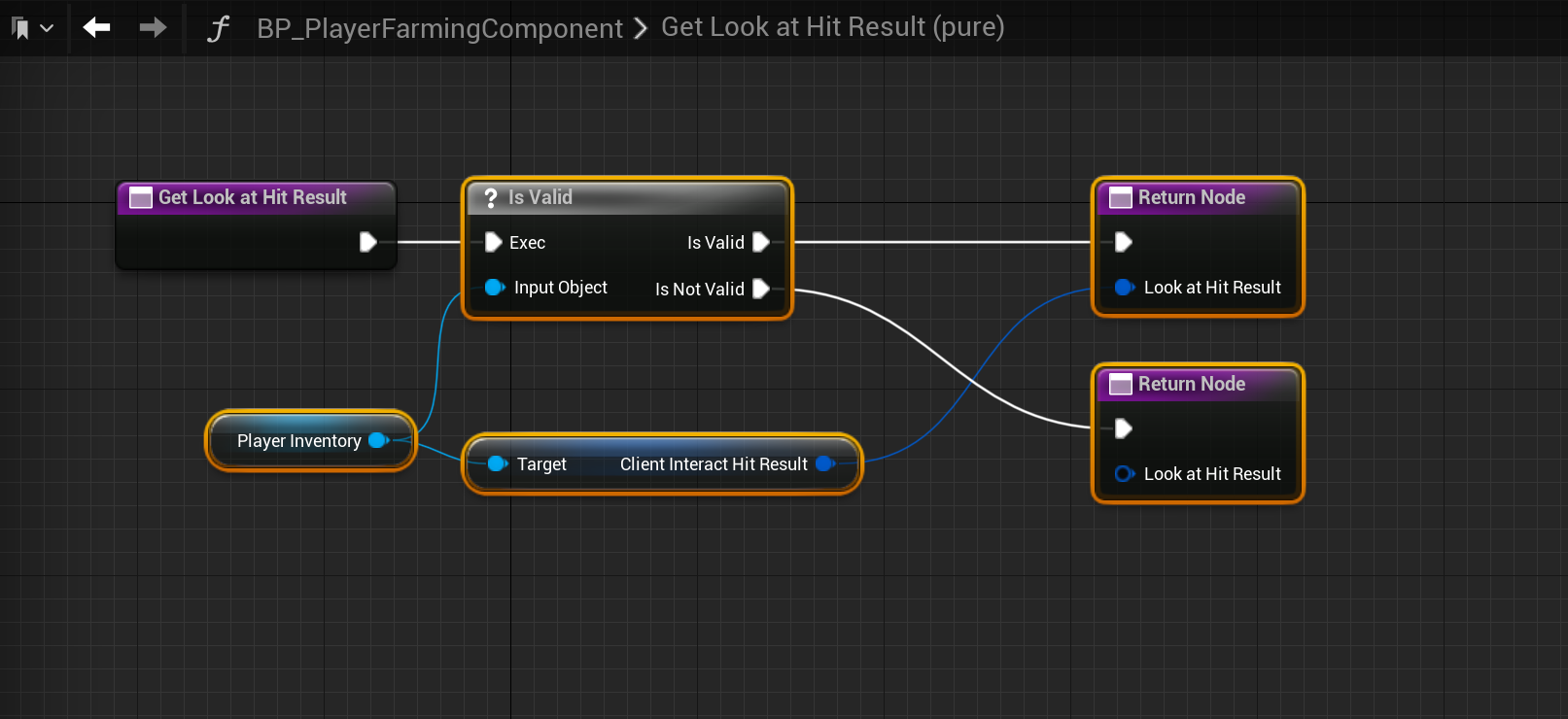
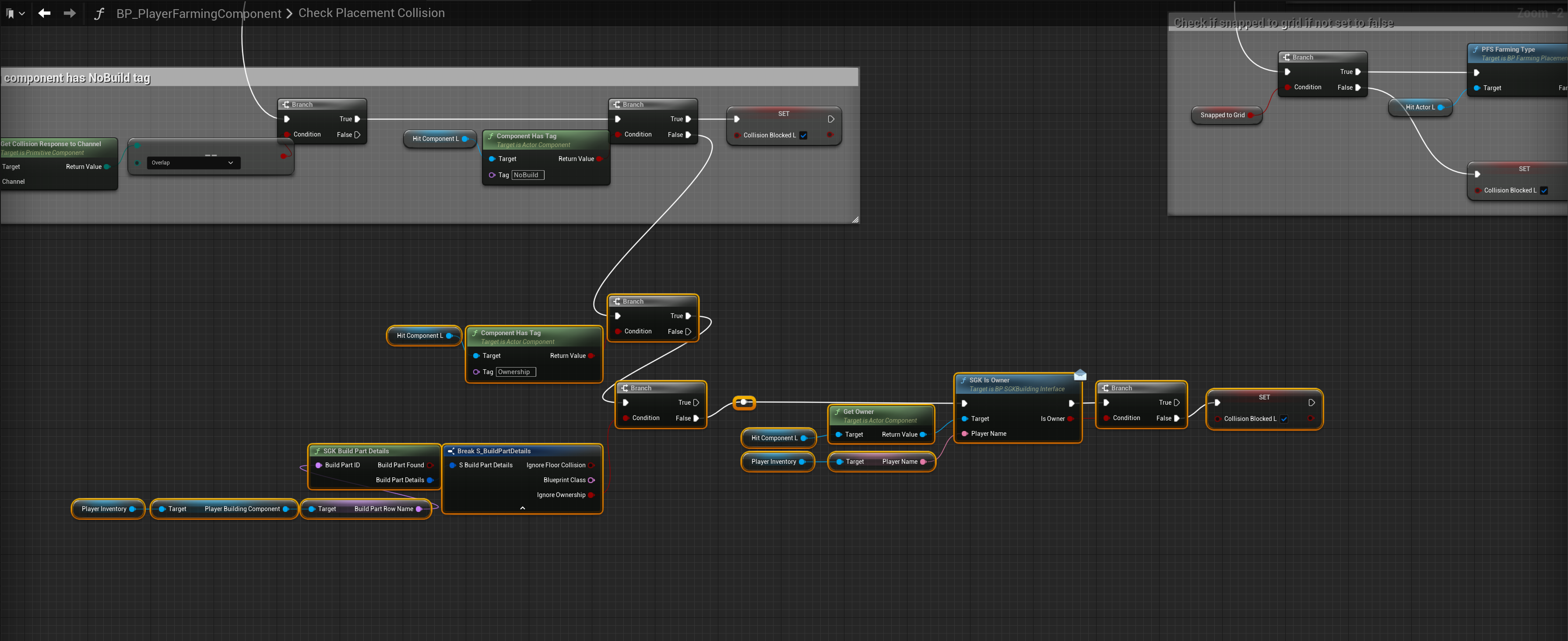
Then compile and save the blueprint. Then play in editor, once the character loads in your can exit play in editor. Then click save all in the content browser and save all the blueprints. Then I recommend closing the project and then reopening it.
Save System
Go to the S_LevelSaveData struct in the Content Browser, make sure you open the one included with Survival Game Kit and not Player Farming System then copy the video below.
Then play in editor, once the character loads in your can exit play in editor, then click save all in the Content Browser.
Note – If the engine crashes when you play in editor reopen it, copy the video above and click the save icon in the struct then play in editor, if the engine crashes you can reopen it and contuine following the guide.
Note – You may get errors in the master cooking and master crafting build part blueprints if you do just open those blueprints and compile them this will resolve the errors.
Next go to the BP_SGKSaveGame and copy the video below.
Then copy the image below by adding the highlighted nodes.

Next open the BP_SaveSystem blueprint thats comes with Survival Game Kit V2, and copy the video below.
Master Plant
Go to the BP_MasterPlant and copy the images below.


Next in the Class Defaults find the collision category in the Farming Settings and copy the settings shown below.

Next copy the videos below,
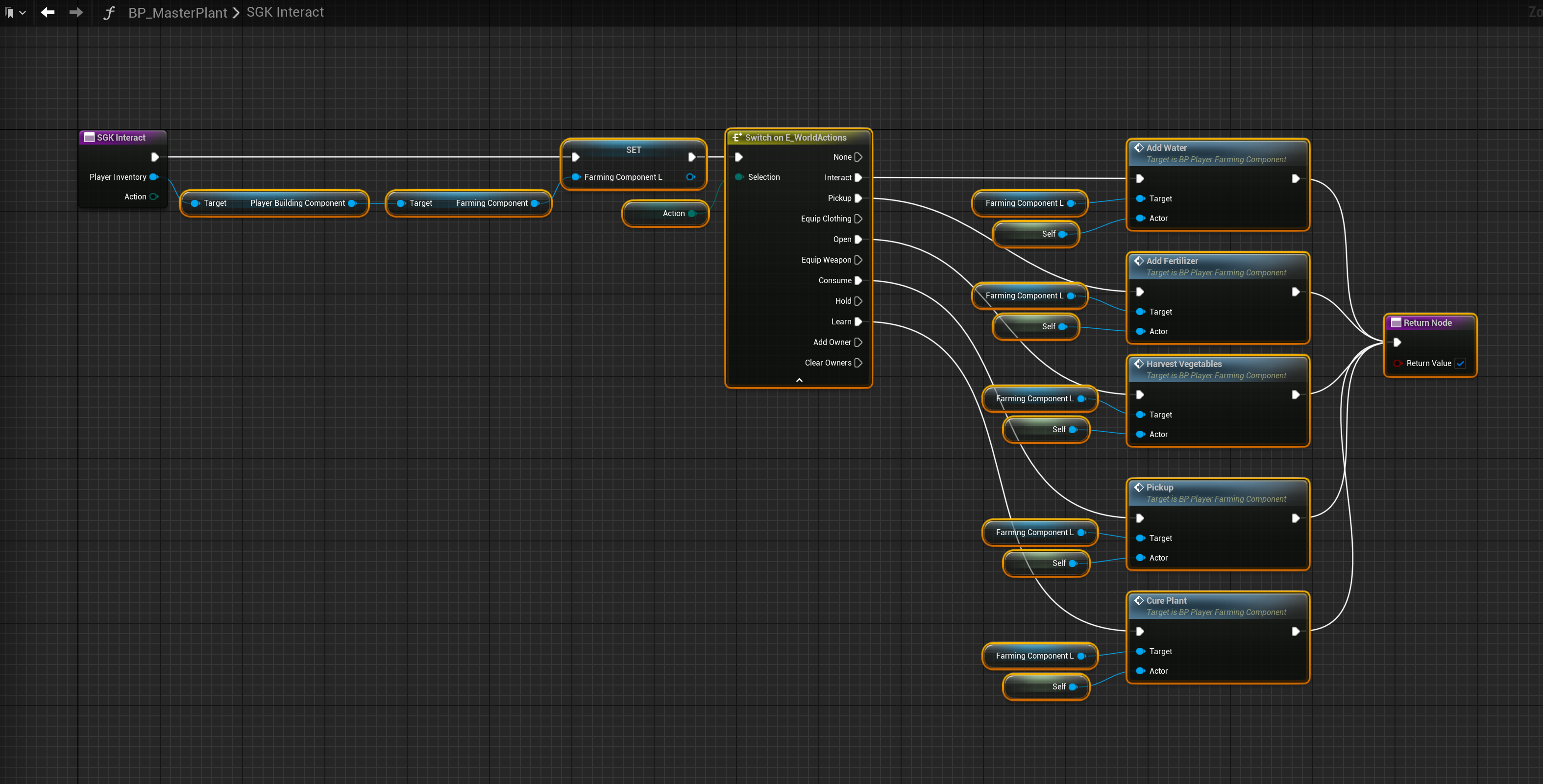
Next copy the images below, these functions are found in the Interfaces category in the My Blueprint panel.
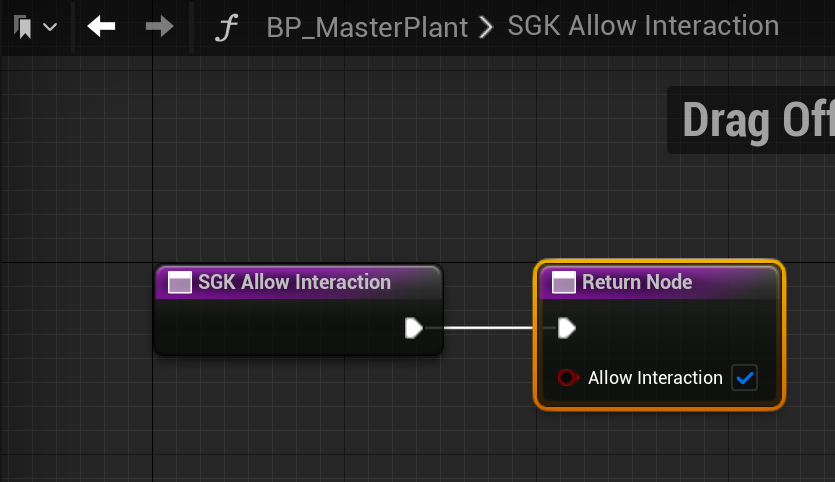
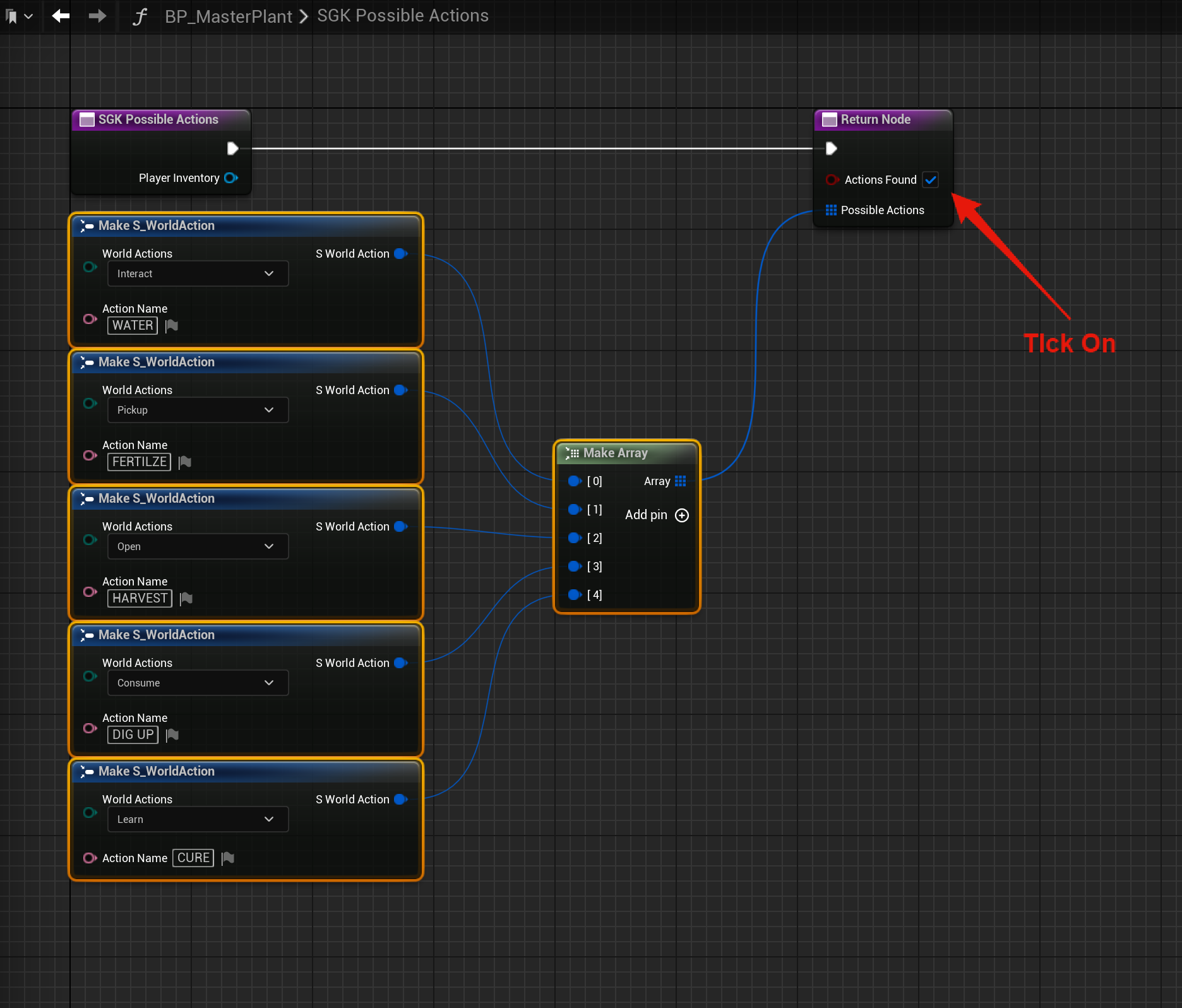

In the SGK Interact function create a new local variable called FarmingComponentL and set its type to BP_PlayerFarmingComponent.
Then in the Class Defaults find the Show Health Bar UI and make sure its unticked.
Then select the StaticMesh component in the Components panel and in the Details panel clear the Static Mesh setting so its set to none.
Master Planter
Next follow the video below, copy the code shown in the BP_MasterPlant and paste it into the BP_MasterPlanter
Master Light
Next follow the video below, copy the code shown in the BP_MasterPlanter and paste it into the BP_MasterGrowLight.
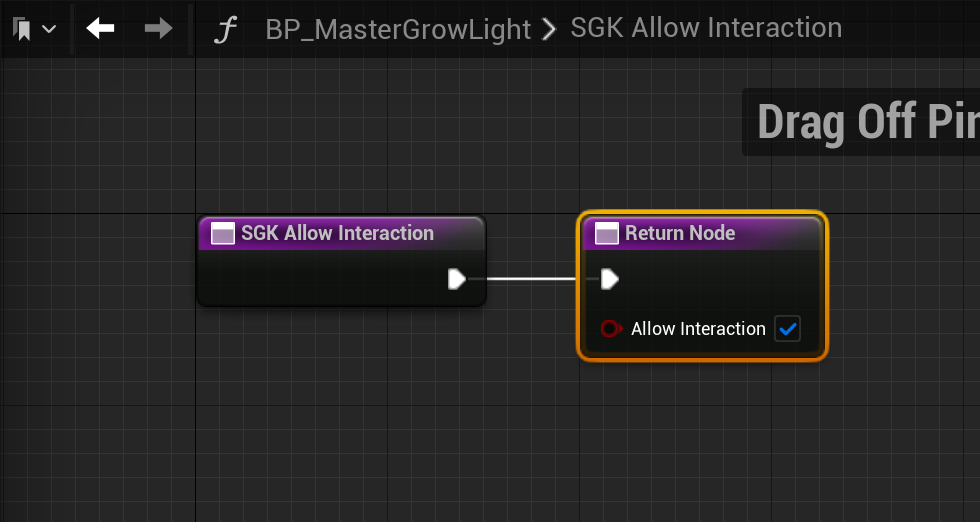
Next copy the images below, these functions are found in the Interfaces category in the My Blueprint panel.


Master Sprinkler
Next follow the video below, copy the code shown in the BP_MasterGrowLight and paste it into the BP_MasterSprinkler.
Next copy the images below, these functions are found in the Interfaces category in the My Blueprint panel.


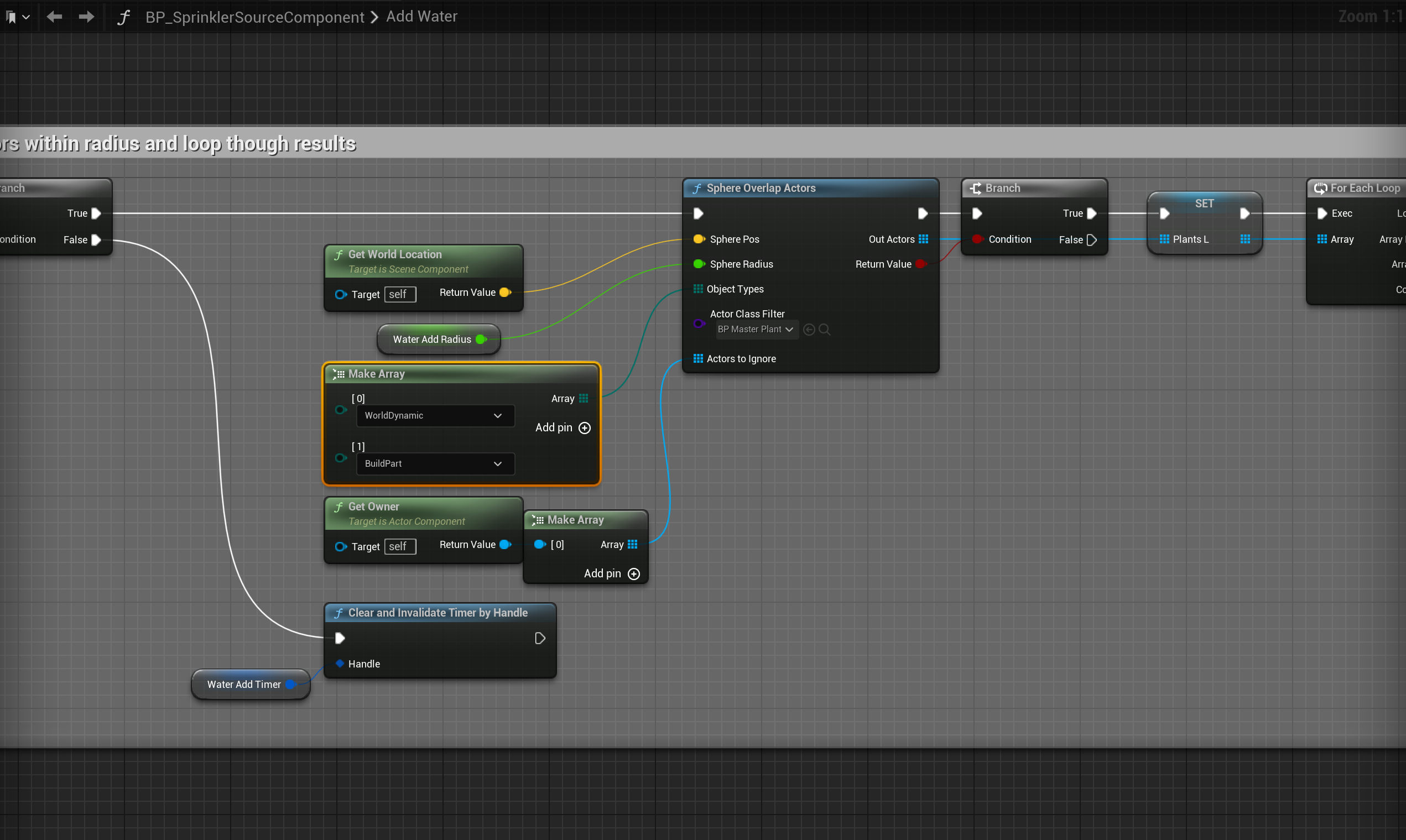
Open the Add Water function and on the Make Array node shown in the image below click add pin and set the new entry to Build Part like the image.
Interaction Context Menu
Go to the BP_InteractionContextMenu and add in the nodes shown below, location at the top of the image.
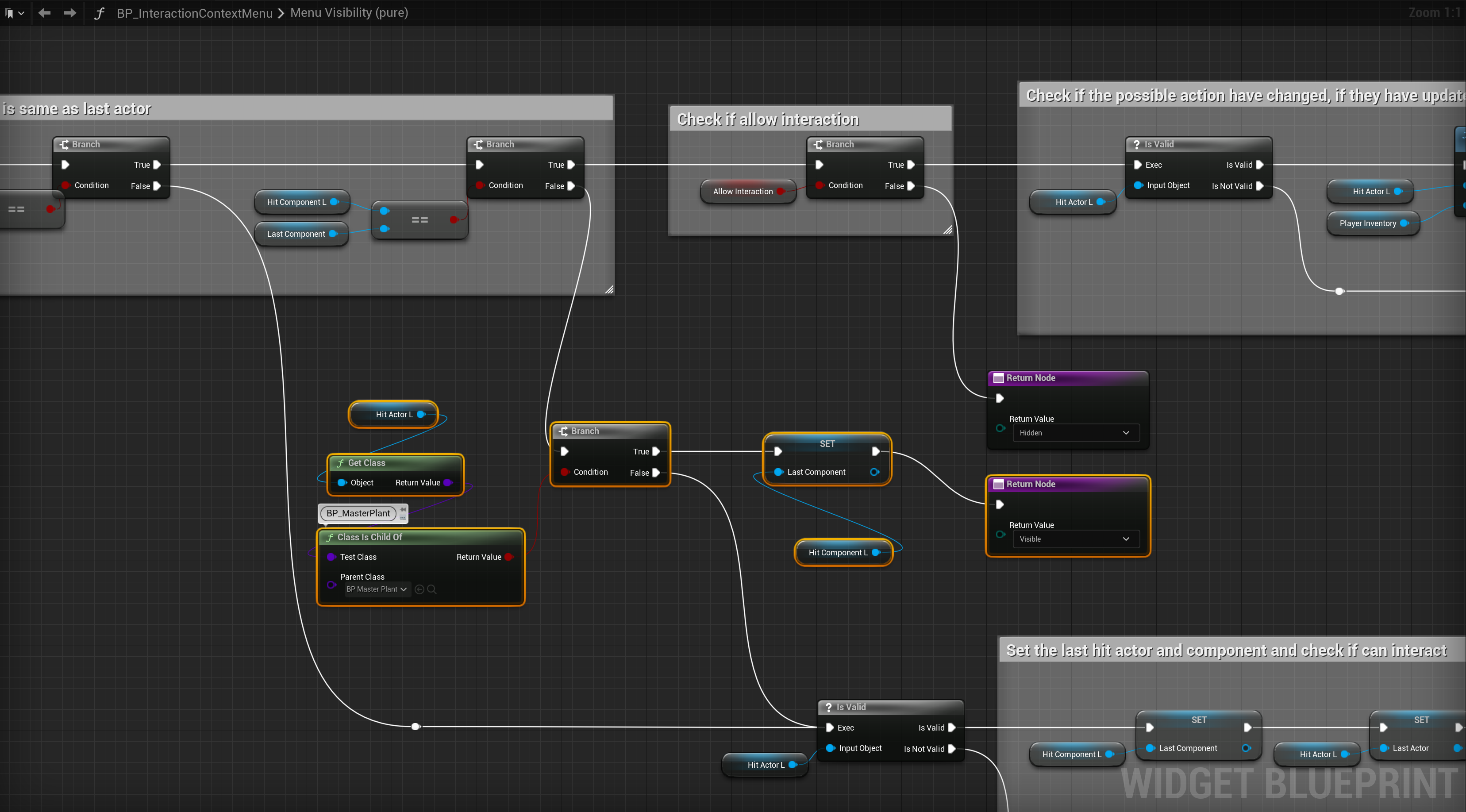
Then play in editor, once the character loads in your can exit play in editor. Then click save all in the content browser and save all the blueprints.
Adding Build Parts
You will need to create new row entries in the Build Part List for each plant, planter and tool actor, you will also need to create an item for each each plant, planter and tool in the ItemList then you will need to create new world item blueprints for each of those items.
Below is an example how to setup these build parts and items, you will need to do the same for the rest of the farming actors.
Click the Add button to add a new row to the BuildPartList, then double click the row name in the bottom left corner and set the farming actor name. This must be the same as the row name from the PlantList from Player Farming System, so I recommend checking that list when setting this name, for planters the name will be in the PlanterList and for Tools use the names from the ToolsList.
Then go though and set the build part details, make sure you set the Type to Farming and make sure you set the Blueprint Class to the Farming Actor blueprint.

Next go to the ItemList and create a new row by selecting the Add button, then double click the row name in the bottom left corner and rename the row to the farming actor name. Then go though and set the item details, make sure you add the Place action to the InventoryActions setting. You can set the other item details like UI Details, description, static mesh etc. Make sure you set an icon for both the Inventory Icon and Move Icon in the UI Details or you will get an error.
Next scroll down in the item details and find the build part details setting and set that to the farming actor row you just created from the build part list like the image below.

Next return to the Build Part List and select the farming actor’s row in the data table, then set its Override Item Cost, this will be the item cost of placing the device. Add an new entry to the setting and set the Data Table to the MasterItemList then set the Row Name to the entry you just added to the ItemList like the image below. You can also set the Amount of that item required to place the farming actor.

Next in the content browser go to the SurvivalGameKitV2/Blueprints/Items/WorldItems folder, then duplicate BP_9mm_WI blueprint and name it your farming actor name, so for example BP_TomatoPlant_WI
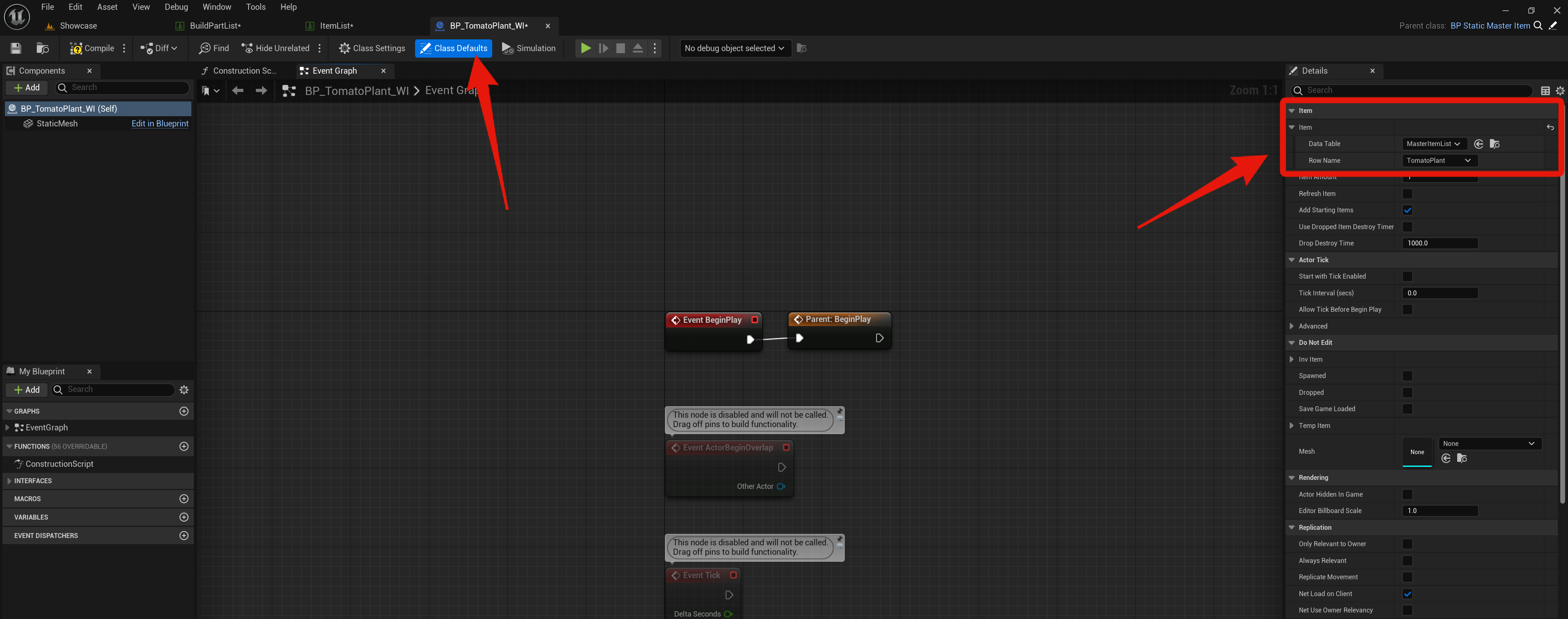
Then open that blueprint and go to the Class Defaults and find the Item setting, then change the Row Name to your farming actors row name in the ItemList like the image below.
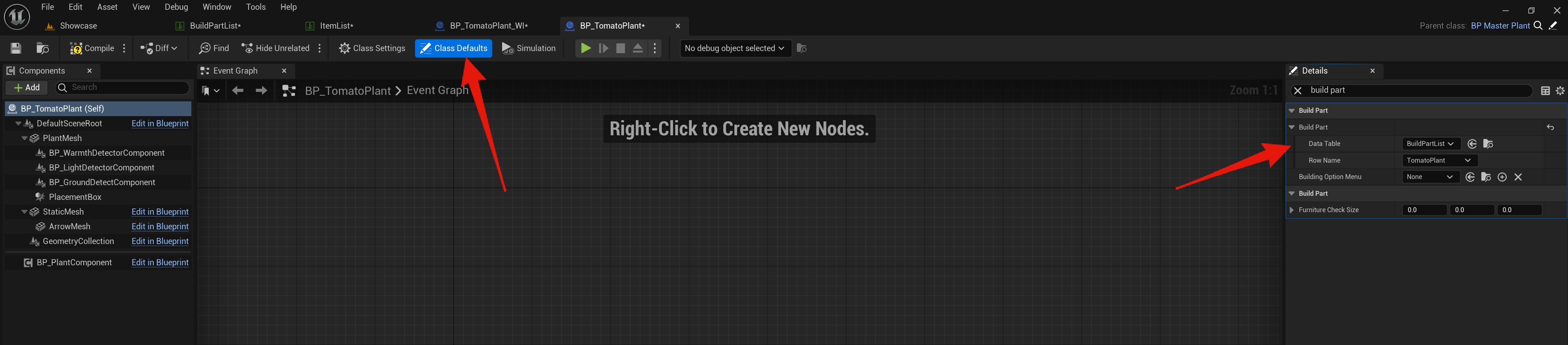
Lastly open the device blueprint in the PlayerFarmingSystem/Blueprints/Plants so for example the BP_TomatoPlant then in its Class Defaults search for Build Part then set its Data Table to MasterBuildPartList and set its Row Name to the devices row name from the BuildPartList like the image below.
Keep in mind you will need to repeat these steps for each farming actor.
Harvesting, Cure, Watering and Fertilizing
Next you need to set what item the player will receive when the harvest a plant, to do this go to the plants blueprint in the PlayerFarmingSystem/Blueprints/Plants and open the plant blueprint you want to set the harvest items in, for this example I will be using the BP_TomatoPlant.
Then select the BP_PlantComponent and in the Details panel find the Plant Settings and then the Vegetable settings then copy the video below, the Resource name you set will be a row name of an item from the ItemList, this determines the item the player will receive and you can set the min and max amount, you can also add additional items here if you wish.
You will need to do this with each plant that you can harvest.
Next to set the item cost of watering a plant go to the BP_PlayerFarmingComponent and then go to the Class Defaults, then in the Resources category find the Water Resource Cost, here you can set the Resource name. Again this is the item row name from the item list that you want the water action to use, you can also set the amount like shown in the image below.
Here you can also set the Fertilize and Cure Resource Cost in the same way by setting a row name of the item from the Item List and the amount of that item to use.

You can set multiple items in these cost settings, this will mean the player will have to have at least one of the items you add to the cost setting to be able to do that action.
HUD
You may want to now remove some of the HUD widgets from the farming systems HUD as we are no longer using them, you can follow the video below in the BP_FarmingHUD to remove these widgets.
Other Blueprints
Go to the BP_DamageZone and select the DamageZone component in the Components panel, then in the Details panel find the Collision Presets setting and make sure in there the Preview, Light and Placement option is set to Ignore. For plants to take damage from the damage zone you’ll need to select the PlantMesh component in their blueprint and in the details panel tick on Generate Overlap Events.
Then go to the BP_NoBuildZone and select the NoBuildZone component in the Component panel, then in the Details panel find the Collision Presets setting and make sure in there Preview and Light option is set to Ignore.
Then go to the BP_DamageZone and select the DamageZone component in the Components panel, then in the Details panel find the Collision Presets setting and make sure in there the Preview, Light and Placement option is set to Ignore.
Go to the BP_PlotPole and select the OwnershipShpere in the Components panel and in the Details panel set the Collision Presets settings to whats shown in the image below.

Optional Extras
You can find a guide below for additional optional extra features you may want to add in after integrating Player Farming System with Survival Game Kit V2
 Defuse Studios